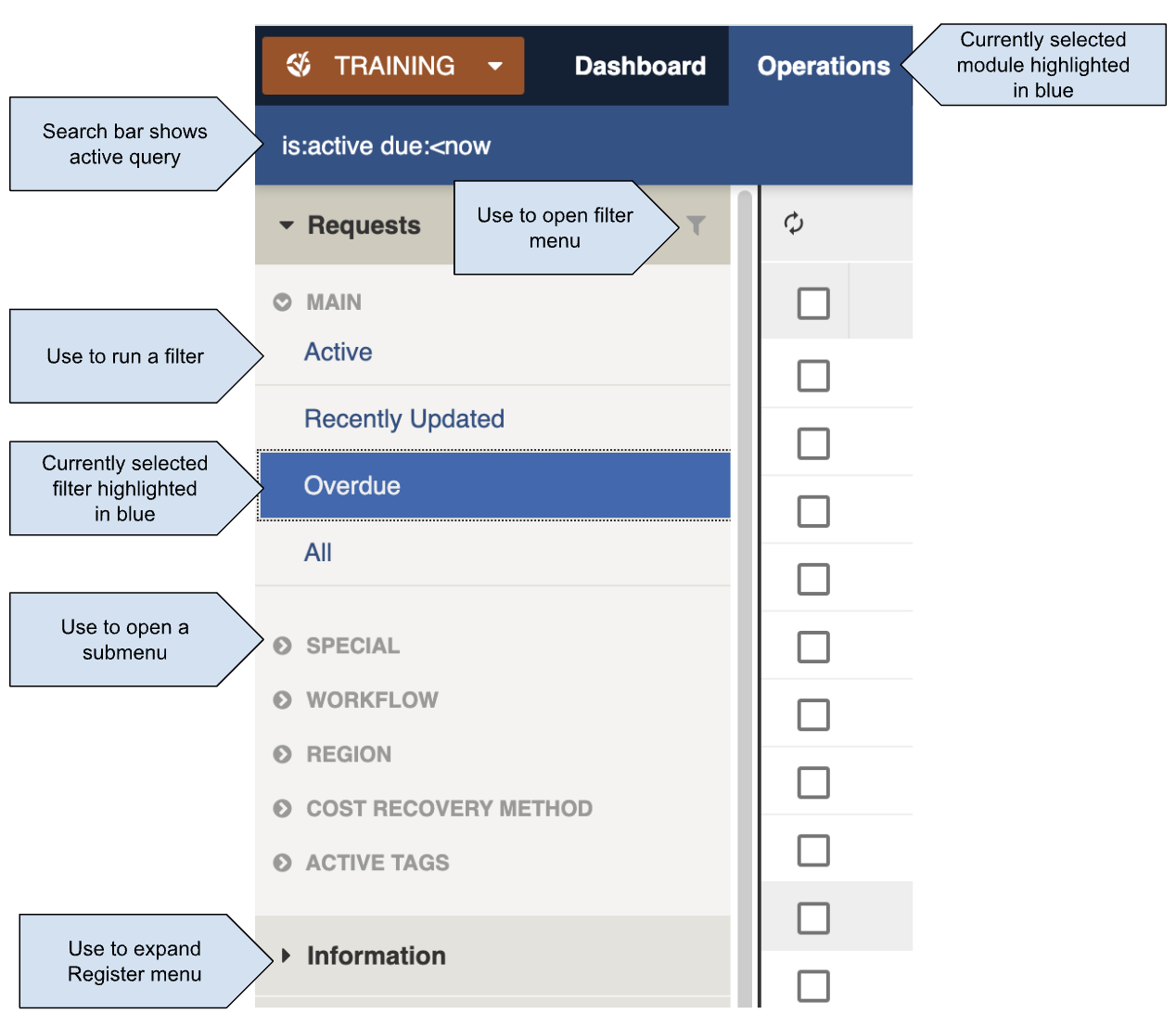
Register navigation
Register navigation
 * Map
* Map  These icons can be found at the top right of the Register navigation bar.
***
## Datagrid View
The Datagrid by default shows all items listed over a number of pages.
The following filters are available to refine the list.
### **Filter Menus and Filters**
The easiest way to filter and view a list of items is to use a Filter menu.
Filter menus are grouped by categories. You can expand a category using the arrow symbol on the left of the category name.
Some filters are initially hidden. These are usually ones that will most likely return no result, for example those without [counters](#counters). To unhide a hidden filter, activate the eye
These icons can be found at the top right of the Register navigation bar.
***
## Datagrid View
The Datagrid by default shows all items listed over a number of pages.
The following filters are available to refine the list.
### **Filter Menus and Filters**
The easiest way to filter and view a list of items is to use a Filter menu.
Filter menus are grouped by categories. You can expand a category using the arrow symbol on the left of the category name.
Some filters are initially hidden. These are usually ones that will most likely return no result, for example those without [counters](#counters). To unhide a hidden filter, activate the eye icon.
icon.

hidden filter

Filters in the main category
with counters in red and blue
 button.
{% hint style="info" %}
Sometimes other factors can cause filters and counters to be out of date. In this case the system may more help to refresh. If you're consistently finding inconsistencies, you can use the [Reload App Data](/concepts-and-fundamentals/on-a-computer/your-user-profile-and-duties.md#app-data) under Diagnostics in the User menu or try refreshing the page.
{% endhint %}
### **Searching**
To filter the datagrid use the Search icon
button.
{% hint style="info" %}
Sometimes other factors can cause filters and counters to be out of date. In this case the system may more help to refresh. If you're consistently finding inconsistencies, you can use the [Reload App Data](/concepts-and-fundamentals/on-a-computer/your-user-profile-and-duties.md#app-data) under Diagnostics in the User menu or try refreshing the page.
{% endhint %}
### **Searching**
To filter the datagrid use the Search icon  in the Navigation Bar to open the Search Bar or activate the Register filters using the Filter icon
  .
More information on the search parameters can be found in the [Searching and Querying](/concepts-and-fundamentals/on-a-computer/searching-filtering-and-querying-registers.md) section.
### Datagrid controls
Items presented are determined by the currently activated filter and any datagrid controls enabled.
Datagrid controls are found at the top and bottom of the [items list](#conceptualoverview-status-priority-and-progress). These determine both how the data will be presented and what actions can be performed on it.
By default, it presents 25 items per page sorted with the most recently updated at the top. It is not necessary to change these controls to use the datagrid.
.
More information on the search parameters can be found in the [Searching and Querying](/concepts-and-fundamentals/on-a-computer/searching-filtering-and-querying-registers.md) section.
### Datagrid controls
Items presented are determined by the currently activated filter and any datagrid controls enabled.
Datagrid controls are found at the top and bottom of the [items list](#conceptualoverview-status-priority-and-progress). These determine both how the data will be presented and what actions can be performed on it.
By default, it presents 25 items per page sorted with the most recently updated at the top. It is not necessary to change these controls to use the datagrid.

Datagrid controls and columns
 [Refresh](#refreshing-the-datagrid)
*
[Refresh](#refreshing-the-datagrid)
*  [Actions menu](#actions-menu)
*
[Actions menu](#actions-menu)
*  [Options menu](#options-menu)
* Datagrid columns, the first of which is the selection column which includes a tickbox
* Select All column
* Pagination, at the bottom of the grid
#### Refresh
Sometimes the datagrid can get out of sync with the filters, such as if new data gets added or if you're moving from module to module or register to register. If you're finding the active filter isn't displaying what you're expecting the datagrid may also need a refresh. This is similar to [refreshing filters and counters](#refreshing-the-filters-and-counters). Use the Refresh button at the top left to update the datagrid to the latest data.
{% hint style="info" %}
The [Options menu](#options-menu) has an option to Auto Refresh, however this is turned off by default for performance reasons.
{% endhint %}
#### Actions Menu
The Actions menu provides access to additional functions for bulk management of records within a register. It is located in the Datagrid menu bar to the top right of the datagrid.
The available options will depend on the functions available for the register you are using, your duty and permissions and whether or not you have selected records.
{% hint style="info" %}
Most actions will only work if you have an Event selected
{% endhint %}
This can include:
* **Bulk edit** (requires selecting of one or more records - see Working with Register Items)
* **Export to Report** (exports all records, or only selected ones if any are selected)
* **Create a Copy** (duplicate an item)
* **Copy IDs** (to clipboard)
* **Generate file** (such as a Mail Merge) (requires selecting of one or more records)
You can select items to perform actions with either:
1. Collectively using the [Select All](#select-all) box
2. Individually by ticking the select box in their row
#### **Options menu**
The options menu determines how items are presented in the datagrid and includes the following:
* Choose Columns
* Group by Column
* Restore to initial state
* Enable Auto Refresh
[Options menu](#options-menu)
* Datagrid columns, the first of which is the selection column which includes a tickbox
* Select All column
* Pagination, at the bottom of the grid
#### Refresh
Sometimes the datagrid can get out of sync with the filters, such as if new data gets added or if you're moving from module to module or register to register. If you're finding the active filter isn't displaying what you're expecting the datagrid may also need a refresh. This is similar to [refreshing filters and counters](#refreshing-the-filters-and-counters). Use the Refresh button at the top left to update the datagrid to the latest data.
{% hint style="info" %}
The [Options menu](#options-menu) has an option to Auto Refresh, however this is turned off by default for performance reasons.
{% endhint %}
#### Actions Menu
The Actions menu provides access to additional functions for bulk management of records within a register. It is located in the Datagrid menu bar to the top right of the datagrid.
The available options will depend on the functions available for the register you are using, your duty and permissions and whether or not you have selected records.
{% hint style="info" %}
Most actions will only work if you have an Event selected
{% endhint %}
This can include:
* **Bulk edit** (requires selecting of one or more records - see Working with Register Items)
* **Export to Report** (exports all records, or only selected ones if any are selected)
* **Create a Copy** (duplicate an item)
* **Copy IDs** (to clipboard)
* **Generate file** (such as a Mail Merge) (requires selecting of one or more records)
You can select items to perform actions with either:
1. Collectively using the [Select All](#select-all) box
2. Individually by ticking the select box in their row
#### **Options menu**
The options menu determines how items are presented in the datagrid and includes the following:
* Choose Columns
* Group by Column
* Restore to initial state
* Enable Auto Refresh
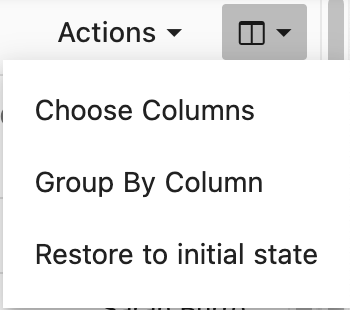
Options menu
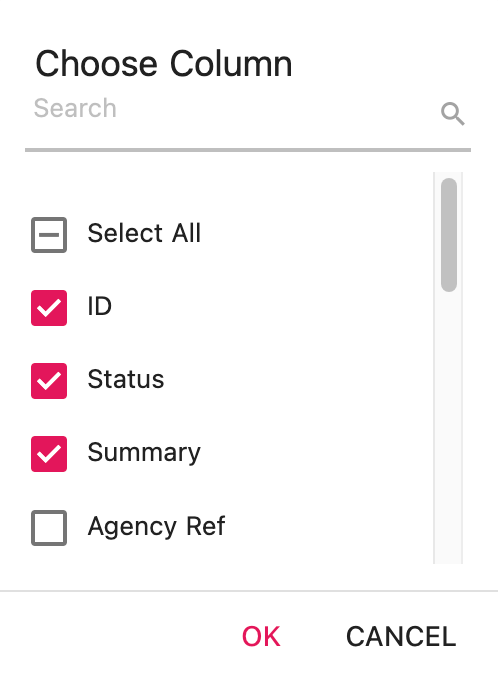
Searching and selecting available columns using tick boxes

Sorting by a column by toggling the up and down arrow

Dragging items into the column header to group

Select All box ticked

A minus symbol indicates not all items are selected

Datagrid pagination

Selecting an item
 is assigned but not underway
* **Blue**
is assigned but not underway
* **Blue**  is in progress
* **Green**
is in progress
* **Green**  is safe or completed
* **Grey**
is safe or completed
* **Grey**  is inactive or completed
***
## Map View
The Map View displays register items from the current filter in a geo-spatial format, using markers, polygons and overlays (layers).
* To activate Map View select the pin icon from the top right of the Register navigation bar.
* Zoom in and out using the  and  controls at the top left, or use the pinch/spread gestures if using a touch screen or mobile device.
* To move the map around, select and drag the map area.
* Click the **full screen icon**
is inactive or completed
***
## Map View
The Map View displays register items from the current filter in a geo-spatial format, using markers, polygons and overlays (layers).
* To activate Map View select the pin icon from the top right of the Register navigation bar.
* Zoom in and out using the  and  controls at the top left, or use the pinch/spread gestures if using a touch screen or mobile device.
* To move the map around, select and drag the map area.
* Click the **full screen icon** (bottom left) to expand the map.
* You can filter by asset class using the drop down list at the bottom of the screen.
* Click the **Layers icon**
(bottom left) to expand the map.
* You can filter by asset class using the drop down list at the bottom of the screen.
* Click the **Layers icon** (bottom right) to toggle available map overlays.
* To **exit Map view**, click the datagrid view button
(bottom right) to toggle available map overlays.
* To **exit Map view**, click the datagrid view button  (top right).
### Viewing Items from the Map
* Items on the map are indicated by **Points**, **LineStrings** and **Polygons**, typically colour coded according to their workflow state.
* Pins can have icons depending on their register. For example, on the map a [Request that is 'Requested](broken://pages/6qkLMNrCU6gx9Gj5hsi7#request-workflow)' has an icon that looks like an blue in-tray
(top right).
### Viewing Items from the Map
* Items on the map are indicated by **Points**, **LineStrings** and **Polygons**, typically colour coded according to their workflow state.
* Pins can have icons depending on their register. For example, on the map a [Request that is 'Requested](broken://pages/6qkLMNrCU6gx9Gj5hsi7#request-workflow)' has an icon that looks like an blue in-tray  .
* To **view a summary** of an item, tap the icon on the map.
* Selecting **View** in the summary links you directly to the full item details.
.
* To **view a summary** of an item, tap the icon on the map.
* Selecting **View** in the summary links you directly to the full item details.
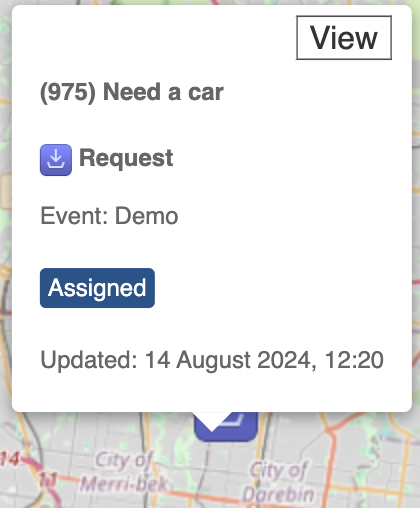
Tapping an icon on the map reveals a summary of the icon.