# Editing Items

## Overview

If you have permission to do so, you will be able to make changes to register items.

The fields available for editing are based on the permissions of your currently on duty position.

## Editing an Item

You can edit items individually or [in bulk via the actions menu](https://docs.cw.crisisworks.com/concepts-and-fundamentals/on-a-computer/using-the-datagrid/bulk-actions).

To edit an individual item (if you have access to):

1. [Open the item](https://docs.cw.crisisworks.com/concepts-and-fundamentals/on-a-computer/using-the-datagrid/viewing-items)
2. At the top right of the item form, press the 'Edit' button <img src="https://3923904090-files.gitbook.io/~/files/v0/b/gitbook-x-prod.appspot.com/o/spaces%2FNy7IznbrPLUq6GJDDQDk%2Fuploads%2FiI6RdjHT9RCjEXkP2JMt%2Fimage.png?alt=media&#x26;token=be803887-90d4-4a3c-81bf-b606d083f1fe" alt="" data-size="line">to enter Edit mode
3. Make the required changes (required fields indicated with a red asterisk must be completed in order to save)
4. Save using the 'Save' button <img src="https://3923904090-files.gitbook.io/~/files/v0/b/gitbook-x-prod.appspot.com/o/spaces%2FNy7IznbrPLUq6GJDDQDk%2Fuploads%2F0cI1fe19idS1wzl6oxpk%2Fimage.png?alt=media&#x26;token=2a3aede2-63bd-4ba3-ad27-38892dc50de6" alt="" data-size="line"> at the top right of the item form to return to View mode

{% hint style="info" %}
It is important to save the record, if not your work will be lost. Check to ensure that all required fields are completed.
{% endhint %}

Register item forms can be designed to guide interactions. This means that some sections and fields only appear when certain pre-requisites and rules are met. This helps reduce the amount of information required of you at each stage and prevents you from completing information before it is required.&#x20;

{% hint style="info" %}
You may be required to change a field or update a workflow in order to access or complete a section or hand the work over to another role.&#x20;

When unsure about the steps involved in a process, please consult the user documentation, process guide or trainer.
{% endhint %}

## Common Field Concepts

The following elements are common to editing items.

### Required Fields

All required fields (those marked by a red asterisk) must be completed before an item will be saved.

If you miss a field, you'll see a red error directly below the save button and the field required to be completed will also be highlighted in red. Note that on large forms you may need to scroll down to find the highlighted required field.

<figure><img src="https://3923904090-files.gitbook.io/~/files/v0/b/gitbook-x-prod.appspot.com/o/spaces%2FNy7IznbrPLUq6GJDDQDk%2Fuploads%2F87H3khK0eYPPGRvYRDsN%2Fimage.png?alt=media&#x26;token=6713c192-fd12-412c-b092-f08bfa5c9c9b" alt="" width="375"><figcaption><p>Red error message and highlighted required field</p></figcaption></figure>

You will most likely need to re-save using the Save button again if you receive an error message upon saving.

{% hint style="info" %}
You will need to re-save using the Save button again if you receive an error message upon saving. If you still can't save, consult troubleshooting guides or contact support.
{% endhint %}

### Recording Notes

Almost every type of register item has a yellow **Record Notes** field at the very top of the form when editing.

This field is essential for audit purposes.&#x20;

Notes added will appear in the Activity History along with other log items.

To record notes:

1. Edit the item
2. In the yellow 'Record Notes' section, record any notes including of any important changes made&#x20;
3. Save

<figure><img src="https://3923904090-files.gitbook.io/~/files/v0/b/gitbook-x-prod.appspot.com/o/spaces%2FNy7IznbrPLUq6GJDDQDk%2Fuploads%2FFapZexTcdAJoAXKDhGrZ%2Fimage.png?alt=media&#x26;token=aa9bc541-14ee-4ede-814a-769036cbecc3" alt="" width="375"><figcaption><p>Record Notes field</p></figcaption></figure>

{% hint style="info" %}
Notes cannot be edited or deleted. However new notes can be created which can contain explanations or corrections to previously recorded notes.
{% endhint %}

### Rich Text Fields

Rich Text fields support more advanced formatting options via a toolbar with word-processing style options.

<figure><img src="https://3923904090-files.gitbook.io/~/files/v0/b/gitbook-x-prod.appspot.com/o/spaces%2FNy7IznbrPLUq6GJDDQDk%2Fuploads%2FdRitjyE80WbH9kVrg97V%2Fimage.png?alt=media&#x26;token=6ff21ff5-582e-4d18-92a8-e35f9283c75f" alt="" width="563"><figcaption><p>A Rich Text field</p></figcaption></figure>

Rich Text fields typically support the following formatting options:

* **Styles selection** - a limited set of pre-set styles selectable via a drop-down list <img src="https://3923904090-files.gitbook.io/~/files/v0/b/gitbook-x-prod.appspot.com/o/spaces%2FNy7IznbrPLUq6GJDDQDk%2Fuploads%2FG0GRoGf9xMpiOumWO0cu%2Fimage.png?alt=media&#x26;token=6781600e-1056-49d5-928a-0c53288d9ab7" alt="" data-size="line"> typically with Paragraph and 3 levels of Headings for breaking text into sections
* **Emphasis formatting** - Bold and Italic <img src="https://3923904090-files.gitbook.io/~/files/v0/b/gitbook-x-prod.appspot.com/o/spaces%2FNy7IznbrPLUq6GJDDQDk%2Fuploads%2FvYEBKPcXDw0yu6HNuNeu%2Fimage.png?alt=media&#x26;token=77e16b1b-0ff2-4553-9cbf-e40c36fdfb5e" alt="" data-size="line">buttons to activate and deactivate styles for emphasising&#x20;
* **Lists** - unordered (bullet) and ordered list (numbered) buttons <img src="https://3923904090-files.gitbook.io/~/files/v0/b/gitbook-x-prod.appspot.com/o/spaces%2FNy7IznbrPLUq6GJDDQDk%2Fuploads%2FJ7wBcxq5RyFeuWfvgEnv%2Fimage.png?alt=media&#x26;token=b37dcfdf-f33e-4a68-9395-7bbeb1b36368" alt="" data-size="line">toggle them to create a list
* **Indent/Outdent** - indent (left arrow) and outdent (right arrow) buttons <img src="https://3923904090-files.gitbook.io/~/files/v0/b/gitbook-x-prod.appspot.com/o/spaces%2FNy7IznbrPLUq6GJDDQDk%2Fuploads%2FXd3lZJhRGp5nz065wwc6%2Fimage.png?alt=media&#x26;token=9913a11a-68e5-43b9-b571-2d6781e809c9" alt="" data-size="line"> toggle them to indent text
* **Blockquote** - the blockquote button <img src="https://3923904090-files.gitbook.io/~/files/v0/b/gitbook-x-prod.appspot.com/o/spaces%2FNy7IznbrPLUq6GJDDQDk%2Fuploads%2F2kNnjqlHBXmUpl1EczLd%2Fimage.png?alt=media&#x26;token=c41fe792-2531-4453-99c2-3d3104cc5996" alt="" data-size="line"> enables an indented quote style
* **Tables** - the tables button <img src="https://3923904090-files.gitbook.io/~/files/v0/b/gitbook-x-prod.appspot.com/o/spaces%2FNy7IznbrPLUq6GJDDQDk%2Fuploads%2FFZVWoSdU7oruf9VBSi6y%2Fimage.png?alt=media&#x26;token=04b18b13-1156-425d-a9c2-d3838154ecef" alt="" data-size="line"> enables a table to be inserted by activating the down chevron you can select the number of columns and rows using the grid selector below. Once added, rows can be added by tabbing within the table.<br>

  <figure><img src="https://3923904090-files.gitbook.io/~/files/v0/b/gitbook-x-prod.appspot.com/o/spaces%2FNy7IznbrPLUq6GJDDQDk%2Fuploads%2FTDGRY36WynNARwxnMncp%2Fimage.png?alt=media&#x26;token=ff24ce18-0954-447d-ba32-3ecd5ac45990" alt="" width="164"><figcaption><p>Selection of rows and columns</p></figcaption></figure>
* **Undo/Redo** - the Undo (left arrow) and redo (right arrow) buttons <img src="https://3923904090-files.gitbook.io/~/files/v0/b/gitbook-x-prod.appspot.com/o/spaces%2FNy7IznbrPLUq6GJDDQDk%2Fuploads%2FY7BCuA0IPK5PuEQ77pT7%2Fimage.png?alt=media&#x26;token=cbea0b33-d560-4e95-9d76-fad0416436f8" alt="" data-size="line"> will undo or redo the last action in the field. These will be greyed out if there were no further actions.

### Files

Some sections may allow you to attach files, for example, to record evidence such as documents or images.

#### Adding Files

Where a file can be added you will see an 'Add File' button <img src="https://3923904090-files.gitbook.io/~/files/v0/b/gitbook-x-prod.appspot.com/o/spaces%2FNy7IznbrPLUq6GJDDQDk%2Fuploads%2Fz0R7kfrNpM0gVWhJKbX0%2Fimage.png?alt=media&#x26;token=6889983c-9688-4545-88d1-168d1c83c8c9" alt="" data-size="line">.
The interface supports two methods of file attachment:

1. Drag and drop one or more files from the desktop into the attach file window, or;
2. Browsing from the file menu&#x20;

Using the 'Browse files' link will launch a desktop file window to select the file. Select one or more files and then use the Open command on your computer to attach the files.
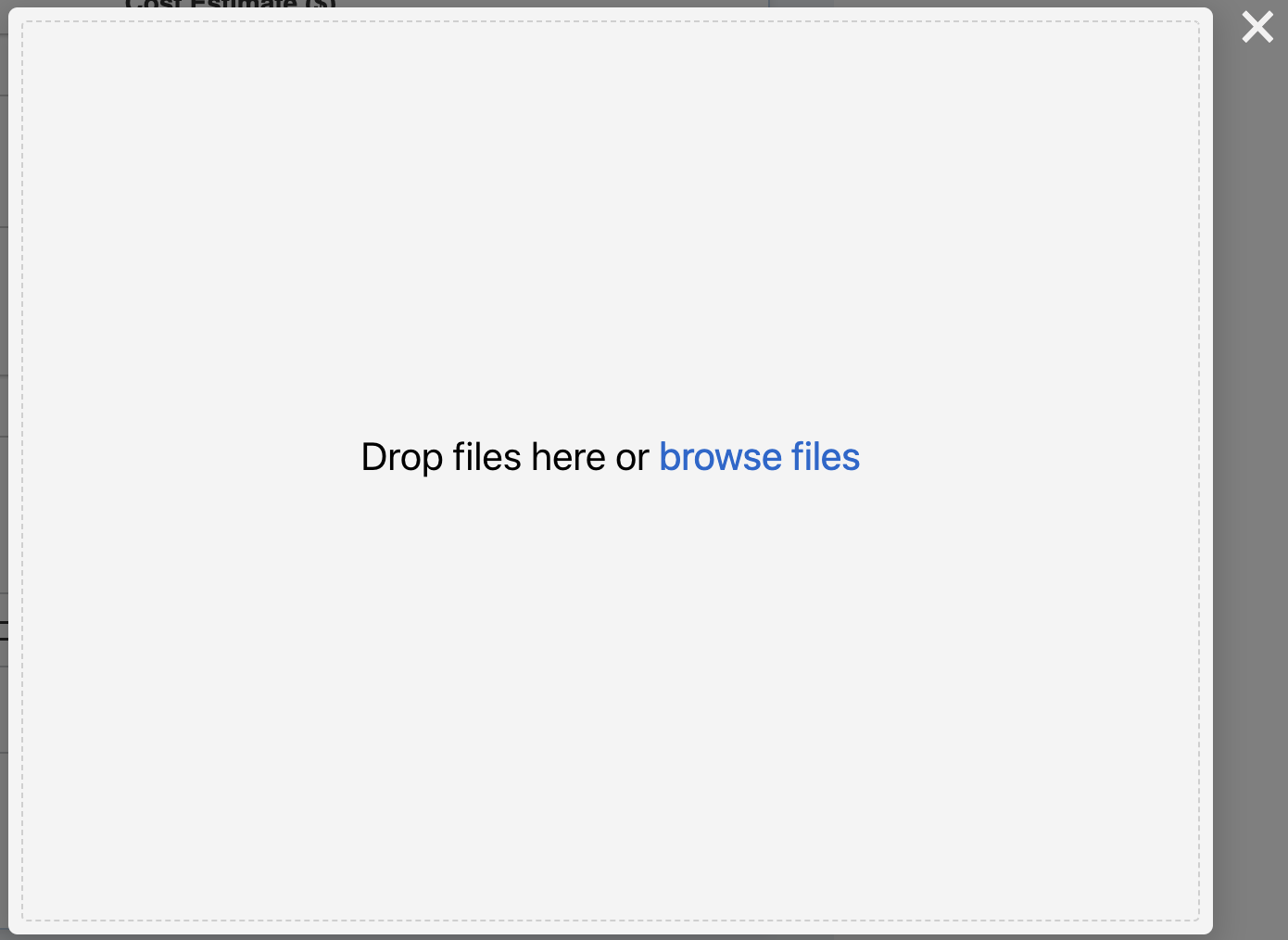
<figure><img src="https://3923904090-files.gitbook.io/~/files/v0/b/gitbook-x-prod.appspot.com/o/spaces%2FNy7IznbrPLUq6GJDDQDk%2Fuploads%2FZfsV9WeASu7uBWDMUtHH%2Fimage.png?alt=media&#x26;token=194efb54-33b8-42d3-b27b-91887ab6e018" alt="" width="375"><figcaption><p>Drag and drop file browser</p></figcaption></figure>

Attached files will show in the window below including a thumbnail, metadata including the upload date and file size along with a download link.&#x20;

To add more files, repeat the process.

To close the File attachment window use the cross icon.

#### Removing Files

To remove any attached files use the red cross icon <img src="https://3923904090-files.gitbook.io/~/files/v0/b/gitbook-x-prod.appspot.com/o/spaces%2FNy7IznbrPLUq6GJDDQDk%2Fuploads%2FasRABG1aIymZqjOt4rTS%2Fimage.png?alt=media&#x26;token=4bec3b0d-db92-40cc-993a-10ab131a6e22" alt="" data-size="line">.&#x20;

<figure><img src="https://3923904090-files.gitbook.io/~/files/v0/b/gitbook-x-prod.appspot.com/o/spaces%2FNy7IznbrPLUq6GJDDQDk%2Fuploads%2FSOCspFjdm24nTQ63cSUM%2Fimage.png?alt=media&#x26;token=e5ed3e6b-72ba-4278-abdd-515faa6f16aa" alt="" width="275"><figcaption></figcaption></figure>

#### Downloading Files

Use the file download icon ![](https://3923904090-files.gitbook.io/~/files/v0/b/gitbook-x-prod.appspot.com/o/spaces%2FNy7IznbrPLUq6GJDDQDk%2Fuploads%2FT32DIaTagI6Rohb7uQSb%2Fimage.png?alt=media\&token=ebbfbcec-1db1-413b-876e-554f81f0836c) to download and preview an uploaded file. Check your local file system to view and open the file.

### Photos and Images

As photos and images are also files they are handled similarly. A key difference is that the photos can also be added from the device's camera or media gallery. This requires the relevant media permissions on the device.

<figure><img src="https://3923904090-files.gitbook.io/~/files/v0/b/gitbook-x-prod.appspot.com/o/spaces%2FNy7IznbrPLUq6GJDDQDk%2Fuploads%2FCqQAL9WiThs8mPwAC6d6%2Fimage.png?alt=media&#x26;token=7ac70d7f-c32a-49c2-a200-4e9ceaf74744" alt=""><figcaption></figcaption></figure>

#### Metadata watermark

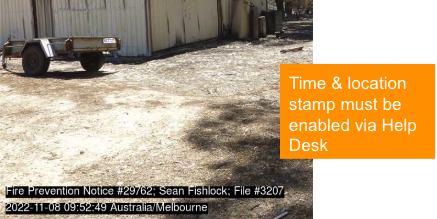
When configured, metadata can be automatically watermarked onto photos. This includes key identifying information on when the photo was taken (timestamp), who took it and where it was taken (geostamp) who took the photo. &#x20;

This feature is useful when presenting photos as legal evidence (such an in a notice).

This information can include:

* Item type
* ID
* Officer
* Location
* File number
* Date/time

<figure><img src="https://3923904090-files.gitbook.io/~/files/v0/b/gitbook-x-prod.appspot.com/o/spaces%2FNy7IznbrPLUq6GJDDQDk%2Fuploads%2FtHPdzpevzIHwrMT0rRuA%2Fimage.png?alt=media&#x26;token=2c739957-059e-48fe-805d-0991e1009bb8" alt=""><figcaption></figcaption></figure>

These are post-processed (added after the initial upload) and the item must have an Active status.

This function must be configured for each register you want to use it with and it is a global setting - that is - it will appear on all photos for that register. To enable this function for the register you're working with [contact Help Desk](https://docs.cw.crisisworks.com/security-and-support/maintenance-and-support/accessing-support).

### Selecting Dates

Some fields require entry of a date or date and time.

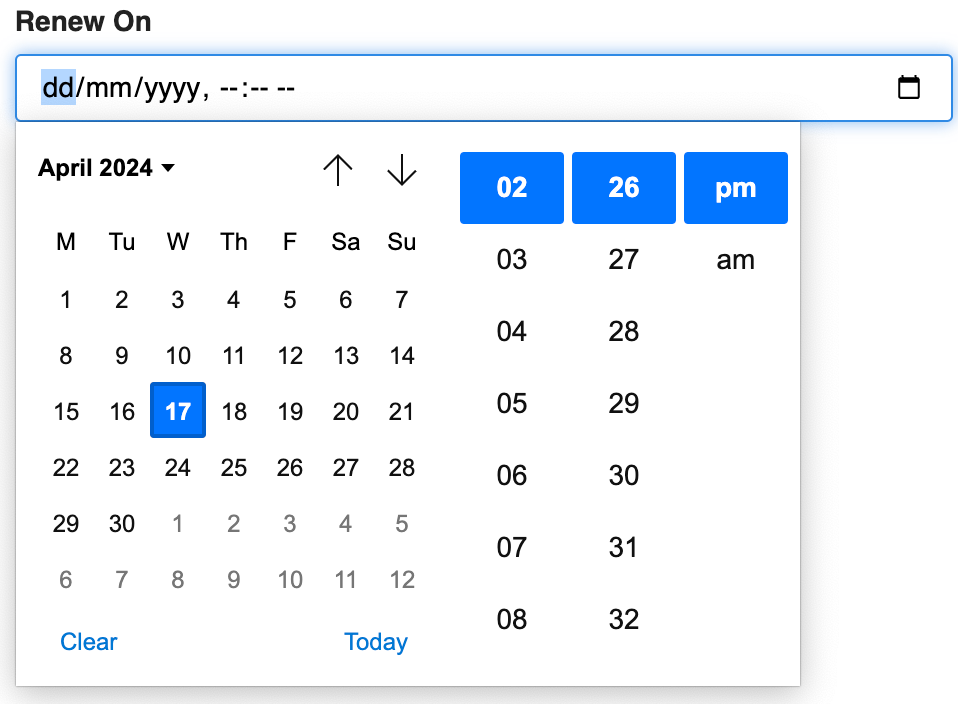
This contains a blank value by default and appears in the format dd/mm/yyyy representing two digits for day i.e (22 for the 22nd), two for the month (i.e. 02 for Feburary) and four for year (i.e. 2024).

Pickers that require a time will also have a blank format **--:-- --** representing a 12 hour clock time with two digits for the hour, minutes and two for the am or pm.

You can enter a date by activating the field and either typing over the default value or entering it via the visual picker popup which appears.

<figure><img src="https://3923904090-files.gitbook.io/~/files/v0/b/gitbook-x-prod.appspot.com/o/spaces%2FNy7IznbrPLUq6GJDDQDk%2Fuploads%2FApl1S5vWDfYq5pXztAHe%2Fimage.png?alt=media&#x26;token=2bd66aa3-c724-4dd0-b776-6e400296c277" alt="" width="375"><figcaption><p>Date and time field with visual picker popup open</p></figcaption></figure>

To enter the current date, use the blue Today link at the bottom of the date time picker.

To enter a date, you can click on the calendar icon or type over the 'dd' part of the date.

To navigate between or select months, type over the 'mm' part of the date or select the up and down arrows  on the date time picker.

To navigate between or select years, select the 'yyyy' part of the date and edit or activate the chevron next to the displayed month and year.

If the time is also included you will need to select a time. You can do this by typing over the dashes '--/--' or selecting a value from the hours and minutes column. AM or PM is also required which can be entered by typing over the remaining dashes or the 'am' or 'pm'.

### Location

The system supports multiple methods of location selection from the [Asset database](https://docs.cw.crisisworks.com/concepts-and-fundamentals/mapping-and-assets#property-and-assets-database).

<figure><img src="https://3923904090-files.gitbook.io/~/files/v0/b/gitbook-x-prod.appspot.com/o/spaces%2FNy7IznbrPLUq6GJDDQDk%2Fuploads%2F2d8JmaFu3A9j1nmyaZEJ%2Fimage.png?alt=media&#x26;token=61cb2421-5918-41aa-8dc7-89b63ed3c684" alt="" width="375"><figcaption><p>An example of location selection</p></figcaption></figure>

Select a location to deliver or perform the request.&#x20;

Depending on the form there are several ways to do this:

1. Text search - by Property address, Library Item or Point Of Interest
2. Map based search&#x20;
3. Marking the Current Location using the Mark Current Location button (this is particularly useful in the mobile app)
4. Manually marking Locations using the Edit the Map button

See the sections below for more information on each of these options.

#### Fetching Contacts

For Assets that have available Asset Contacts (such as owners of a property) you can use the Fetch Contacts <img src="https://3923904090-files.gitbook.io/~/files/v0/b/gitbook-x-prod.appspot.com/o/spaces%2FNy7IznbrPLUq6GJDDQDk%2Fuploads%2Fj6NNZ3Z6ULU583Ry7m46%2Fimage.png?alt=media&#x26;token=d21bc3cb-a260-4d64-b004-53a85daae0b4" alt="" data-size="line"> button to preview contact details.&#x20;

This function is available only on registers that support it (such as Permits and Inspections) and required special [security policies](https://docs.cw.crisisworks.com/system-administration/configuring-the-system/positions#security-policies). Asset Contacts must also be [imported](https://docs.cw.crisisworks.com/system-administration/configuring-the-system/imports/assets/asset-contacts) in order for this feature to return results for a given property.

#### Removing Locations

Once you have selected a location, it will appear as the currently selected location. You can remove an individually selected location by using the red cross icon <img src="https://3923904090-files.gitbook.io/~/files/v0/b/gitbook-x-prod.appspot.com/o/spaces%2FNy7IznbrPLUq6GJDDQDk%2Fuploads%2F4eGkybkGSkGeweb7PGBw%2Fimage.png?alt=media&#x26;token=eb445efa-29ae-4024-b1fc-869db6b6255a" alt="" data-size="line">

<figure><img src="https://3923904090-files.gitbook.io/~/files/v0/b/gitbook-x-prod.appspot.com/o/spaces%2FNy7IznbrPLUq6GJDDQDk%2Fuploads%2FtbFmZ8c7Kppm2XeMMLb5%2Fimage.png?alt=media&#x26;token=9a558021-48af-4615-ad4d-c7d35b02d700" alt="" width="375"><figcaption><p>Example of a selected location</p></figcaption></figure>

Additionally, where present you can also clear locations using the 'Clear' button <img src="https://3923904090-files.gitbook.io/~/files/v0/b/gitbook-x-prod.appspot.com/o/spaces%2FNy7IznbrPLUq6GJDDQDk%2Fuploads%2Fu3UVzLQsbO9907lg6Rsy%2Fimage.png?alt=media&#x26;token=743315e0-2f93-4128-ae97-5a5a030a2049" alt="" data-size="line">.

#### Text Search

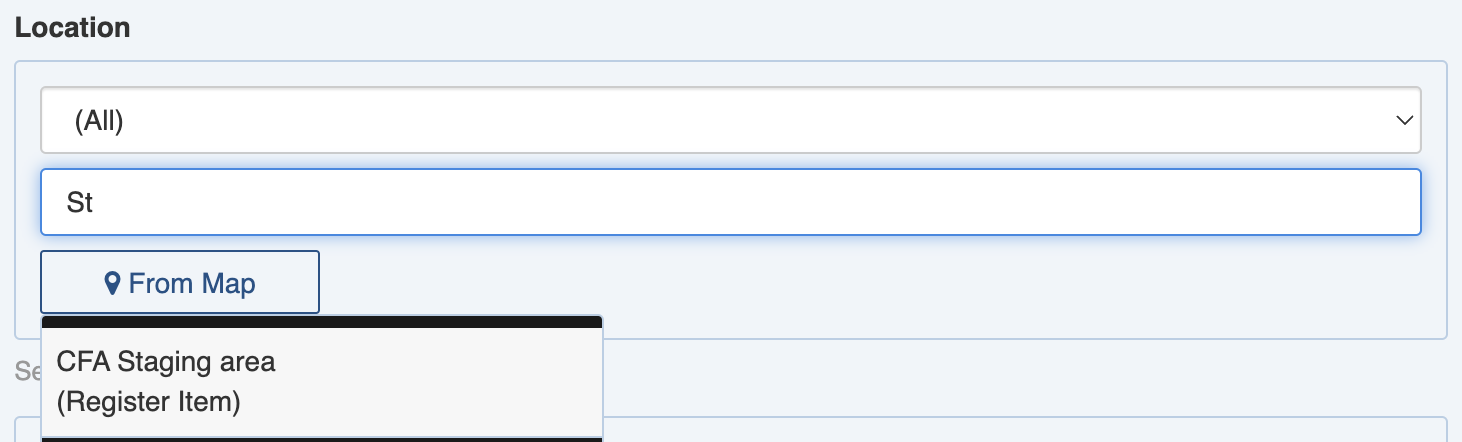
You can perform a text based search by **Property** address, **Library Item** or **Point Of Interest**, or by any other configured asset class. When a property is selected, it will appear on the map.

To search, begin typing in the text field. As you do, a list of corresponding items from the assets database will present itself from which you can choose.&#x20;

<figure><img src="https://3923904090-files.gitbook.io/~/files/v0/b/gitbook-x-prod.appspot.com/o/spaces%2FNy7IznbrPLUq6GJDDQDk%2Fuploads%2FzPl7VPQsz9xqqs2Rx1ua%2Fimage.png?alt=media&#x26;token=9ad2720d-db09-4ad1-87d5-de0de89cea24" alt="" width="375"><figcaption><p>Text address search</p></figcaption></figure>

Optionally you can filter by asset class or register items, for example by **Property** addresses, **Library Items** or **Points Of Interest.**

To view or annotate this location, you'll need to Edit the Map.

#### Map Based Search

Refer to: [Map View](https://docs.cw.crisisworks.com/concepts-and-fundamentals/on-a-computer/using-the-datagrid/..#map-view)

You can search manually from a map using the From Map <img src="https://3923904090-files.gitbook.io/~/files/v0/b/gitbook-x-prod.appspot.com/o/spaces%2FNy7IznbrPLUq6GJDDQDk%2Fuploads%2FIhXDBseNxZ43vfuA2zi7%2Fimage.png?alt=media&#x26;token=b42a3b49-ccaf-4f41-b4d1-4af20b36615c" alt="" data-size="line"> button which opens a map window from which you can select a location.

{% hint style="info" %}
The map itself, default centre point and layers will depend on the configuration of your system.
{% endhint %}

<figure><img src="https://3923904090-files.gitbook.io/~/files/v0/b/gitbook-x-prod.appspot.com/o/spaces%2FNy7IznbrPLUq6GJDDQDk%2Fuploads%2F24Ax1HRb8ydMgy9docoI%2Fimage.png?alt=media&#x26;token=a8011545-60c2-472b-b25d-91b86a268a43" alt="" width="375"><figcaption><p>Map search interface using Open Street Map layer</p></figcaption></figure>

To find nearby assets:

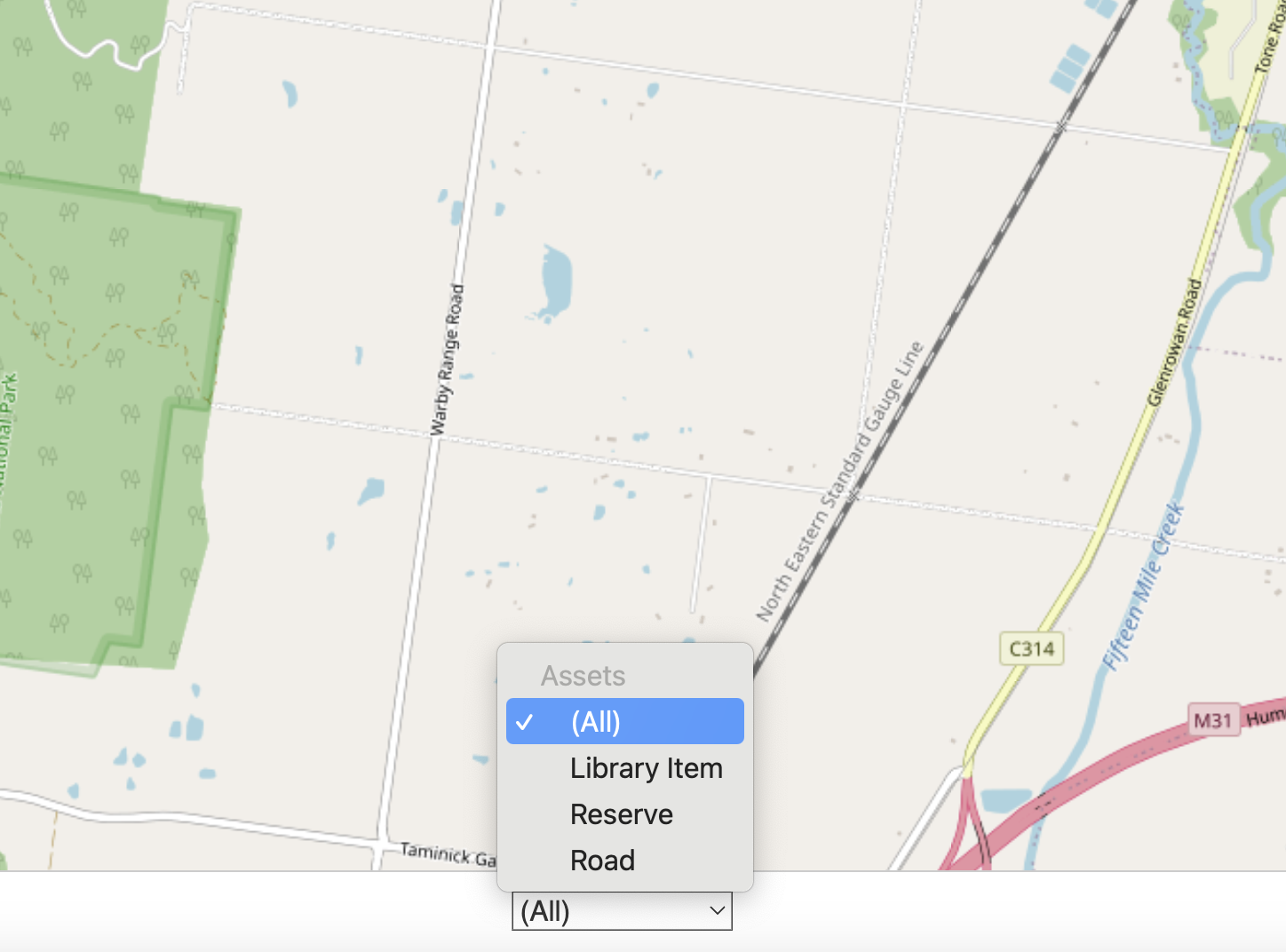
1. Choose the Asset type from the list (default is All)
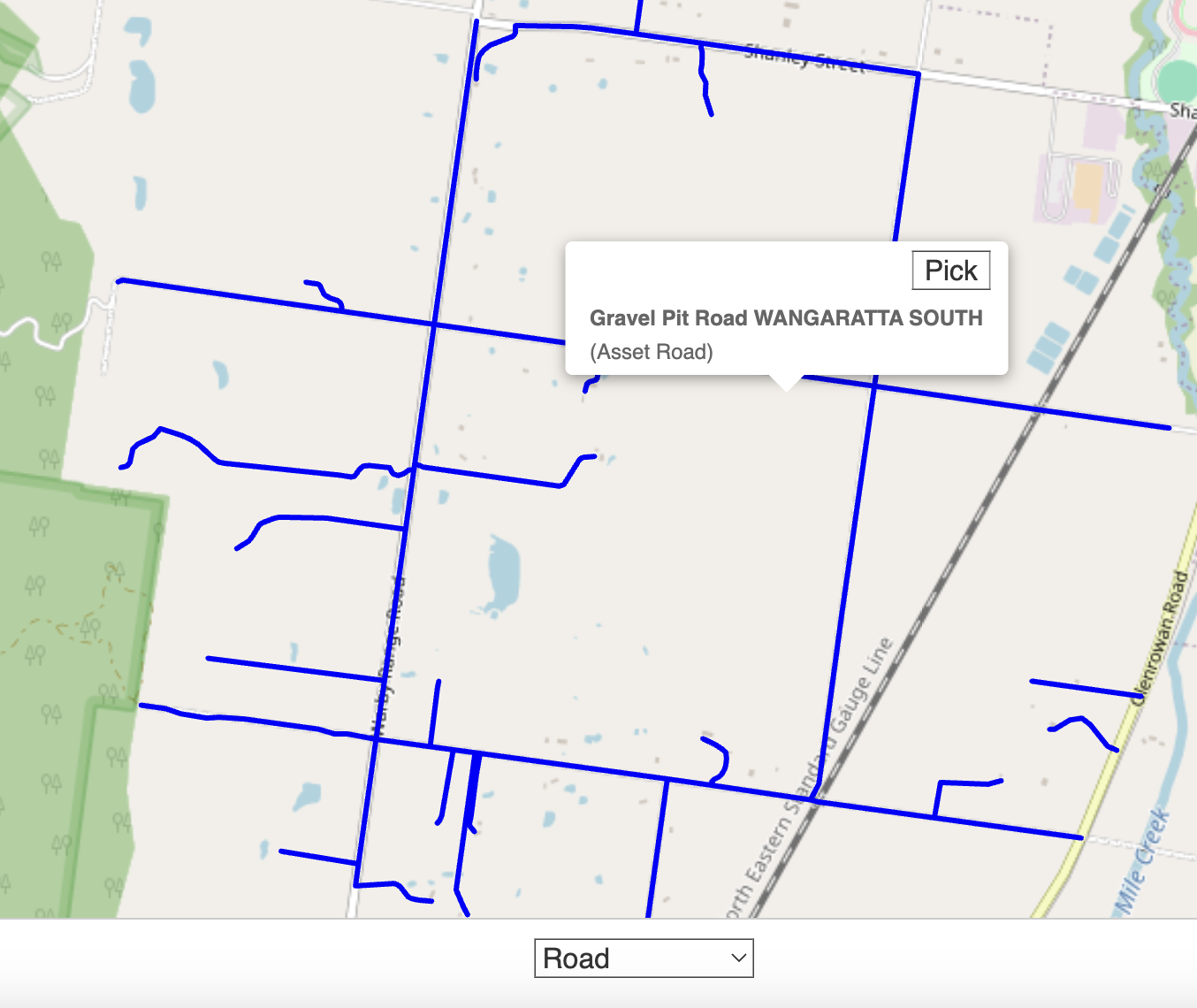
2. Click the map to place the crosshair and find nearby assets (Assets will be highlighted in blue, with the total displayed at the top of the map)
3. Select the asset or segment to view the summary
4. Use the Pick button <img src="https://3923904090-files.gitbook.io/~/files/v0/b/gitbook-x-prod.appspot.com/o/spaces%2FNy7IznbrPLUq6GJDDQDk%2Fuploads%2FQFhs2opCLXWBiGFW5qSf%2Fimage.png?alt=media&#x26;token=2f3e8151-77bf-4848-9112-d78e2e2ad930" alt="" data-size="line"> to pick the asset

<figure><img src="https://3923904090-files.gitbook.io/~/files/v0/b/gitbook-x-prod.appspot.com/o/spaces%2FNy7IznbrPLUq6GJDDQDk%2Fuploads%2FjhqxjxS0ikollBdhAPHm%2Fimage.png?alt=media&#x26;token=0bfee369-0b0c-4a06-a822-4bba3f70e4f2" alt="" width="375"><figcaption><p>Asset selection</p></figcaption></figure>

<figure><img src="https://3923904090-files.gitbook.io/~/files/v0/b/gitbook-x-prod.appspot.com/o/spaces%2FNy7IznbrPLUq6GJDDQDk%2Fuploads%2FuyqpU3OZle1PInVyISib%2Fimage.png?alt=media&#x26;token=cc2c1da4-e11b-4ae5-871e-3321acc73c44" alt="" width="375"><figcaption><p>Assets are highlighted in blue</p></figcaption></figure>

<figure><img src="https://3923904090-files.gitbook.io/~/files/v0/b/gitbook-x-prod.appspot.com/o/spaces%2FNy7IznbrPLUq6GJDDQDk%2Fuploads%2FQpB9mUS0HMFm6aqyNfhq%2Fimage.png?alt=media&#x26;token=4d52a64a-c31b-4245-bcd4-67d880e059c8" alt="" width="375"><figcaption><p>Asset summary for selection</p></figcaption></figure>

To exit Map based search use the Cancel link at the top left.

#### Marking the Current Location

You can use your current location to mark the location if your device is location aware (such as a mobile device or laptop).

To mark the current location, use the Mark Current Location <img src="https://3923904090-files.gitbook.io/~/files/v0/b/gitbook-x-prod.appspot.com/o/spaces%2FNy7IznbrPLUq6GJDDQDk%2Fuploads%2Fo0nW8z8kW2a4oHLHjFpN%2Fimage.png?alt=media&#x26;token=b300d192-0f86-4b3c-a42a-20cc8ea7e833" alt="" data-size="line"> button.

{% hint style="info" %}
Your device will need to have Location enabled in the settings. Consult your device's manual if you do not know how to enable location. If your device does not have Location enabled you will receive an error message.
{% endhint %}

#### Editing the Map  <a href="#editing-the-map" id="editing-the-map"></a>

You can create a custom location from a selected location or from scratch or modify an existing one using the Edit the Map <img src="https://3923904090-files.gitbook.io/~/files/v0/b/gitbook-x-prod.appspot.com/o/spaces%2FNy7IznbrPLUq6GJDDQDk%2Fuploads%2FPSiDEpUFJ0bbr97HgrtN%2Fimage.png?alt=media&#x26;token=ed2f1f19-cfcc-4d8e-ab48-a61c87cc0ea4" alt="" data-size="line"> button.
The map editor has all of the standard map options, plus additional options for drawing.

There are three types of drawing that can be used in combination:

* **Point** - individual markers on the map
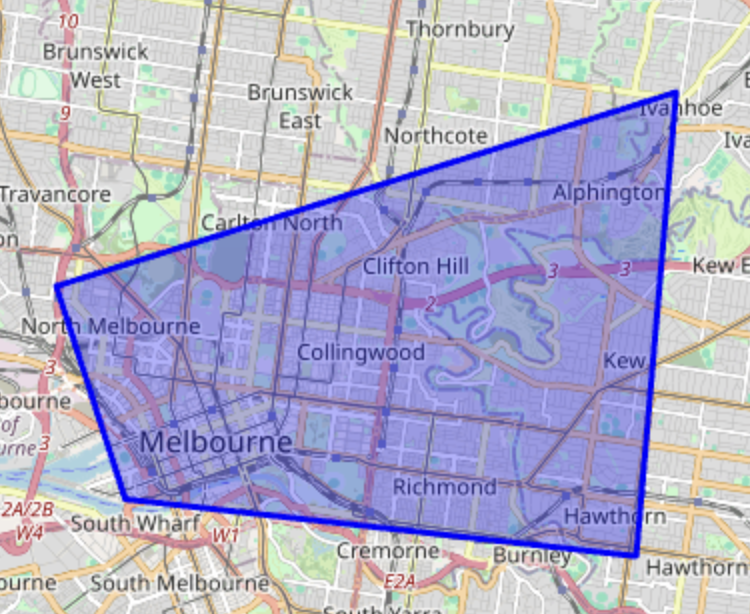
* **Polygon** - a closed shape made up of multiple lines used to define an area
* **Line string** - a line made up of multiple points

To toggle between drawing modes use the Drawing selector at the bottom of the map to select your chosen option and then use the Done link to return to the map.
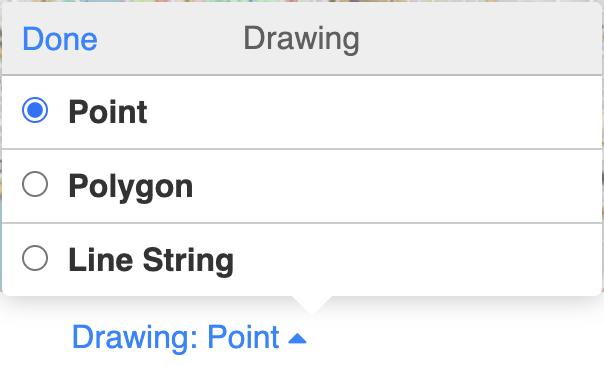
<figure><img src="https://3923904090-files.gitbook.io/~/files/v0/b/gitbook-x-prod.appspot.com/o/spaces%2FNy7IznbrPLUq6GJDDQDk%2Fuploads%2F265bE4l8HmjfUcb2ZUNR%2Fimage.png?alt=media&#x26;token=e8a3cff6-1593-4963-acb2-623c516fd4f2" alt="" width="302"><figcaption><p>Drawing selector</p></figcaption></figure>

Once your drawing is completed, use the 'Finish' option from the bottom right of the map to save.

#### **Mobile Commands**

Additional map controls for *mobile users* are available while in edit mode (these require Location to be enabled on your device). These can help you to plot your path in real-time if you are moving and show your orientation in relation to other map objects.&#x20;

To activate the Help menu use the Question mark icon <img src="https://3923904090-files.gitbook.io/~/files/v0/b/gitbook-x-prod.appspot.com/o/spaces%2FNy7IznbrPLUq6GJDDQDk%2Fuploads%2Fmy9VevIkmExSRTBvA0ew%2Fimage.png?alt=media&#x26;token=2d5a3fb3-4afc-4bb2-b410-eb263802816d" alt="" data-size="line">.&#x20;

&#x20;<img src="https://3923904090-files.gitbook.io/~/files/v0/b/gitbook-x-prod.appspot.com/o/spaces%2FNy7IznbrPLUq6GJDDQDk%2Fuploads%2Fnr9HvdZa583szbzAMHxY%2Fimage.png?alt=media&#x26;token=e61d43d3-aefd-4785-8277-98c8fa3cadd6" alt="" data-size="line">Zoom to current location&#x20;

<img src="https://3923904090-files.gitbook.io/~/files/v0/b/gitbook-x-prod.appspot.com/o/spaces%2FNy7IznbrPLUq6GJDDQDk%2Fuploads%2FRmgU2Fo1vWpP4QvajCyb%2Fimage.png?alt=media&#x26;token=328dcf87-6bf8-4445-bd36-882c2de22217" alt="" data-size="line"> Show compass bearing (requires a double tap to activate)

<img src="https://3923904090-files.gitbook.io/~/files/v0/b/gitbook-x-prod.appspot.com/o/spaces%2FNy7IznbrPLUq6GJDDQDk%2Fuploads%2FvXhL1to7jJOEZnyPPKGZ%2Fimage.png?alt=media&#x26;token=e360f915-dec5-4ff8-8b31-99316074a676" alt="" data-size="line"> Drop point at current location

<img src="https://3923904090-files.gitbook.io/~/files/v0/b/gitbook-x-prod.appspot.com/o/spaces%2FNy7IznbrPLUq6GJDDQDk%2Fuploads%2FJaVEmWPnK9rcVlcyKHcd%2Fimage.png?alt=media&#x26;token=96de0356-3ec5-4a5f-b6ea-8ed3420c0b25" alt="" data-size="line"> Drop points as you move

**Drawing Points**&#x20;

To draw a point:

1. Select 'Point' from the Drawing selector
2. Navigate the map (zoom, pan etc) and tap to drop the point. A single point appears as a callout icon .<img src="https://3923904090-files.gitbook.io/~/files/v0/b/gitbook-x-prod.appspot.com/o/spaces%2FNy7IznbrPLUq6GJDDQDk%2Fuploads%2FkxXWuXNyDMk0MrB8fS0n%2Fimage.png?alt=media&#x26;token=0872c5e7-aa91-4337-bb0d-dda1faa1afdb" alt="" data-size="line">(If you have enabled drop points as you move, points will be dropped automatically.)
3. Repeat until finished. When finished select 'Finish'.

**Drawing LineStrings**

To draw a LineString:

1. Select 'LineString' from the Drawing selector
2. Navigate the map (zoom, pan etc) and tap to drop a point to begin. The yellow point indicates a line which will be connected to the next point that you drop.
3. Repeat until finished. When finished, double tap to complete the line or select 'Finish'.

<figure><img src="https://3923904090-files.gitbook.io/~/files/v0/b/gitbook-x-prod.appspot.com/o/spaces%2FNy7IznbrPLUq6GJDDQDk%2Fuploads%2FaVVQfkWmcDi2imdqOdYR%2Fimage.png?alt=media&#x26;token=fdd66adf-bc56-4f2c-a88b-ebd1ad55a019" alt="" width="375"><figcaption><p>Example of a LineString used to define a Front</p></figcaption></figure>

**Drawing Polygons**

To draw a Polygon:

1. Select 'Polygon' from the Drawing selector
2. Navigate the map (zoom, pan etc) and tap to drop a point to begin. The yellow point indicates a line which will be connected to the next point that you drop.
3. Repeat until finished. When finished, double tap to complete the line or select 'Finish'.

<figure><img src="https://3923904090-files.gitbook.io/~/files/v0/b/gitbook-x-prod.appspot.com/o/spaces%2FNy7IznbrPLUq6GJDDQDk%2Fuploads%2FpoFVkusV9rmYCN0ptGBt%2Fimage.png?alt=media&#x26;token=14e6b657-1095-4e9a-9834-8b78acef39a5" alt="" width="375"><figcaption><p>Example of a Polygon used to define an area</p></figcaption></figure>

{% hint style="info" %}
Because they define areas, polygons are extremely useful as they can be used to define an area to search within or filter items by
{% endhint %}

## Sub-Items

In some registers, you may be able to edit or add sub-items which have corresponding records in other registers.

{% hint style="info" %}
You will not be able to save a Register Item unless all Sub-items are completed or saved.
{% endhint %}

### Editing Sub-Items

To edit Sub-Items, use the Edit button to enter Edit mode. If the item is read only (does not have an Edit mode), you may be able to edit it via the main register.

The View Record <img src="https://3923904090-files.gitbook.io/~/files/v0/b/gitbook-x-prod.appspot.com/o/spaces%2FNy7IznbrPLUq6GJDDQDk%2Fuploads%2Fj6crlil3z80ZxeuEaZLW%2Fimage.png?alt=media&#x26;token=9d2cba78-3eee-4394-9756-cd86902acf6e" alt="" data-size="line">button acts as a link to a sub-register to access the full record if necessary. These typically have a link back in the Related Items section.

<figure><img src="https://3923904090-files.gitbook.io/~/files/v0/b/gitbook-x-prod.appspot.com/o/spaces%2FNy7IznbrPLUq6GJDDQDk%2Fuploads%2FqKFzXYermDkTqDIDzl8X%2Fimage.png?alt=media&#x26;token=5ffb7801-ef41-4a20-a0cf-18a4c11e70b7" alt="" width="375"><figcaption><p>Embedded items with a View Record link to their home register. This type of record can only be added from the home register. </p></figcaption></figure>

To edit the sub-item, as in any register item, complete the form that appears (including all required fields).&#x20;

To cancel or remove a sub-item, use the red cross icon <img src="https://3923904090-files.gitbook.io/~/files/v0/b/gitbook-x-prod.appspot.com/o/spaces%2FNy7IznbrPLUq6GJDDQDk%2Fuploads%2FFvpYXhNSukh2rTJuWDre%2Fimage.png?alt=media&#x26;token=37d4f694-2f8c-4651-a1ab-9570eacf8474" alt="" data-size="line"> found at the top right of the form.&#x20;

Sub-Items are saved when the Register Item is saved.

### Adding Sub-Items

Where you can create a Sub-Item, you'll typically find an 'Add' button <img src="https://3923904090-files.gitbook.io/~/files/v0/b/gitbook-x-prod.appspot.com/o/spaces%2FNy7IznbrPLUq6GJDDQDk%2Fuploads%2FpoI8uMTyJIkgqwmTwULz%2Fimage.png?alt=media&#x26;token=211f43e2-8bd9-48f6-af5a-b9099a0ee549" alt="" data-size="line">. This will typically also add a new Item into to the Sub-Item's home register.
To add a sub-item, as in any register item, complete the form that appears (including all required fields). To cancel or remove a sub-item, use the red cross icon <img src="https://3923904090-files.gitbook.io/~/files/v0/b/gitbook-x-prod.appspot.com/o/spaces%2FNy7IznbrPLUq6GJDDQDk%2Fuploads%2FFvpYXhNSukh2rTJuWDre%2Fimage.png?alt=media&#x26;token=37d4f694-2f8c-4651-a1ab-9570eacf8474" alt="" data-size="line"> found at the top right of the form.&#x20;

When attaching more than one record, use the 'Add Another' button <img src="https://3923904090-files.gitbook.io/~/files/v0/b/gitbook-x-prod.appspot.com/o/spaces%2FNy7IznbrPLUq6GJDDQDk%2Fuploads%2F7S2FUwceFPFvZfQRIF1b%2Fimage.png?alt=media&#x26;token=fb7d9bd4-0af3-4857-a70d-3c8417dbbf3d" alt="" data-size="line">. To the right of this button, the system has a section to let you know how many records are attached. <img src="https://3923904090-files.gitbook.io/~/files/v0/b/gitbook-x-prod.appspot.com/o/spaces%2FNy7IznbrPLUq6GJDDQDk%2Fuploads%2F1TjnIX26ZkzDX1j5EfdF%2Fimage.png?alt=media&#x26;token=df5254d1-6541-451a-8260-d8c19610c136" alt="" data-size="line">
New Sub-Items will only save when the Register Item is saved. If you forget to save the Register, you will lose any Sub-Items you have created. Don't forget to use the 'Save' button <img src="https://3923904090-files.gitbook.io/~/files/v0/b/gitbook-x-prod.appspot.com/o/spaces%2FNy7IznbrPLUq6GJDDQDk%2Fuploads%2FjrjP0S3PlN7A4trYzZ47%2Fimage.png?alt=media&#x26;token=6a5780c7-c77e-4bee-b495-d7e8b0cca616" alt="" data-size="line">to save the Register Item along with any added Sub-Items.

### Adding Contact Sub-Items

Some sub-items that are Contacts feature a search interface. This enables you to find existing (known) contacts in the system through a search with a combination of:

* First Name
* Last Name
* Organisation&#x20;
* Primary Email

To find variations in spelling you can use the checkbox to include similar sounding names.

<figure><img src="https://3923904090-files.gitbook.io/~/files/v0/b/gitbook-x-prod.appspot.com/o/spaces%2FNy7IznbrPLUq6GJDDQDk%2Fuploads%2F2vN7Spt8U48xpcDphGAR%2Fimage.png?alt=media&#x26;token=4ee0cfa1-6d48-4b54-b7cb-185e98b43540" alt="" width="375"><figcaption><p>Contact Sub-Item search</p></figcaption></figure>

To search for an existing Contacts:

1. Enter one or more search fields
2. Use the Search button <img src="https://3923904090-files.gitbook.io/~/files/v0/b/gitbook-x-prod.appspot.com/o/spaces%2FNy7IznbrPLUq6GJDDQDk%2Fuploads%2F49PbswtNgRTzcB9Vx0oS%2Fimage.png?alt=media&#x26;token=47f7e95a-4848-4546-a7b6-5fbf3bf7474f" alt="" data-size="line">
3. The results list for Contacts is typically limited to 10 results. If you don't see your contact there, then use the Search Again button <img src="https://3923904090-files.gitbook.io/~/files/v0/b/gitbook-x-prod.appspot.com/o/spaces%2FNy7IznbrPLUq6GJDDQDk%2Fuploads%2FfbZivG3jgDnDAZxTCMJ7%2Fimage.png?alt=media&#x26;token=87f61365-29bf-4bf4-820f-6dccb81960e5" alt="" data-size="line"> or use the Reset button <img src="https://3923904090-files.gitbook.io/~/files/v0/b/gitbook-x-prod.appspot.com/o/spaces%2FNy7IznbrPLUq6GJDDQDk%2Fuploads%2FeSqHwghuBSLLDQmaZNf0%2Fimage.png?alt=media&#x26;token=3a6faee7-a40e-41c0-8baa-dc6a421595a4" alt="" data-size="line">to clear the form to change the search parameters.

4. If a close match is listed in the results, use the View button to open the contact record to view the details. If the contact looks correct from this screen use the Select <img src="https://3923904090-files.gitbook.io/~/files/v0/b/gitbook-x-prod.appspot.com/o/spaces%2FNy7IznbrPLUq6GJDDQDk%2Fuploads%2FpgU8PJim1eSB1bx4ky4E%2Fimage.png?alt=media&#x26;token=4e064d7e-df39-4132-bc51-7fc2c3210179" alt="" data-size="line"> button.\
   ![](https://3923904090-files.gitbook.io/~/files/v0/b/gitbook-x-prod.appspot.com/o/spaces%2FNy7IznbrPLUq6GJDDQDk%2Fuploads%2FIHNq6U42C2mA2wh44IaP%2Fimage.png?alt=media\&token=8e78a657-6a5c-4914-a5ed-0dff33ff2915)
5. If you selected the View contact and it looks correct use the Select Contact button <img src="https://3923904090-files.gitbook.io/~/files/v0/b/gitbook-x-prod.appspot.com/o/spaces%2FNy7IznbrPLUq6GJDDQDk%2Fuploads%2FdN1270vsqfljjGsi8N1X%2Fimage.png?alt=media&#x26;token=21336ef7-7f6a-4027-87bc-9f72101fab75" alt="" data-size="line">. If not, use the Back button <img src="https://3923904090-files.gitbook.io/~/files/v0/b/gitbook-x-prod.appspot.com/o/spaces%2FNy7IznbrPLUq6GJDDQDk%2Fuploads%2FWO9dpRAbsIkqtUahQIfu%2Fimage.png?alt=media&#x26;token=8ec555ad-0787-4801-8699-ed222ca3d0d8" alt="" data-size="line"> to return and repeat steps 4 or 3 find a better match.

6. The selected contact will appear as a Sub-item.

To add a new contact to the system:

1. Enter the contacts details into the search form
2. Use the Search button <img src="https://3923904090-files.gitbook.io/~/files/v0/b/gitbook-x-prod.appspot.com/o/spaces%2FNy7IznbrPLUq6GJDDQDk%2Fuploads%2F49PbswtNgRTzcB9Vx0oS%2Fimage.png?alt=media&#x26;token=47f7e95a-4848-4546-a7b6-5fbf3bf7474f" alt="" data-size="line"> to check if a contact already exists
3. Use the Enter New Contact button <img src="https://3923904090-files.gitbook.io/~/files/v0/b/gitbook-x-prod.appspot.com/o/spaces%2FNy7IznbrPLUq6GJDDQDk%2Fuploads%2FQl93mdGVXEkjv8Q6V5KW%2Fimage.png?alt=media&#x26;token=a37995f1-9836-49b5-9727-70a93518e97a" alt="" data-size="line">found at the bottom of the results. This will attach a contact with the details provided.

{% hint style="info" %}
When entering new contacts enter as much information into the search form, or the contact record will appear with minimal information. It is also important to avoid duplicating contact records.
{% endhint %}

## Right Hand Side Settings (metadata)

### Workflow

#### Status

The Status field is used to manage item workflow. Almost all register items have a Status field.

Workflows are configured individually by register, so the options will differ depending on the process involved.&#x20;

The simplest of Status is used to control whether an item appears on the lists or not, that is whether the item is Active or Inactive. As items are generally not deleted due for audit purposes you can sometimes use the Status to toggle between these two states.&#x20;

Generally speaking only the next available steps can be chosen from the Status pulldown list.

#### Assignment

Assignment fields allow an item to be assigned to a single user or position.

Assignment fields are most often but not always found in the Workflow section and can have different names, for example Task assigned to, Field Officer, Case Officer etc. Where an item can be assigned to multiple different people or positions, there will be multiple of these fields. In some situations an assignment field may also enable assignment to external organisations such as contractors with restricted permissions.

This field type enables selection of a user from a pulldown list of those in the system of specific position(s). In order to appear in the list and be assigned an item, an administrator must first [give a user the matching position](https://docs.cw.crisisworks.com/system-administration/user-and-contact-administration#positions) and they must be an active user.

<figure><img src="https://3923904090-files.gitbook.io/~/files/v0/b/gitbook-x-prod.appspot.com/o/spaces%2FNy7IznbrPLUq6GJDDQDk%2Fuploads%2F8D1x8qHHobmfPeLmLsgY%2Fimage.png?alt=media&#x26;token=e7371502-376f-4ba7-afa6-1af12e578a3e" alt="" width="249"><figcaption><p>Assignment field</p></figcaption></figure>

### **Classification**

The Classification section contains settings that help classify an item.

#### Event

This setting determines which Event the item belongs to.  It is set by default to the Event that the item was created in.

This also enables an item to be moved to another event.&#x20;

You must have an event selected in order to be able to move an item to another event, otherwise the option will be greyed out.

<figure><img src="https://3923904090-files.gitbook.io/~/files/v0/b/gitbook-x-prod.appspot.com/o/spaces%2FNy7IznbrPLUq6GJDDQDk%2Fuploads%2F4qJBSRgNTbJOGxjawFLH%2Fimage.png?alt=media&#x26;token=f30489c8-655f-4ce0-b424-b7bf76da7ce9" alt="" width="375"><figcaption><p>The Event Classification</p></figcaption></figure>

#### Region

This setting determines which Region that the item is associated with which is useful where the system covers multiple areas or Sites.&#x20;

#### Tags

This setting enables [tagging](https://docs.cw.crisisworks.com/concepts-and-fundamentals/on-a-computer/using-the-datagrid/tagging-items) for additional categorisation of records beyond the built-in workflows to help manage large volumes of items. ​&#x20;

{% content-ref url="tagging-items" %}
[tagging-items](https://docs.cw.crisisworks.com/concepts-and-fundamentals/on-a-computer/using-the-datagrid/tagging-items)
{% endcontent-ref %}

### **Administrative**

The Administrative section contains functions for power users and administrators.

#### Save this item as a template&#x20;

This setting saves the item with the settings when the it was saved with the option ticked. It enables the content to be reused in new items that are created. This option can save time for data entry and can be used to generate sample records for testing and training.

Not all register items support this function.

<figure><img src="https://3923904090-files.gitbook.io/~/files/v0/b/gitbook-x-prod.appspot.com/o/spaces%2FNy7IznbrPLUq6GJDDQDk%2Fuploads%2FvDjZ1ot2OIGtdO02Crzo%2Fimage.png?alt=media&#x26;token=775a5f53-199d-44f3-be3d-a65e859b08d2" alt="" width="375"><figcaption><p>Save this item as a template option in Advanced</p></figcaption></figure>

### **Correspondence**

Depending on the item, there may be a Correspondence which you can use the generate correspondence using Mail Merge templates.

{% hint style="info" %}
Note that Correspondence may work differently in your system depending on how it is configured and may support additional functionality. Consult your system specific guide.
{% endhint %}

To do this you must use a [pre-configured template created by your administrator](https://docs.cw.crisisworks.com/system-administration/configuring-the-system/mail-merge-templates).

<figure><img src="https://3923904090-files.gitbook.io/~/files/v0/b/gitbook-x-prod.appspot.com/o/spaces%2FNy7IznbrPLUq6GJDDQDk%2Fuploads%2FXbdVP9VeUHtUlVOd8nxJ%2Fimage.png?alt=media&#x26;token=ffa383ad-a364-4c1b-adba-e179264773c2" alt="" width="333"><figcaption><p>Correspondence section for generating a Mail Merge</p></figcaption></figure>

To generate correspondence:

1. Drop down the **Select a Template** list and select the template you wish to use
2. Use the **Generate** button
3. The file will download onto your device

Note that if you wish to record this correspondence you may want to add a note or upload the generated file back into the record.

## Simultaneous Edits

When two or more users edit the same record at the same time, the edits are written in chronological order based on the time that each user saved. &#x20;

In the unlikely event that multiple users save the same item at exactly at the same time, the sytem implements a back off algorithm to convert simultaneous writes into a sequential queue using a randomised retry approach.

The result of a simultaneous edit is that all changes by all users are recorded into the audit history, and the most recent save becomes the current values of the record.

### Scenario one: multiple users editing different parts of the record <a href="#scenario-one-multiple-users-editing-different-parts-of-the-record" id="scenario-one-multiple-users-editing-different-parts-of-the-record"></a>

The system intelligently compares the proposed data against the existing record in the database and only processes the changes, which means that multiple users working on the same record at the same time will not conflict with each other if editing different fields.

### Scenario two: multiple users adding sub-records to the same record <a href="#scenario-two-multiple-users-adding-sub-records-to-the-same-record" id="scenario-two-multiple-users-adding-sub-records-to-the-same-record"></a>

When adding sub-records (such as adding new affected people into an existing recovery case record), both saves will successfully create new records, and this will result in a duplication of records if the new records independently contained the same data. The system has a [merge](https://docs.cw.crisisworks.com/concepts-and-fundamentals/on-a-computer/bulk-actions#merge) feature to clean up data duplication.&#x20;

### Scenario three: users editing the same fields of the record <a href="#scenario-three-users-editing-the-same-fields-of-the-record" id="scenario-three-users-editing-the-same-fields-of-the-record"></a>

When editing the same fields, the system records the changes sequentially, so the edit processed last will be the final value on the record, and all values will appear in the audit log as prior versions.

Although uncommon, it is possible that the server may block processing a user's save if this results in an inconsistency — for example, if two users change the status field, and the second user's status value results in an incompatible change following the first user's save, then the server will return an error message to the second user and ask them to select a different status.&#x20;

### Scenario four: Offline edits via the mobile app <a href="#scenario-four-offline-edits-via-the-mobile-app" id="scenario-four-offline-edits-via-the-mobile-app"></a>

When editing records offline via the mobile app, the saves are processed in the order they are received at the server (i.e. when the device reconnects), even though the edit itself will be back-dated to the time the user originally pressed Save in the field.

### Example <a href="#example" id="example"></a>

To illustrate, let's assume two users are editing the same case at the same time.

{% hint style="info" %}
If they both work together as a team and are working on different parts of the case and change different things then there will be no overwriting of data the data will be nicely “merged” together.

* &#x20;at 12:01 Fred set YYY to Severity
* &#x20;at 12:02 Mary set ZZZ to Priority

If they both edit the same field like '[Damage Summary](https://docs.cw.crisisworks.com/modules/recovery/cases#property-damage)', both transactions will succeed but the 2nd save will update the value of the first save.

* &#x20;at 12:01 Fred added YYY to Damage Summary
* &#x20;at 12:02 Mary changed Damage Summary from YYY to ZZZ

If they both add one “related data item” e.g. a Recovery [Need & Task](https://docs.cw.crisisworks.com/modules/recovery/needs-and-tasks), then there will be 2 Needs & Tasks added to the [Case](https://docs.cw.crisisworks.com/modules/recovery/cases).

* &#x20;at 12:01 Fred added Fred Smith to Affected Persons of Case 123
* &#x20;at 12:02 Mary added John Smith to Affected Persons of Case 123
  {% endhint %}