> For the complete documentation index, see [llms.txt](https://docs.cw.crisisworks.com/llms.txt). Markdown versions of documentation pages are available by appending `.md` to page URLs; this page is available as [Markdown](https://docs.cw.crisisworks.com/concepts-and-fundamentals/on-a-computer/using-the-datagrid/tagging-items.md).
# Tagging Items
Tags are used to group related items together to make them easier to find.
## Overview
*Tags* are used to group related items together to make them easier to find.
Users can navigate *Tags* using the using Tags also appear under 'Active Tags'.
The tags menu is useful for identifying related records
{% hint style="info" %}
Avoid overusing tags. Tags are a form of unstructured data. Always use the structured data provided in fields where available.\
Overused tagging can generate long lists and make your system confusing for first time users. Additionally, make sure that tags are not duplicated with slightly different names. Always look at the suggestions when creating a new tag to avoid duplicating records. As a best practice it is a good idea to have a list of pre-approved tags.\
An alternative is to use [Classifications](/concepts-and-fundamentals/on-a-computer/using-the-datagrid/editing-items.md#classification) which can be pre-approved for use by a Coordinator or Administrator.
{% endhint %}
## Adding Tags to an Item
To add a tag you must first [edit the item](/concepts-and-fundamentals/on-a-computer/using-the-datagrid/editing-items.md).
The *Tags* field is usually, but not always, found and set in the Classification section in the right column.
There are two ways to add tags:
* Selecting an existing tag
* Creating a new tag
Tags are separated by commas.
### Selecting Existing Tags
Tags are specific to each register.
There may also be pre-installed with useful tags to select from, this will vary depending on your system's configuration.
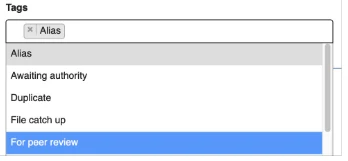
As you type into the Tags field, suggestions will appear below. Select it from the list.
Adding existing tags by looking them up in the list
### Creating new tags
{% hint style="info" %}
Avoid creating duplicates of tags with similar spelling (for example Fire and Fires). Always check for existing tags before creating new ones. Duplicate or similar tags can make navigation and reporting difficult.
{% endhint %}
To create a tag:
1. In the Tag field, type the new tag. You can include spaces in your tags. All other Illegal characters will be removed.
2. When you've written it, use the comma key to add it. If the tag already exists, the system will match it with the existing tag to avoid duplication.
3. Save the item as the change will not take effect until you've done this.
### Removing tags
If you need to remove a tag from your item, click on the cross to the left of the tag.
Note that the change will not take effect until you've saved the record.
---
# Agent Instructions
This documentation is published with GitBook. GitBook is the documentation platform designed so that both humans and AI agents can read, navigate, and reason over technical content effectively. Learn more at gitbook.com.
## Querying This Documentation
If you need additional information that is not directly available in this page, you can query the documentation dynamically by asking a question.
Perform an HTTP GET request on the current page URL with the `ask` query parameter, and the optional `goal` query parameter:
```
GET https://docs.cw.crisisworks.com/concepts-and-fundamentals/on-a-computer/using-the-datagrid/tagging-items.md?ask=&goal=
```
`ask` is the immediate question: it should be specific, self-contained, and written in natural language.
`goal` is optional and describes the broader end goal you are ultimately trying to accomplish on behalf of the user. GitBook uses it to tailor the answer towards what is most useful for that goal.
The response will contain a direct answer to the question and relevant excerpts and sources from the documentation.
Use this mechanism when the answer is not explicitly present in the current page, you need clarification or additional context, or you want to retrieve related documentation sections.