# Working within Events

## Overview <a href="#overview" id="overview"></a>

Events are flexible, secure groupings of related records, people, positions and audit history.&#x20;

The [Positions you are on duty](#joining-events) with in an event will determine the functions available to you, including the menus, registers and workspaces.

Events can be used for:

* an incident (disaster, emergency)
* project, or block of work (such as permits, patrols, journals etc)
* testing or training, ‘Test’ events can be used for practice, all email and text notifications will be marked as \*\*TEST\*\*

When an event is completed, all related information and records are retained.

Only administrators can [create Events](https://docs.cw.crisisworks.com/system-administration/managing-events).

You can participate in multiple Events simultaneously if your position is added to them by [going on duty to multiple events](#joining-events).&#x20;

{% hint style="info" %}
The system tries to intelligently determine which event you wish to work in.

* If you are going on duty only to positions within one event, Crisisworks will switch you automatically to that event.
* If you select multiple positions across multiple events, the system assumes you will be working across multiple events and places you into All Participating Events mode. You can then select an individual event by selecting one from the event menu&#x20;

If you sign in but don't modifying your duty status, then the system will stay in your last selected event.
{% endhint %}

## Events Menu <a href="#events-menu" id="events-menu"></a>

The Events menu (or Events selector) allows you to join and switch between Events. You can find it second from the top right in the menu bar.

<figure><img src="https://3923904090-files.gitbook.io/~/files/v0/b/gitbook-x-prod.appspot.com/o/spaces%2FNy7IznbrPLUq6GJDDQDk%2Fuploads%2FMuicxC9VmFodlmFdfxdD%2Fimage.png?alt=media&#x26;token=42147ef9-a3c3-4fe1-a691-530c08cc4686" alt=""><figcaption><p>Location of the Events menu</p></figcaption></figure>

### Primary Event <a href="#primary-event" id="primary-event"></a>

The primary event is the one you have selected, and determines where records will be added.&#x20;

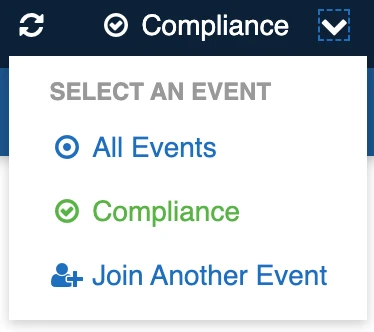
This event is displayed at all times along the main menu above the events menu and is highlighted in green on the events menu.

<figure><img src="https://3923904090-files.gitbook.io/~/files/v0/b/gitbook-x-prod.appspot.com/o/spaces%2FNy7IznbrPLUq6GJDDQDk%2Fuploads%2Fcy6KhWc6saICZyRSh2Uu%2Fimage.png?alt=media&#x26;token=780b79a4-31ad-4e25-97d2-f123ba48ed77" alt="" width="257"><figcaption><p>Primary Event indicated in the menu <br>bar, and in green under 'Select an Event'</p></figcaption></figure>

### Accessing the Events list <a href="#accessing-the-events-list" id="accessing-the-events-list"></a>

The currently selected event is indicated in green. To open the Events menu use the down arrow <img src="https://3923904090-files.gitbook.io/~/files/v0/b/gitbook-x-prod.appspot.com/o/spaces%2FNy7IznbrPLUq6GJDDQDk%2Fuploads%2FqnUsRBG1Hp811SwQ4rD2%2Fimage.png?alt=media&#x26;token=1d08fda2-fd10-413e-b18d-09bd2690ff22" alt="" data-size="line">

<figure><img src="https://3923904090-files.gitbook.io/~/files/v0/b/gitbook-x-prod.appspot.com/o/spaces%2FNy7IznbrPLUq6GJDDQDk%2Fuploads%2FhQi3Wcfh5tkrP0xx9GGd%2Fimage.png?alt=media&#x26;token=68993bb2-3725-4913-b301-e81583a1b108" alt="" width="187"><figcaption><p>The opened Events menu</p></figcaption></figure>

### Working in 'All Events' <a href="#working-in-all-events" id="working-in-all-events"></a>

It is possible to not have an event selected (such as if your system has no active events or if you have not gone on duty). In this case 'All Events' may be selected or highlighted.

When working with all events, the dashboards and recent activity will aggregate information across all events in the system. Registers will also show items across all events.

When working with all events, you will need to manually select the event you wish to add items to.

Some actions require you to have an event selected.

{% hint style="info" %}
Unless you're an experienced user, it may be confusing working in All Events mode so it is recommended, instead, to select an event.
{% endhint %}

### Selecting a Primary Event <a href="#selecting-a-primary-event" id="selecting-a-primary-event"></a>

To select a primary event:

1. Open the Events menu
2. Select the Event from the list
3. The Primary Event in the main menu bar will update to show the selected Event.

If there are no events in the system, it will default to 'All Events'.

### Working in a Single event <a href="#working-in-a-single-event" id="working-in-a-single-event"></a>

The Event Menu displays the name of the currently selected event. Clicking the event's name will take you to the **Events and Duties** page where you can view the events you have joined; change the positions you are on duty for; and join or leave events.

To view all current events, select **View All Events.** This will take you to the Event datagrid showing all your Active events.

Use the down arrow ![](https://3923904090-files.gitbook.io/~/files/v0/b/gitbook-x-prod.appspot.com/o/spaces%2FNy7IznbrPLUq6GJDDQDk%2Fuploads%2FjoqOzeyQBzNiKbEtJVig%2Fimage.png?alt=media\&token=207927d5-92f1-477c-a28d-375f3e394363) to open the Event menu. This shows a list of all participating events and a selection of items under Manage Events, including:

* **Join Another Event** — to join an event not listed
* **View Event** — to view, and if permitted, edit details of the current selected event
* **View Currently On Duty** — for a list of users on duty list by their Position
* **View all Events** — (if available) to view all Events and edit settings
* **Create Event** - (if available) to create a new event

Administrators and coordinators will get additional options (shown below) to manage the current event, manage all events, and even create a new event.&#x20;

{% hint style="info" %}
**All Events** mode is useful for viewing records across multiple events at once, but it is not possible to add records, nor assign records to users or positions, when in this mode. Users are recommended to select a specific event and work within it as much as possible.
{% endhint %}

### Switching between Events <a href="#switching-between-events" id="switching-between-events"></a>

To switch events, you can select it from the events menu and it will change to a green tick.

## Setting your Duties for Events <a href="#setting-your-duties-for-events" id="setting-your-duties-for-events"></a>

Your duties determine what you can see and do in the system. When you first sign in your duty status will be set to 'Not on duty'. To begin working, you will need to go on duty by joining an event.

Additionally, your duty status lets other know if you are available to perform your tasks.

{% hint style="info" %}
To add positions to your account, you must have System Administration Access. If your access level updated, please contact your system administrator.
{% endhint %}

There are two ways to set your duties for events or go on duty:

1. via **Join an Event** under the Events menu, OR
2. via **Go on or Off Duty** under the User Profile menu (refer to the section on [Your User Account](https://docs.cw.crisisworks.com/concepts-and-fundamentals/on-a-computer/your-user-profile-and-duties) for details on this method)

### Changing Duties via the Events menu <a href="#changing-duties" id="changing-duties"></a>

To change your duties via the Events menu:

1. Select **Not on Duty** or **Join an Event** from the events menu to access the **Events and Duties** screen\
   ![](https://3923904090-files.gitbook.io/~/files/v0/b/gitbook-x-prod.appspot.com/o/spaces%2FNy7IznbrPLUq6GJDDQDk%2Fuploads%2FFP4evpe64JE0JzeaQkXf%2Fimage.png?alt=media\&token=ebad632e-8522-4be8-bb8e-272eaf2f9624)
2. To quickly go on duty for all available positions, click **Join** next to the event&#x20;
3. To choose specific positions:
   * Expand 'You're off duty' (in red) under the event
   * Use the search bar to filter for a specific event, if needed
   * Tick the checkbox next to the positions(s) that match your role
4. To go on duty for multiple events at once:
   * Select your desired positions under each event
   * Click **Update Duties**&#x20;

This will put you on duty to the event with your position(s).​

## Viewing Event Details <a href="#viewing-event-details" id="viewing-event-details"></a>

You may need to view an event's details, such as what type of event it is (eg. the severity or, whether it is a test event) when it started and which Registers and Positions are involved.

{% hint style="info" %}
Access to the Event screens may be restricted to administrators. You will only see the Events that are available to your position.
{% endhint %}

To view an event's details:

1. Open the Events menu
2. Under 'Manage Events', select 'View Event'
3. Open the event from the Events register datagrid to view the details

<figure><img src="https://3923904090-files.gitbook.io/~/files/v0/b/gitbook-x-prod.appspot.com/o/spaces%2FNy7IznbrPLUq6GJDDQDk%2Fuploads%2FRERoAIf63OxuB99zx9PT%2Fimage.png?alt=media&#x26;token=09921bbb-a864-4201-9401-5e70aeda850b" alt="" width="215"><figcaption><p>View Event under Manage Events<br>in the Events menu</p></figcaption></figure>

### General Information <a href="#general-information" id="general-information"></a>

The General Information section includes the main details for an Event.

<figure><img src="https://3923904090-files.gitbook.io/~/files/v0/b/gitbook-x-prod.appspot.com/o/spaces%2FNy7IznbrPLUq6GJDDQDk%2Fuploads%2FqZC0AF2pN4VmTKOVdgCv%2Fimage.png?alt=media&#x26;token=53252534-d533-4ee7-a7c0-2895e437cd77" alt="" width="563"><figcaption><p>Example event general details page showing the type of Event, <br>when it started and other relevant information</p></figcaption></figure>

### Currently On Duty <a href="#currently-on-duty" id="currently-on-duty"></a>

Currently on Duty provides a useful report of all the Positions active for an Event and the individual team member's duty, on call status, contact phone, email and a link to their Contact profile. This helps coordinate team activities during an Event.

<figure><img src="https://3923904090-files.gitbook.io/~/files/v0/b/gitbook-x-prod.appspot.com/o/spaces%2FNy7IznbrPLUq6GJDDQDk%2Fuploads%2FD9aITSjL69Pdp1qIPtoL%2Fimage.png?alt=media&#x26;token=216b1501-5891-4768-a827-3ce7d811148c" alt=""><figcaption><p>Sample Currently on Duty list</p></figcaption></figure>

## Viewing a List of Events <a href="#viewing-a-list-of-events" id="viewing-a-list-of-events"></a>

Administrators can view and manage the Events list.

Refer to: [View All Events](https://docs.cw.crisisworks.com/system-administration/managing-events#view-all-events)

## Joining Events <a href="#joining-events" id="joining-events"></a>

To join another event:

1. Access the Events menu &#x20;
2. In the menu select 'Join Another Event'&#x20;
3. [Update your duties for that event](#setting-your-duties-for-events)

When joined to more than one event, registers will show a mix of events simultaneously in the Event column.

## Leaving Events <a href="#leaving-events" id="leaving-events"></a>

To leave Events you can [Go On or Off Duty](https://docs.cw.crisisworks.com/concepts-and-fundamentals/your-user-profile-and-duties#go-on-or-off-duty) or in the Events menu:

* Select 'Join Another Event'&#x20;
* [Remove your duties for that event](https://docs.cw.crisisworks.com/concepts-and-fundamentals/your-user-profile-and-duties#setting-your-duties-for-events)

To leave all events you are currently joined:

1. Access the Events menu&#x20;
2. In the menu select ‘Join Another Event'&#x20;
3. At the bottom of the join Events screen use the red 'Leave Event' button  <img src="https://3923904090-files.gitbook.io/~/files/v0/b/gitbook-x-prod.appspot.com/o/spaces%2FNy7IznbrPLUq6GJDDQDk%2Fuploads%2F2w736SwwfuOgBYsIBASd%2Fimage.png?alt=media&#x26;token=5781497a-c812-423e-b147-d29e2a030714" alt="" data-size="line">