> For the complete documentation index, see [llms.txt](https://docs.cw.crisisworks.com/llms.txt). Markdown versions of documentation pages are available by appending `.md` to page URLs; this page is available as [Markdown](https://docs.cw.crisisworks.com/concepts-and-fundamentals/on-a-computer/your-user-profile-and-duties/diagnostics.md).

# Diagnostics

## Overview

Diagnostics is used to ensure that your system continues to run smoothly and can help when obtaining support from the Help Desk.&#x20;

This screen shows helps you:

* Check for potential application problems and resolve them ([App Data](#app-data))
* [Set a custom location](#custom-location)
* Run automatic maintenance commands to help Datalink support you ([Diagnostics](#diagnostics))
* Find the version of the software that you're running ([Software Information](#software-information))

### Access

Diagnostics is accessed from the [User Menu](/concepts-and-fundamentals/on-a-computer/your-user-profile-and-duties.md#user-menu) via the Diagnostics link under SYSTEM.

<figure><img src="/files/HyeSm89QskRQa2O4LQpB" alt="" width="235"><figcaption><p>Diagnostics link in the User Menu</p></figcaption></figure>

### Navigation

All of the Diagnostics are displayed on one page in sections.

You can collapse specific sections using the Hide <img src="/files/XWvlb5IWERVp9Y5IA44u" alt="" data-size="line"> button.

You can show expand sections using the Show <img src="/files/4oOh2FI4NAnA8D5A4NQN" alt="" data-size="line"> button.

## App Data

App Data gives a snapshot of the health of the system, including the main registers.

Use the Reload Settings button <img src="/files/7bXtr7P2TZVl70jZhXiE" alt="" data-size="line"> or the Refresh<img src="/files/6PC4URk0f05vANw9Bxox" alt="" data-size="line">button to apply available updates​.

The icons indicate as following:

* <img src="/files/svfTFwuJ3X0DXXO4yWNN" alt="" data-size="line"> Spinning loading symbols indicate that the diagnostic is still being run. Please be patient until the process completes. If the spinning continues longer than reasonable reload the settings or contact the Help Desk.
* <img src="/files/ao3Cb9xcg3ZQCawJci7Y" alt="" data-size="line">Green Ticks indicate that these registers are running properly. A green tick at the top right corner indicates that all systems are functioning normally.
* Orange exclamation mark icons flag potential problems. If you are also experiencing problems, contact the Help Desk and which settings were flagged.
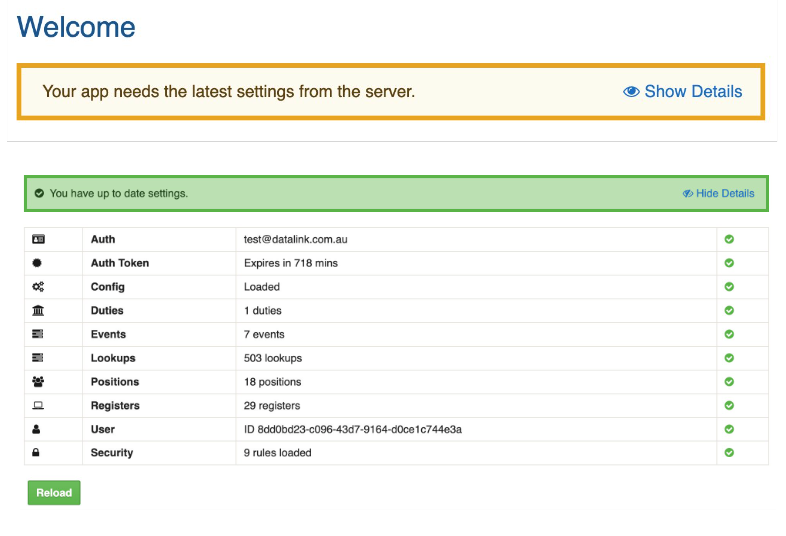
<figure><img src="/files/p63kpQFVdUw21Sn4iUlc" alt="" width="375"><figcaption><p>Updating settings screen</p></figcaption></figure>

#### Restart App

Sometimes you may be advised to restart the app to reset your session. Us the Restart App button to shut down the session, log out and log in again automatically.

#### Sign Out

You can sign out using the red Sign Out button.

## Offline functionality support

This setting enables you to enable offline support by going offline or going online.

By default your system will be online, you can go offline using the Go offline button.

If you're offline, you can go online using the Go online button.

## Location Services

Location tracking is used to mark the location of records you create and helps to find nearby assets. Upon starting, the app may ask to connect to location services on the device.

This section holds the current tracking connection status, including the last update and location in latitude and longitude.

For troubleshooting, you can reset location services using the Reset button.

## Custom Location

{% hint style="info" %}
This section may not be available for all users, it is a Site configuration. If you do not have access to this section, this may be for a reason.
{% endhint %}

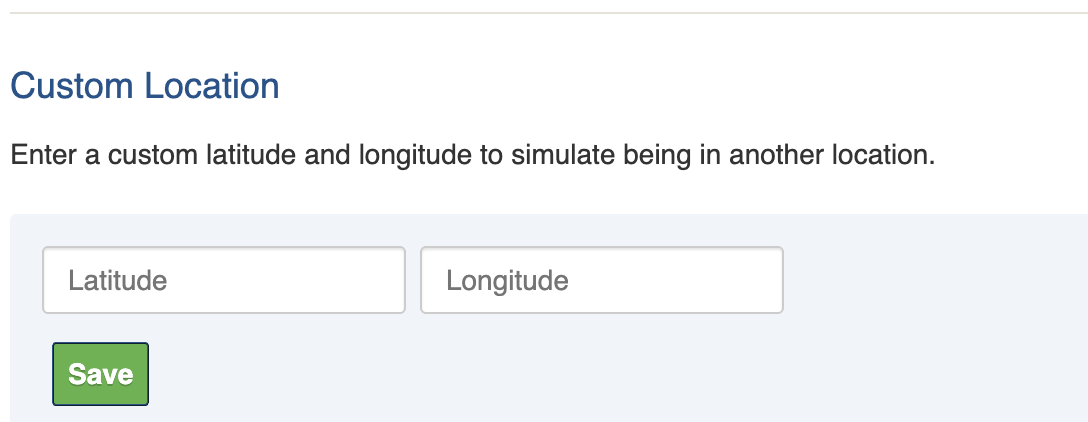
This setting allows you to enter a custom Latitude and Longitude to simulate being in another location. This can be useful when training or simulating conditions in one location from another.

{% hint style="info" %}
A custom location will affect your default location in maps throughout the system.
{% endhint %}

To set a Custom Location:

1. Enter a decimal value for the Latitude into the **Latitude** box
2. Enter a decimal value for the Longitude into the **Longitude** box

{% hint style="info" %}
The format of the values entered into these fields is important otherwise it will not work.

It should just be decimal numbers and an optional negative prefix in Latitude for South or Longitude for West.

Do not include the degrees symbol, quotes or direction suffix.

The location for Sydney, for example, would entered as be **Latitude** -33.8688 and **Longitude** 151.2093.

You can obtain accurate Latitude and Longitude values for locations through applications like Google Maps.
{% endhint %}

<figure><img src="/files/cqPz8k91HGsK6kpBTVnj" alt="" width="375"><figcaption></figcaption></figure>

## Diagnostics

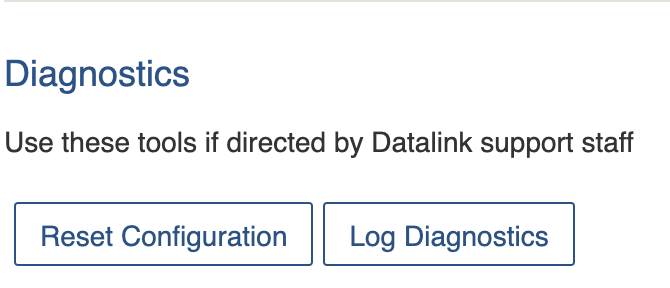
This section contains key information to assist Datalink when there are ongoing problems.

Session includes the unique code your system is using to maintain its session.

Do not use the Reset Configuration button unless you've first spoken with Help Desk about.a problem that this may solve as it may have unexpected effects.

Sending Diagnostics to Datalink is helpful if there are ongoing problems. You can do this using the Log Diagnostics button.

<figure><img src="/files/QoQq9a7HsIzxFCVIEfxz" alt="" width="335"><figcaption></figcaption></figure>

## Software Information

This section gives you information on the App and Server version that you are running which can be useful for obtaining support.

Offline Support enables you to use the system offline and synchronise changes when you return to the office.


---

# Agent Instructions
This documentation is published with GitBook. GitBook is the documentation platform designed so that both humans and AI agents can read, navigate, and reason over technical content effectively. Learn more at gitbook.com.

## Querying This Documentation
If you need additional information that is not directly available in this page, you can query the documentation dynamically by asking a question.

Perform an HTTP GET request on the current page URL with the `ask` query parameter, and the optional `goal` query parameter:

```
GET https://docs.cw.crisisworks.com/concepts-and-fundamentals/on-a-computer/your-user-profile-and-duties/diagnostics.md?ask=<question>&goal=<endgoal>
```

`ask` is the immediate question: it should be specific, self-contained, and written in natural language.
`goal` is optional and describes the broader end goal you are ultimately trying to accomplish on behalf of the user. GitBook uses it to tailor the answer towards what is most useful for that goal.

The response will contain a direct answer to the question and relevant excerpts and sources from the documentation.

Use this mechanism when the answer is not explicitly present in the current page, you need clarification or additional context, or you want to retrieve related documentation sections.