Roster Availability
This page outlines use of the Roster Availability register.
Overview
The Roster Availability is used to records the availability of users (usually staff) for a given shift.
Roster Availability is used with the Rostering functions but can be used standalone.
Access
To access Roster Availability:
Go on duty to the event with a supported position.
Use the Manage My Rostering Availability in the User Profile menu to access the module.

If you can't access this link, contact your System Administrator. Roster Availability needs to be properly setup and configured. Most built-in positions have Roster Access security policy. That means that you will be able to start using this module immediately to enter your own roster availability, so long as the register has been added to the event you're working in. To manage Roster Availability you must be signed in with either an Operations Officer position or a position with the Roster Access security policy.
Operation
Once setup and configured, Roster Availability records are created either by users or a Coordinator (refer to Positions).
Users can add availability if they have access to the register by adding dates, times and shifts that they are rostered on for. Coordinators can also add availability for any user including themselves.
When adding new records, the Availability is set to Available by default, although users can set this to either Available or Unavailable. The Unavailable status will override Available for the same date. So if a user is available for three months except for one week, they can create one 'Available' record for three months and one 'Unavailable' record for one week in the middle.
If you're working on an item it can be set to Draft.
For availabilities that have similar date ranges, shifts or users you can use the Template option.
If an item is no longer needed it can be set to Cancelled; Closed (Duplicate); or Closed (Error).
Positions
The following table outlines positions that can manage this register and what users with them can do according to their default security policies:
Other positions may have similar security policies. A System Administrator can establish positions with custom security policies.
Setup & Configuration
Refer to: Configuring the System and Administration
To enable Work Summaries, an Administrator needs to:
Add the appropriate Positions to the Event. Most positions support users adding Work Summaries. In addition security policies for Roster access can be assigned to any position.
[Optional] Configure shifts, a default 'Main' shift comes pre-installed.
Security Policies
Refer to: Positions: Security Policies
Security Policy explanations
The following security policies apply to the Roster:
Roster Access
Provides read-only access to the roster user interface.
Roster Coordinator
Provides full access to manage rosters
Finding
Searching and FilteringThe find items you can use:
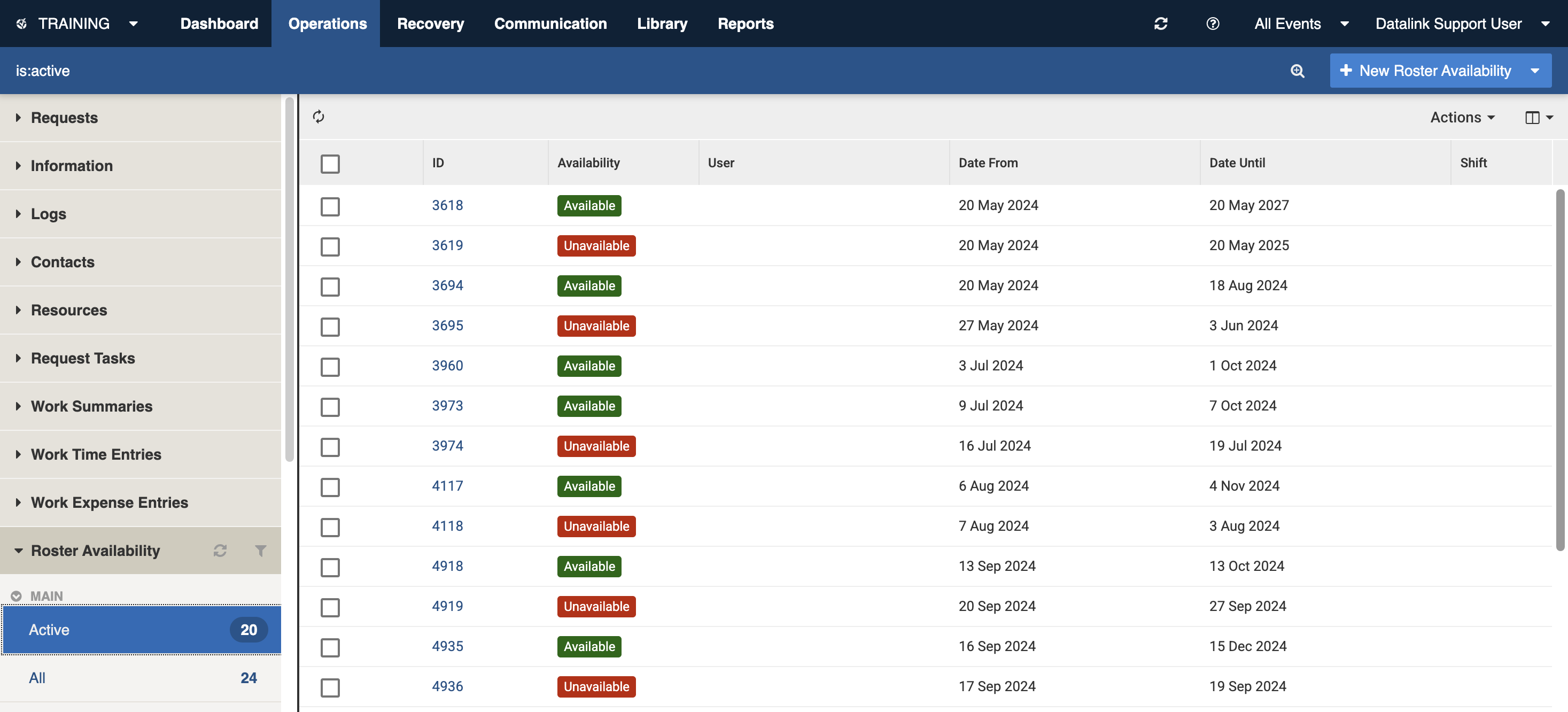
Datagrid view
Filters including Active, Workflow (Available, Unavailable etc) and Unassigned
A combination of filters and search by most fields

Filters
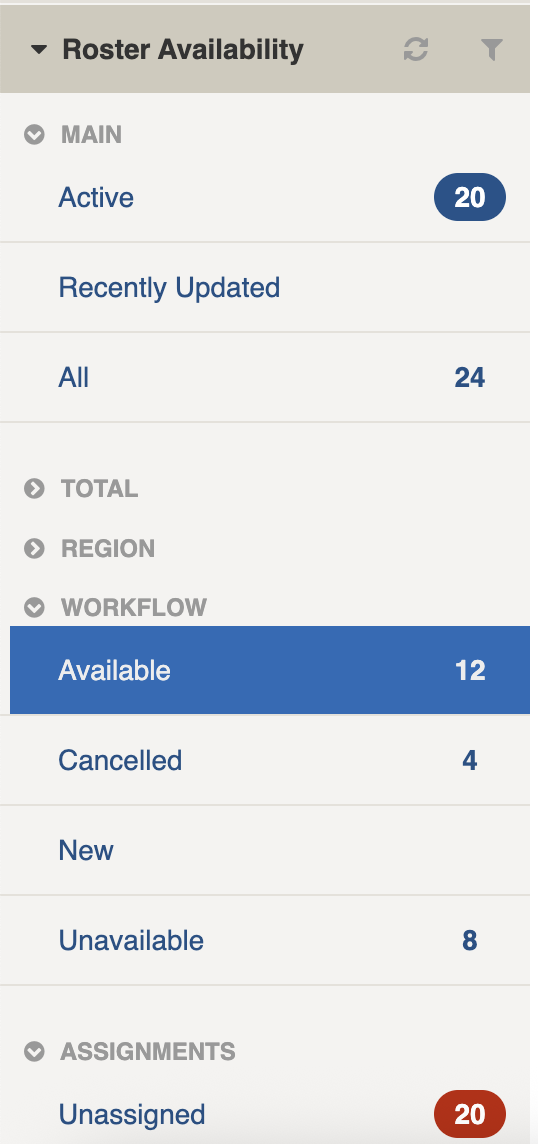
Filters help make management of Roster Availability easier by focusing on specific groups of items on the datagrid.

Filter menu explanations
The following lists some of the filters and how to use them:
Main
Active
is:active
Finds all Active items (Available, Unavailable or New)
Recently Updated
is:active dateUpdated:>today-5d
Finds all items updated in the last 5 days
All
is:any
Finds all items in the register
Total
Active
toDate:>now-30d
Finds all items with an Date Until less than 30 days away
Mine
is:active userId:@me
Finds all items with you set as the User
Workflow
Active tags
[List is based on your system configuration]*
is:active #
Assignments
[List is based on your system configuration]*
Unassigned
is:active assigned:none
Finds all items where Assigned is not set
* May vary based on your system configuration
Opening and Viewing
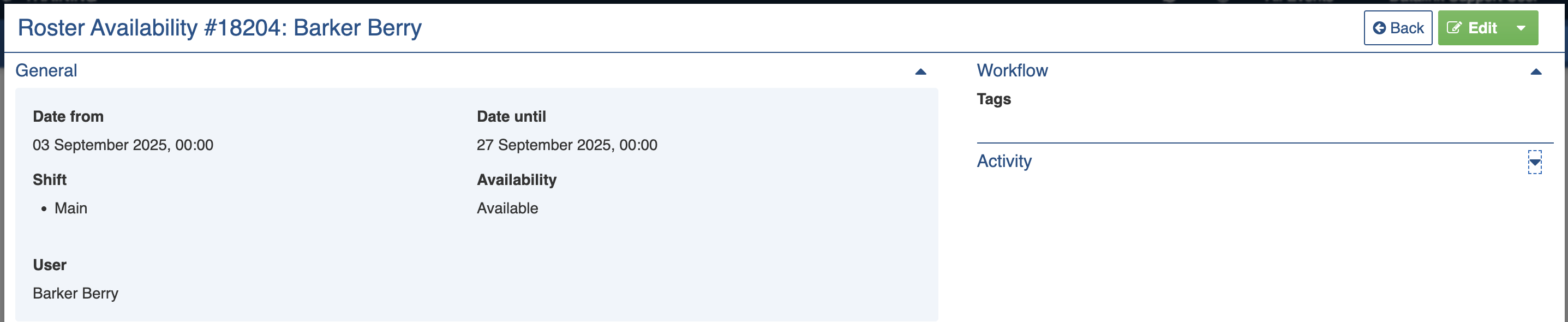
Viewing ItemsWhen viewing Roster Availability items, sections can be expanded to show information.
As each section is completed, new sections may show additional information.

Settings
Roster Availability has the following sections:
Record Notes
When editing, record notes in the rich text field as you make changes which will appear in the Activity log.
Refer to: Recording Notes
General
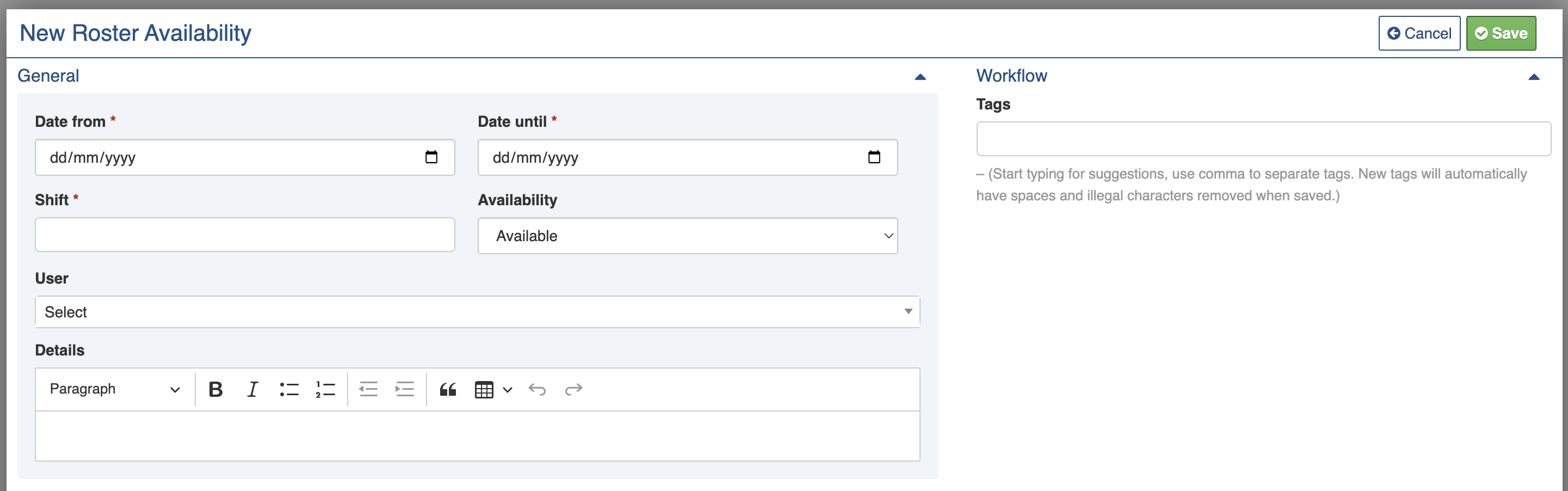
The General section contains the main availability details with the rich text field provided.
Date From
Use this setting to set the date that the user is available from. This is required.
Refer to: Setting Dates
Date until
Use this setting to set the date that the user is available until. This is required.
Refer to: Setting Dates
It is possible to set a Date until before the Date from, however do not do this as it can affect the availability results.
Shift
Use this setting to select the shift(s) from the list. This is required.
Once selected, these appear like tags and can be similarly removed by toggling them off the list with the cross.

Shifts are set up by your System Administrator using the Roster Availability Shifts lookup.
Availability
Use this setting to whether the user is Available, Unavailable or something else.
Available

All new Roster Availability items begin with this status
Unavailable

New

Cancelled

For more information on statuses and workflow for Availability, refer to the Roster Availability Workflow Data Dictionary.
User
Use this setting to select a user who the availability is for from the list.
If you don't select a user, it will default to your name (if you have a Roster Access security policy).
Details
Use this setting to add details on ths availability. For example, there might be notes about certain days or if the user has limited capacity. They can be added here.
Workflow
Tags
Refer to: tags
Activity
Refer to: Viewing Items: Activity
Updating
Editing ItemsWhen updating an item:
Add notes on your edits in the Record Notes field
Complete each section of the Settings as required. Note that some options may open up new sections to complete.

Adding
Adding ItemsFrom the register, in the New item menu select the New Roster Availability
button (or drop down the list from any other register and select it)Complete each section of the Settings as required (Date from, Date until and Shift are required). If you don't select the User, your user will be used.
Save


Bulk Actions
Bulk ActionsThe following additional bulk actions can be performed via the Actions menu:
Copy IDs
Refer to: Copy IDs
Export to Report
Refer to: Export to Report Exports to Roster Availability Report
Bulk Edit
Refer to: Bulk Edit
Importing
ImportsA System Administrator can import in bulk via the Import system using the Availability Periods option.
Reports
Running ReportsThe main report, Roster Availability found in Rostering Reports can be run from either the Bulk Actions or the Reports menu.

Last updated
Was this helpful?