
| Position | Description | Example users | |
|---|---|---|---|
| Payroll Manager | Can manage all aspects of Work Summaries | ||
| System Admin & Data Entry | Required to create and configure events | ||
| System Administrator - User | Required to set up accounts for users |
| Security Policy | Use |
|---|---|
| Work Summary Coordination | Full Access to Work Summary & Time Entry register |
| Work Summary User | Limited Access to create and view own work summaries or assigned items only |
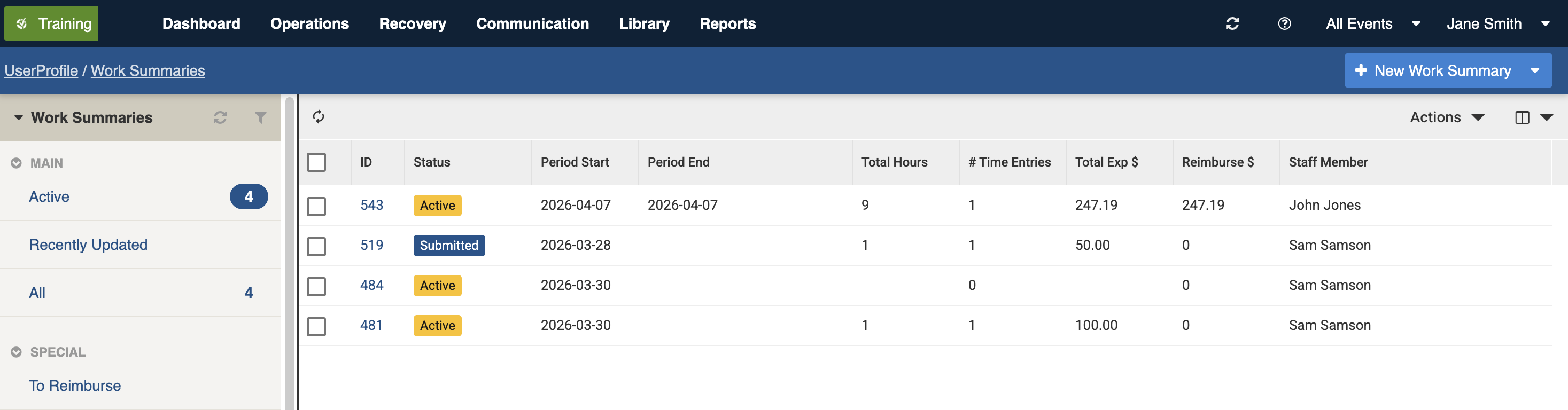
Work Summaries register datagrid sample view
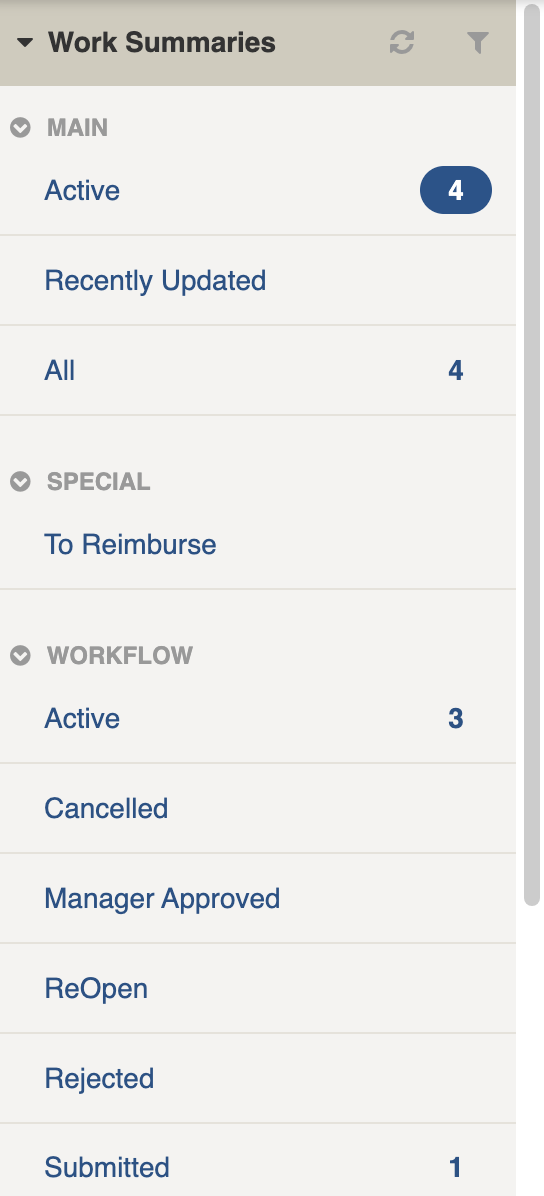
Filter menu
| Filter Group | Filter/s | CQL | Use |
|---|---|---|---|
| Main | |||
| Active | is:active | Finds all Active items (with a Status of Active, Submitted or ReOpen) | |
| Recently Updated | is:active dateUpdated:>today-5d | Finds all items updated in the last 5 days | |
| All | is:any | Finds all items | |
| Workflow | |||
| Active | status:active | Finds all Active items (Active, Submitted or ReOpen) | |
| Cancelled | status:cancelled | Finds all items with a Status of Cancelled | |
| Manager Approved | status:approved | Finds all items with a Status of Manager Approved | |
| ReOpen | status:reopen | Finds all items with a Status of ReOpen | |
| Rejected | status:rejected | Finds all items with a Status of Rejected | |
| Submitted | status:submitted | Finds all items with a Status of Submitted | |
| Active tags | [List is based on your system configuration]* | is:active # | Any tags in use. Refer to: tags |
| Assignments | [List is based on your system configuration]* | is:active assigned: | Finds all Items for Staff Member |
 .
## Settings
Work Summary records are divided into the following sections (sections may or may not appear depending on what information is entered, your permissions level, and what mode you're viewing):
| Left Column | Right Column |
| ----------------------------- | ------------------------- |
| [Record Notes](#record-notes) | [Workflow](#workflow) |
| [Work Summary](#work-summary) | [Statistics](#statistics) |
| [Work Times](#work-times) | [Advanced](#advanced) |
| [Expenses](#expenses) | [Activity](#activity) |
### Record Notes
When editing, you can record notes as you make changes which will appear in the Activity log.
Refer to: [Recording Notes](/concepts-and-fundamentals/on-a-computer/using-the-datagrid/editing-items.md#recording-notes)
### Work Summary
#### Work Times
To add a new Work Time [sub-item](/concepts-and-fundamentals/on-a-computer/using-the-datagrid/editing-items.md#sub-items) using the Add button under **Add Work Time**.
You can add as many as you need this way.
Refer to [Work Time Entries: Settings](/concepts-and-fundamentals/on-a-computer/your-user-profile-and-duties/work-summaries/work-time-entries.md#work-time-entry-settings) for more information.
#### Expenses
To add a new Work Expense [sub-item](/concepts-and-fundamentals/on-a-computer/using-the-datagrid/editing-items.md#sub-items) using the Add button under **Add Work Expense**.
You can add as many as you need this way.
Refer to [Work Expense Entries: Settings](/concepts-and-fundamentals/on-a-computer/your-user-profile-and-duties/work-summaries/work-expense-entries.md#work-expense-entry-settings) for more information.
### Workflow
#### Staff Member
This setting is selected automatically for staff based on their user account. A Payroll Manager can override this.
{% hint style="info" %}
You must be working within an Event in order to select a Staff Member. This is due to Event security permssions.
{% endhint %}
#### Status
The following table is a guide to the Statuses. For the state machine steps refer to the [Work Summary Workflow Data Dictionary](broken://pages/e656SSppo2U718T392Jk#workflow).
.
## Settings
Work Summary records are divided into the following sections (sections may or may not appear depending on what information is entered, your permissions level, and what mode you're viewing):
| Left Column | Right Column |
| ----------------------------- | ------------------------- |
| [Record Notes](#record-notes) | [Workflow](#workflow) |
| [Work Summary](#work-summary) | [Statistics](#statistics) |
| [Work Times](#work-times) | [Advanced](#advanced) |
| [Expenses](#expenses) | [Activity](#activity) |
### Record Notes
When editing, you can record notes as you make changes which will appear in the Activity log.
Refer to: [Recording Notes](/concepts-and-fundamentals/on-a-computer/using-the-datagrid/editing-items.md#recording-notes)
### Work Summary
#### Work Times
To add a new Work Time [sub-item](/concepts-and-fundamentals/on-a-computer/using-the-datagrid/editing-items.md#sub-items) using the Add button under **Add Work Time**.
You can add as many as you need this way.
Refer to [Work Time Entries: Settings](/concepts-and-fundamentals/on-a-computer/your-user-profile-and-duties/work-summaries/work-time-entries.md#work-time-entry-settings) for more information.
#### Expenses
To add a new Work Expense [sub-item](/concepts-and-fundamentals/on-a-computer/using-the-datagrid/editing-items.md#sub-items) using the Add button under **Add Work Expense**.
You can add as many as you need this way.
Refer to [Work Expense Entries: Settings](/concepts-and-fundamentals/on-a-computer/your-user-profile-and-duties/work-summaries/work-expense-entries.md#work-expense-entry-settings) for more information.
### Workflow
#### Staff Member
This setting is selected automatically for staff based on their user account. A Payroll Manager can override this.
{% hint style="info" %}
You must be working within an Event in order to select a Staff Member. This is due to Event security permssions.
{% endhint %}
#### Status
The following table is a guide to the Statuses. For the state machine steps refer to the [Work Summary Workflow Data Dictionary](broken://pages/e656SSppo2U718T392Jk#workflow).
| Stage | Datagrid Icon | Description |
|---|---|---|
| Active |  | All Work Summaries begin with this status by default |
| Submitted |  | Once all of the Work Time Entries have been added, the user or Payroll Manager can change them to this status. All of the fields become read-only and data can no longer be changed. |
| ReOpen |  | Once submitted, changes can only be made when this status is set. Payroll Managers can enter a reason back to the user on what they need to change. |
| Cancelled |  | The Summary has been cancelled. Once set to this Status it cannot be un-cancelled. |
| Rejected |  | The Payroll Manager has rejected the summary. |
| Manager Approved |  | The Payroll Manager has approved this summary. |

Statistics section
 3. Make the necessary changes to the [settings](#settings)
4. Save
3. Make the necessary changes to the [settings](#settings)
4. Save  ## Adding
{% content-ref url="/pages/cRH8ZUNrgFGKBXlnlY6f" %}
[Adding Items](/concepts-and-fundamentals/on-a-computer/using-the-datagrid/adding-items.md)
{% endcontent-ref %}
To general process to add a Work Summary is:
1. Use the **New Work Summary**
## Adding
{% content-ref url="/pages/cRH8ZUNrgFGKBXlnlY6f" %}
[Adding Items](/concepts-and-fundamentals/on-a-computer/using-the-datagrid/adding-items.md)
{% endcontent-ref %}
To general process to add a Work Summary is:
1. Use the **New Work Summary**  button from any screen.
2. Under Work Times, add one or more Work Times using the Add button
button from any screen.
2. Under Work Times, add one or more Work Times using the Add button  \
A Work Time requires a **Date**. By adding a **Start time** and **End time**, the **Hours worked** field will automatically calculate the total hours between the two. You can optionally select a Work Location, Category and include a description of the work in the **Details** and **Attachments** fields. Repeat step 2 to add more Work Times.
3. Under Work Expenses, add one or more Work Expenses using the Add button \
A Work Expense requires a **Date** and a **Total Amount** for the expense in dollars.\
Expenses require categorisation using the **Expense Category** and **Payment Method**. Repeat step 2 to add more Work Expenses.
4. Save
\
A Work Time requires a **Date**. By adding a **Start time** and **End time**, the **Hours worked** field will automatically calculate the total hours between the two. You can optionally select a Work Location, Category and include a description of the work in the **Details** and **Attachments** fields. Repeat step 2 to add more Work Times.
3. Under Work Expenses, add one or more Work Expenses using the Add button \
A Work Expense requires a **Date** and a **Total Amount** for the expense in dollars.\
Expenses require categorisation using the **Expense Category** and **Payment Method**. Repeat step 2 to add more Work Expenses.
4. Save  ## Exporting
Payroll Managers can use the [Export function in the datagrid](#exporting-data) to export work summaries, or the relevant [report in the reporting module](/system-administration/reporting/running-reports.md).
## Bulk Actions
{% content-ref url="/pages/85HyYT6h2YqK6Qk26AXL" %}
[Bulk Actions](/concepts-and-fundamentals/on-a-computer/using-the-datagrid/bulk-actions.md)
{% endcontent-ref %}
The following additional bulk actions can be performed via the Actions menu:
| Action | Description |
| ---------------- | -------------------------------------------------------------------------------------------------------------------------------------------------------------------------------------- |
| Copy IDs | Refer to: [Copy IDs](/concepts-and-fundamentals/on-a-computer/using-the-datagrid/bulk-actions.md#copy-ids) |
| Export to Report |
## Exporting
Payroll Managers can use the [Export function in the datagrid](#exporting-data) to export work summaries, or the relevant [report in the reporting module](/system-administration/reporting/running-reports.md).
## Bulk Actions
{% content-ref url="/pages/85HyYT6h2YqK6Qk26AXL" %}
[Bulk Actions](/concepts-and-fundamentals/on-a-computer/using-the-datagrid/bulk-actions.md)
{% endcontent-ref %}
The following additional bulk actions can be performed via the Actions menu:
| Action | Description |
| ---------------- | -------------------------------------------------------------------------------------------------------------------------------------------------------------------------------------- |
| Copy IDs | Refer to: [Copy IDs](/concepts-and-fundamentals/on-a-computer/using-the-datagrid/bulk-actions.md#copy-ids) |
| Export to Report | Refer to: Export to Report
Exports to the Work Summary report.
| | Bulk Edit |Refer to: Bulk Edit
Change the Status, Staff Member and record notes
| ## Reports {% content-ref url="/pages/IwhECOjXodLQkcojUf7P" %} [Running Reports](/system-administration/reporting/running-reports.md) {% endcontent-ref %} The main report is the **Work Summary** report found in [Work Summary Reports](broken://pages/M9ssBY3PGCcYdtrYrwe6). ## Importing {% content-ref url="/pages/QP6MVwI3qEAEvatbmPc3" %} [Imports](/system-administration/configuring-the-system/imports.md) {% endcontent-ref %} A System Administrator can import in bulk via the Import system using the [Work Summary Data Import](/system-administration/configuring-the-system/imports/register-items/work-summary-data-import.md). --- # Agent Instructions This documentation is published with GitBook. GitBook is the documentation platform designed so that both humans and AI agents can read, navigate, and reason over technical content effectively. Learn more at gitbook.com. ## Querying This Documentation If you need additional information that is not directly available in this page, you can query the documentation dynamically by asking a question. Perform an HTTP GET request on the current page URL with the `ask` query parameter, and the optional `goal` query parameter: ``` GET https://docs.cw.crisisworks.com/concepts-and-fundamentals/on-a-computer/your-user-profile-and-duties/work-summaries.md?ask=