# Work Expense Entries

## Overview <a href="#overview" id="overview"></a>

The Work Expense register helps manage staff costs for an event.&#x20;

Work Expense Entries is a sub-register of Work Summaries. New work expenses are added as sub-items through a Work Summary Expenses as such you can also view them there.

This register is especially useful for [finding](#finding) and [viewing](#viewing) expenses, for example by Period, Staff Member, and [editing](#editing) them directly.&#x20;

{% hint style="info" %}
You can only add new Work Expenses via the [Work Summary](https://docs.cw.crisisworks.com/concepts-and-fundamentals/on-a-computer/your-user-profile-and-duties/work-summaries).
{% endhint %}

### Access <a href="#requests-usingrequests" id="requests-usingrequests"></a>

To access the Work Expenses register:

1. Go on duty to the event with a [supported position](https://docs.cw.crisisworks.com/concepts-and-fundamentals/on-a-computer/your-user-profile-and-duties/work-summaries/..#positions).
2. Use the *Manage My Work Times* in the User Profile menu to access the module.

<figure><img src="https://3923904090-files.gitbook.io/~/files/v0/b/gitbook-x-prod.appspot.com/o/spaces%2FNy7IznbrPLUq6GJDDQDk%2Fuploads%2F194TCM1K62JsxY6TY9OC%2Fimage.png?alt=media&#x26;token=806e2f80-bc9d-43ac-b627-53324541fe23" alt=""><figcaption></figcaption></figure>

3. Access Work Expenses via the [Registers menu](https://docs.cw.crisisworks.com/concepts-and-fundamentals/navigation#registers-menu) on the left.

{% hint style="info" %}
If you can't access this link, contact your System Administrator. Work Summaries needs to be properly [setup and configured](#setup-and-configuration).&#x20;
{% endhint %}

### Setup and Configuration <a href="#setup-and-configuration" id="setup-and-configuration"></a>

To enable Work Expense Entries, an Administrator needs to:

1. [Add the Work Expense Entries register to the Event](https://docs.cw.crisisworks.com/system-administration/managing-events#positions)
2. [Add the appropriate Positions to the Event](https://docs.cw.crisisworks.com/system-administration/managing-events#positions). Most positions that support users adding Work Summaries also support adding Work Expense Entries. In addition [security policies](https://docs.cw.crisisworks.com/concepts-and-fundamentals/on-a-computer/your-user-profile-and-duties/work-summaries/..#security-policies) for Work Summaries can be assigned to any position.

## Finding

The register includes a number of features to assist in finding Work Expense Entries:

* ​[Datagrid](https://app.gitbook.com/o/XTVHxRDLJsgVRj4dNFUc/s/Ny7IznbrPLUq6GJDDQDk/concepts-and-fundamentals/on-a-computer/using-the-datagrid#data-grid-view) view
* ​[Filters](https://app.gitbook.com/o/XTVHxRDLJsgVRj4dNFUc/s/Ny7IznbrPLUq6GJDDQDk/concepts-and-fundamentals/on-a-computer/your-user-profile-and-duties/work-summaries/work-time-entries#information-editinganexistinginformationitem-1) including To Reimburse, Unpaid Expenses, Expense Category, Payment Method, Workflow and Assignments
* Combination filters and search by most fields

#### Filtering <a href="#filtering" id="filtering"></a>

Filters help make management of Work Time Entries easier by focusing on specific groups of items on the datagrid.![](https://images.gitbook.com/__img/dpr=2,width=760,onerror=redirect,format=auto,signature=-1186249101/https%3A%2F%2Ffiles.gitbook.com%2Fv0%2Fb%2Fgitbook-x-prod.appspot.com%2Fo%2Fspaces%2FNy7IznbrPLUq6GJDDQDk%2Fuploads%2FHFNNnlJHnPSiJXjy5813%2Fimage.png%3Falt%3Dmedia%26token%3D986c5e4a-a60f-4c44-98ed-be25d349a20a)Filter menu

<details open>

<summary>Filter menu explanations</summary>

The following lists some of the filters and how to use them.For CQL queries consult the [CQL Reference](https://app.gitbook.com/o/XTVHxRDLJsgVRj4dNFUc/s/Ny7IznbrPLUq6GJDDQDk/security-and-support/technical-reference/cql-reference) and for field definitions consult the [Work Summary Expense Data Dictionary](https://docs.cw.crisisworks.com/concepts-and-fundamentals/on-a-computer/your-user-profile-and-duties/work-summaries/broken-reference).

| Filter Group     | Filter/s                                        | CQL                                                           | Use                                                                                                                                                                                                     |
| ---------------- | ----------------------------------------------- | ------------------------------------------------------------- | ------------------------------------------------------------------------------------------------------------------------------------------------------------------------------------------------------- |
| Main             | ​                                               | ​                                                             | ​                                                                                                                                                                                                       |
| ​                | Active                                          | `is:active`                                                   | Finds all Active items (with a Status of Active, Submitted or ReOpen)                                                                                                                                   |
| ​                | Recently Updated                                | `is:active dateUpdated:>today-5d`                             | Finds all items updated in the last 5 days                                                                                                                                                              |
| ​                | All                                             | `is:any`                                                      | Finds all items                                                                                                                                                                                         |
| Special          |                                                 |                                                               |                                                                                                                                                                                                         |
|                  | To Reimburse                                    | `requiresReimbursement:true status:[ACTIVE,SUBMITTED,REOPEN]` | Finds all items with [Expense Requires reimbursement? ](#expense-requires-reimbursement)ticked                                                                                                          |
|                  | Unpaid Expenses                                 | `paymentMethod:unpaid status:[ACTIVE,SUBMITTED,REOPEN]`       | Finds all items with a [Payment Method](#payment-method) of Unpaid                                                                                                                                      |
| Expense Category | \[List is based on your system configuration]\* | `is:active expenseCategory:`                                  | Finds all items with the specified [Expense Category](#expense-category)                                                                                                                                |
| Payment Method   | \[List is based on your system configuration]\* | `is:active paymentMethod:`                                    | Finds all items with the specified [Payment Method](#payment-method)                                                                                                                                    |
| Workflow         | ​                                               | ​                                                             | ​                                                                                                                                                                                                       |
| ​                | Active                                          | `status:active`                                               | Finds all Active items (Active, Submitted or ReOpen)                                                                                                                                                    |
| ​                | Cancelled                                       | `status:cancelled`                                            | Finds all items with a Status of *Cancelled*                                                                                                                                                            |
| ​                | Manager Approved                                | `status:approved`                                             | Finds all items with a Status of *Manager Approved*                                                                                                                                                     |
| ​                | ReOpen                                          | `status:reopen`                                               | Finds all items with a Status of *ReOpen*                                                                                                                                                               |
| ​                | Rejected                                        | `status:rejected`                                             | Finds all items with a Status of *Rejected*                                                                                                                                                             |
| ​                | Submitted                                       | `status:submitted`                                            | Finds all items with a Status of *Submitted*                                                                                                                                                            |
| Active tags      | \[List is based on your system configuration]\* | `is:active #`                                                 | <p>Any tags in use.<br>Refer to: <a href="https://app.gitbook.com/o/XTVHxRDLJsgVRj4dNFUc/s/Ny7IznbrPLUq6GJDDQDk/concepts-and-fundamentals/on-a-computer/using-the-datagrid/tagging-items">tags</a>​</p> |
| Assignments      | \[List is based on your system configuration]\* | `is:active assigned:`                                         | Finds all Items for Staff Member                                                                                                                                                                        |

\* May vary based on your system configuration

</details>

**Querying**

CQL searches can be performed via either the Filter menu or Search bar.

<details>

<summary>Query examples</summary>

</details>

## Viewing  <a href="#information-editinganexistinginformationitem" id="information-editinganexistinginformationitem"></a>

Work Expense Entries are listed in and searchable via the register [Datagrid](https://docs.cw.crisisworks.com/concepts-and-fundamentals/using-the-datagrid#data-grid-view).

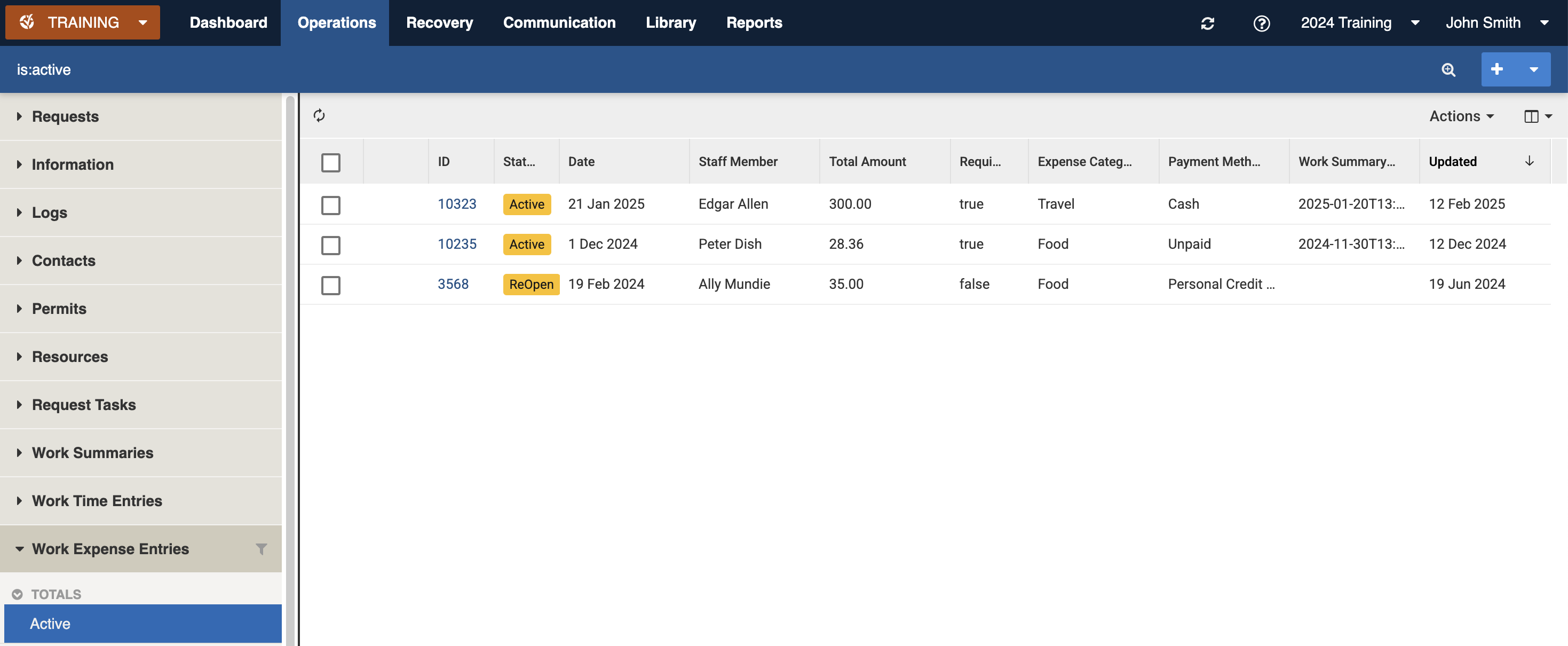
The Expense Entries datagrid shows details such as the total amount and payment method  staff member. These can be grouped by staff member using the datagrid grouping function.

<figure><img src="https://3923904090-files.gitbook.io/~/files/v0/b/gitbook-x-prod.appspot.com/o/spaces%2FNy7IznbrPLUq6GJDDQDk%2Fuploads%2FHAHfxm3Df5crkqvOmoiJ%2Fimage.png?alt=media&#x26;token=902722c0-02a8-4987-a9d2-67e63be93295" alt=""><figcaption><p>Work Expense Entries datagrid</p></figcaption></figure>

To view an existing Work Expense Entry:

1. Navigate to the Work Expense Entries register datagrid.
2. Locate the item you wish to view. The register includes filters for Totals, Workflow (Active, Submitted, ReOpen, Cancelled, Rejected, Manager Approved), Staff Members (All Unassigned), Speical (To Reimburse, Unpaid Expenses), Expense Category, Payment Method and Active Tags
3. Open the item using the ID or Status
4. To return to the Datagrid use the Back button <img src="https://3923904090-files.gitbook.io/~/files/v0/b/gitbook-x-prod.appspot.com/o/spaces%2FNy7IznbrPLUq6GJDDQDk%2Fuploads%2FkJtmQ5qacZpOVfkdqfY8%2Fimage.png?alt=media&#x26;token=b4c68b18-dc6e-48bb-8a2e-c14bf3f595be" alt="" data-size="line">

## Settings <a href="#settings" id="settings"></a>

### General

Individual Work Expenses requires at minimum: a [Date](#date), [Total amount](#total-amount)**,** [Expense Category](#expense-category) and Payment Method.

#### Date

This setting and is entered using a [Date Selector](https://docs.cw.crisisworks.com/concepts-and-fundamentals/using-the-datagrid/editing-items#selecting-dates).

#### Total Amount

This setting indicates the amount of the expense in dollars and accepts two decimals for cents.

#### Expense Category

This settings is used to categorise an expense.&#x20;

Expense Categories are defined by an administrator using the *Work Summary Expense: Expense Category* [lookup](https://docs.cw.crisisworks.com/system-administration/configuring-the-system/lookups). &#x20;

<figure><img src="https://3923904090-files.gitbook.io/~/files/v0/b/gitbook-x-prod.appspot.com/o/spaces%2FNy7IznbrPLUq6GJDDQDk%2Fuploads%2F5krzdZVRn0LsW7cObEKU%2Fimage.png?alt=media&#x26;token=bed40f46-e6cd-4af0-90fe-1158c49b2c7d" alt="" width="232"><figcaption><p>Expense categories</p></figcaption></figure>

#### Payment Method

This setting indicates how the expenses are typically paid. Payment Methods are defined by an administrator using the *Work Summary Expense: Payment Method* [lookup](https://docs.cw.crisisworks.com/system-administration/configuring-the-system/lookups).

<figure><img src="https://3923904090-files.gitbook.io/~/files/v0/b/gitbook-x-prod.appspot.com/o/spaces%2FNy7IznbrPLUq6GJDDQDk%2Fuploads%2FtiWsFTWH7wRbpIGKaQu6%2Fimage.png?alt=media&#x26;token=0b26e165-11a1-40c6-b2dc-8d91c3947075" alt="" width="243"><figcaption><p>Payment methods</p></figcaption></figure>

#### Description

This setting provides additional details on the expense.&#x20;

#### Expense Requires reimbursement?

This setting indicates whether it needs reimbursement using a tick box. Expenses marked in this way have a special filter which enables all reimbursement expenses to be viewed.

#### Invoice/Receipt

This setting supports downloading an uploaded copy of the invoice or receipt for the expense.&#x20;

In Edit mode you can upload a file using the [File Upload](https://docs.cw.crisisworks.com/concepts-and-fundamentals/using-the-datagrid/editing-items#files) feature.

#### Tags

Refer to: [Tagging Items](https://docs.cw.crisisworks.com/concepts-and-fundamentals/on-a-computer/using-the-datagrid/tagging-items)

### Workflow

#### Status

This setting indicates the current step in the process.

The following table is a guide to the Statuses. For the state machine steps refer to the [Work Summary Expense Workflow Data Dictionary](https://docs.cw.crisisworks.com/concepts-and-fundamentals/on-a-computer/your-user-profile-and-duties/work-summaries/broken-reference).

<table><thead><tr><th width="176">Stage</th><th width="138.76953125">Datagrid Icon</th><th width="387.98828125">Description</th></tr></thead><tbody><tr><td><strong>Active</strong></td><td><img src="https://3923904090-files.gitbook.io/~/files/v0/b/gitbook-x-prod.appspot.com/o/spaces%2FNy7IznbrPLUq6GJDDQDk%2Fuploads%2FiVXFNO3A478Q2W6xmZay%2Fimage.png?alt=media&#x26;token=c3a1a7a4-a12a-4787-a890-26b291654f25" alt="" data-size="line"></td><td>All Work Expense Entries begin with this status by default</td></tr><tr><td><strong>Submitted</strong></td><td><img src="https://3923904090-files.gitbook.io/~/files/v0/b/gitbook-x-prod.appspot.com/o/spaces%2FNy7IznbrPLUq6GJDDQDk%2Fuploads%2FSRXZXrqCrvK08DmlPWuz%2Fimage.png?alt=media&#x26;token=51b94756-ec4e-491e-ad6a-fc538cb2477a" alt="" data-size="line"></td><td>Once all of the Work Expense Entries have been added, the user or Payroll Manager can change them to this status. All of the fields become read-only and data can no longer be changed.</td></tr><tr><td><strong>ReOpen</strong></td><td><img src="https://3923904090-files.gitbook.io/~/files/v0/b/gitbook-x-prod.appspot.com/o/spaces%2FNy7IznbrPLUq6GJDDQDk%2Fuploads%2FJMHJdY0hHaGA7vBPEjU3%2Fimage.png?alt=media&#x26;token=88e942c6-0530-4e53-844d-502d5c519483" alt="" data-size="line"></td><td>Once submitted, changes can only be made when this status is set. Payroll Managers can enter a reason back to the user on what they need to change.</td></tr><tr><td><strong>Cancelled</strong></td><td><img src="https://3923904090-files.gitbook.io/~/files/v0/b/gitbook-x-prod.appspot.com/o/spaces%2FNy7IznbrPLUq6GJDDQDk%2Fuploads%2FiQ0Y4KO3s081JQXzjkEs%2Fimage.png?alt=media&#x26;token=66e526cb-ce10-433c-bdaf-cdcfaa2e1c8d" alt="" data-size="line"></td><td>The expense entry has been cancelled. Once set to this Status it cannot be un-cancelled.</td></tr><tr><td><strong>Rejected</strong></td><td><img src="https://3923904090-files.gitbook.io/~/files/v0/b/gitbook-x-prod.appspot.com/o/spaces%2FNy7IznbrPLUq6GJDDQDk%2Fuploads%2F3bP58T4V44jRruJOkjPl%2Fimage.png?alt=media&#x26;token=b0e7a7ef-2722-4c38-b889-6a02ce21ee16" alt="" data-size="line"></td><td>The Payroll Manager has rejected the expense entry.</td></tr><tr><td><strong>Manager</strong> <strong>Approved</strong></td><td><img src="https://3923904090-files.gitbook.io/~/files/v0/b/gitbook-x-prod.appspot.com/o/spaces%2FNy7IznbrPLUq6GJDDQDk%2Fuploads%2FAiXzQ50FRZLkp130Z8hI%2Fimage.png?alt=media&#x26;token=2c9ed40d-bdf7-4b50-baea-17715c709f90" alt="" data-size="line"></td><td>The Payroll Manager has approved this expense entry.</td></tr></tbody></table>

## Editing <a href="#editing" id="editing"></a>

You can edit Work Expenses from their parent Work Summary or from the datagrid.

To edit from the datagrid:

1. Navigate to the register
2. Find the item you wish&#x20;
3. Edit by using the Edit button <img src="https://3923904090-files.gitbook.io/~/files/v0/b/gitbook-x-prod.appspot.com/o/spaces%2FNy7IznbrPLUq6GJDDQDk%2Fuploads%2FMAt3SdDCVeaavZpkxUrB%2Fimage.png?alt=media&#x26;token=bf8178b8-3a9c-4b0d-9c30-009542c2ad7b" alt="" data-size="line">
4. Make the necessary changes to the [settings](#settings)
5. Save <img src="https://3923904090-files.gitbook.io/~/files/v0/b/gitbook-x-prod.appspot.com/o/spaces%2FNy7IznbrPLUq6GJDDQDk%2Fuploads%2FN4Q1ymwZJ5s252DI8Xac%2Fimage.png?alt=media&#x26;token=ea3758c1-f326-47ba-ac4c-c1460bcfcd0f" alt="" data-size="line">

## Adding <a href="#adding" id="adding"></a>

Work Expense Entries are sub-items of Work Summaries and as such can only be added via the Work Summary [Expenses](https://docs.cw.crisisworks.com/concepts-and-fundamentals/on-a-computer/your-user-profile-and-duties/work-summaries/..#expenses).