
View of sample Imports register including the status of imports (finished or failed)
 | The Import has been created but has not yet been run. You will rarely see this as most imports run automatically when created. |
| Queued |
| The Import has been created but has not yet been run. You will rarely see this as most imports run automatically when created. |
| Queued |  | The report is scheduled to run but is waiting for other processes to run first |
| Running |
| The report is scheduled to run but is waiting for other processes to run first |
| Running |  | The Import is in the process of running |
| Finished |
| The Import is in the process of running |
| Finished |  | Your data has been imported successfully. |
| Failed |
| Your data has been imported successfully. |
| Failed |  | Failed to run. Look at the logs to determine the reason/s. Correct and try again. |
| Cancelled |
| Failed to run. Look at the logs to determine the reason/s. Correct and try again. |
| Cancelled |  | The import was cancelled while still queued or running. |
## Viewing Imports
Imports are listed in and searchable via the register [Datagrid](/concepts-and-fundamentals/on-a-computer/using-the-datagrid.md#data-grid-view).
{% hint style="info" %}
Imports only stay Active while they are being run. Most imports that have already been run will not show up under Active. Use the Totals filter or one of the Workflow filters (such as Finished) to find these.
{% endhint %}
To view an existing Import:
1. Navigate to the Imports register datagrid.
2. Locate the item you wish to view. The register includes additional filters for Workflow Status (New; Queued; Running; Finished; Failed; Cancelled)
3. Open the item using the ID
4. To return to the Datagrid use the Back button
| The import was cancelled while still queued or running. |
## Viewing Imports
Imports are listed in and searchable via the register [Datagrid](/concepts-and-fundamentals/on-a-computer/using-the-datagrid.md#data-grid-view).
{% hint style="info" %}
Imports only stay Active while they are being run. Most imports that have already been run will not show up under Active. Use the Totals filter or one of the Workflow filters (such as Finished) to find these.
{% endhint %}
To view an existing Import:
1. Navigate to the Imports register datagrid.
2. Locate the item you wish to view. The register includes additional filters for Workflow Status (New; Queued; Running; Finished; Failed; Cancelled)
3. Open the item using the ID
4. To return to the Datagrid use the Back button 
View of sample Imports register including the status of imports (finished or failed)
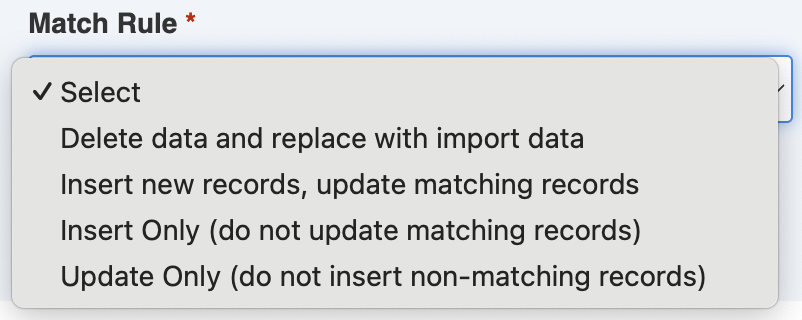
Match rule field
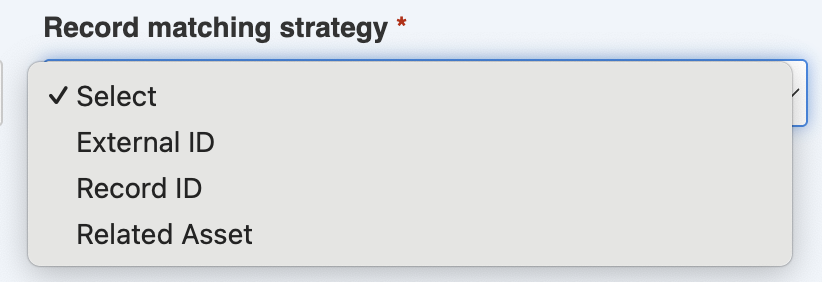
Selecting a Record matching strategy to update existing items
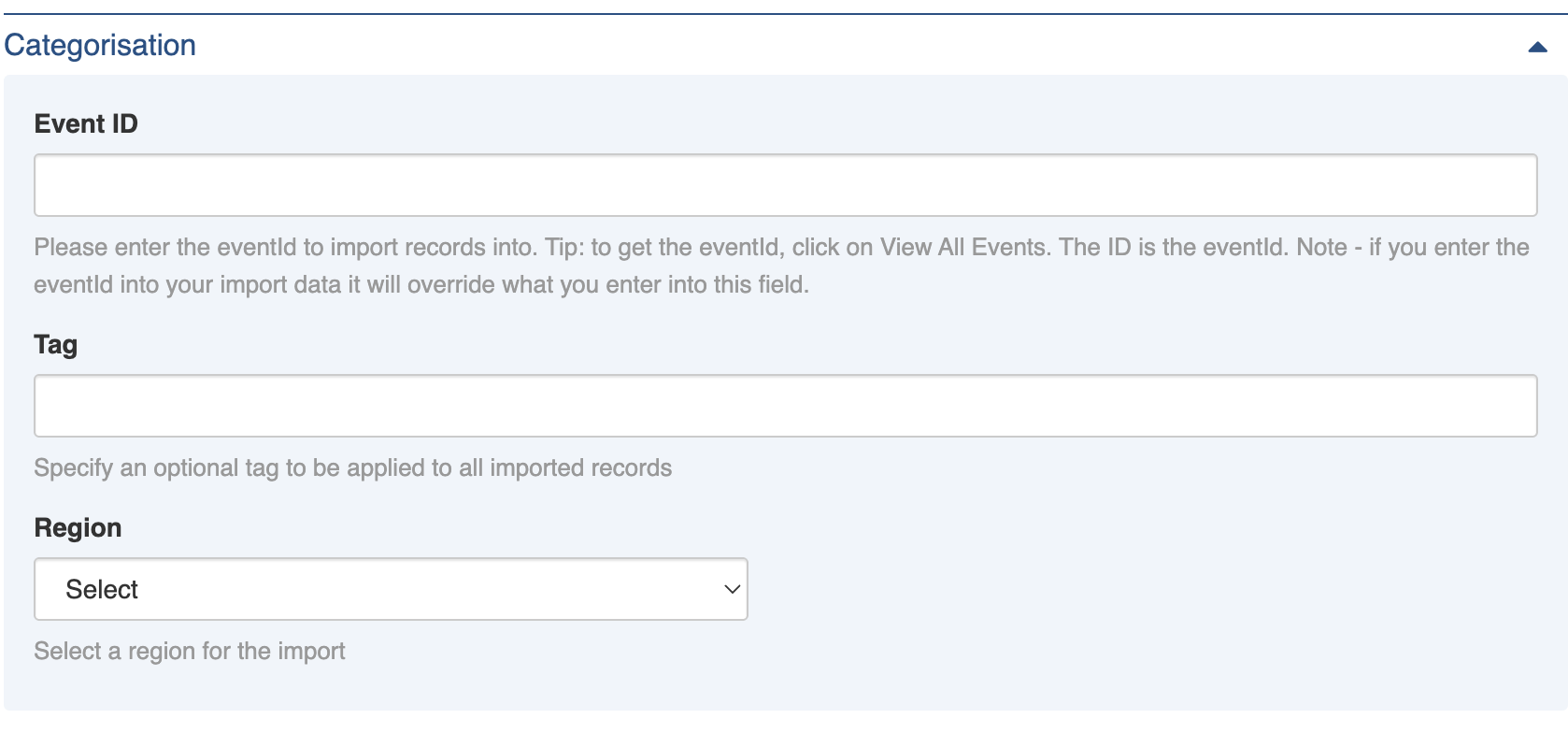
Categorisation section options
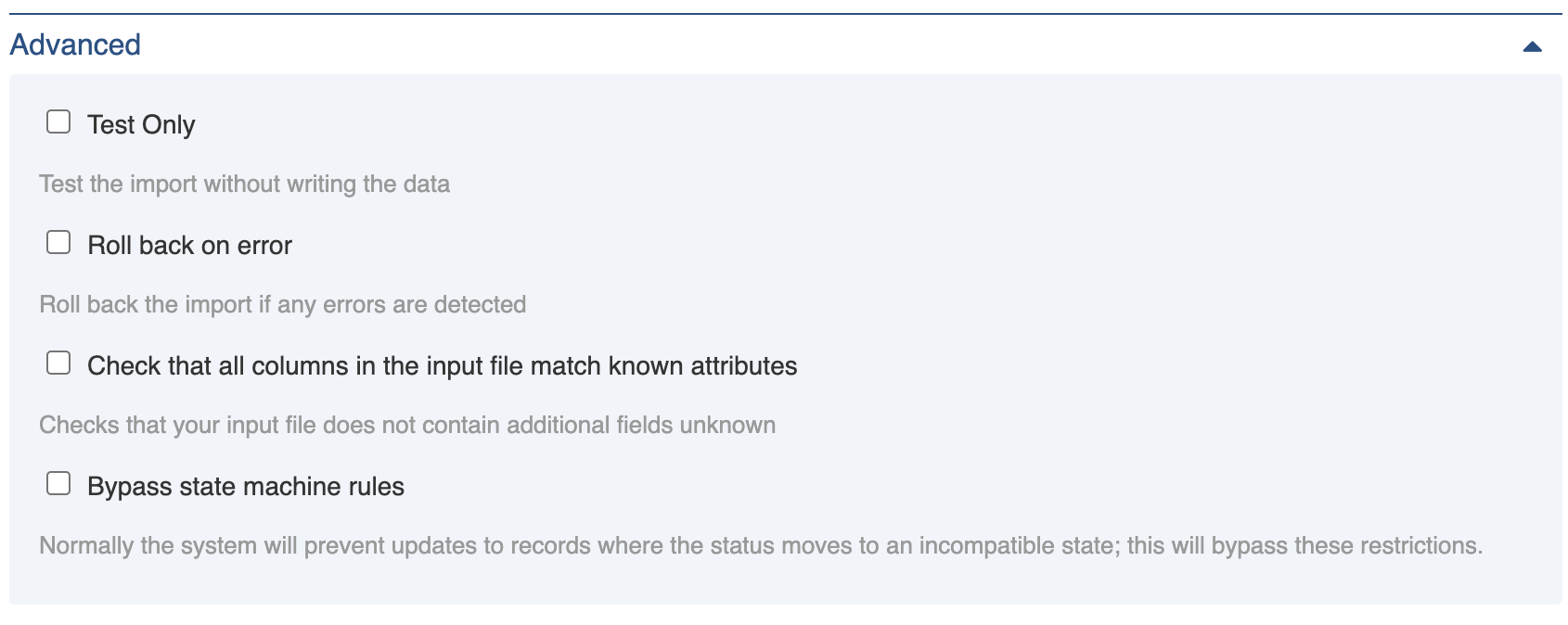
Advanced section
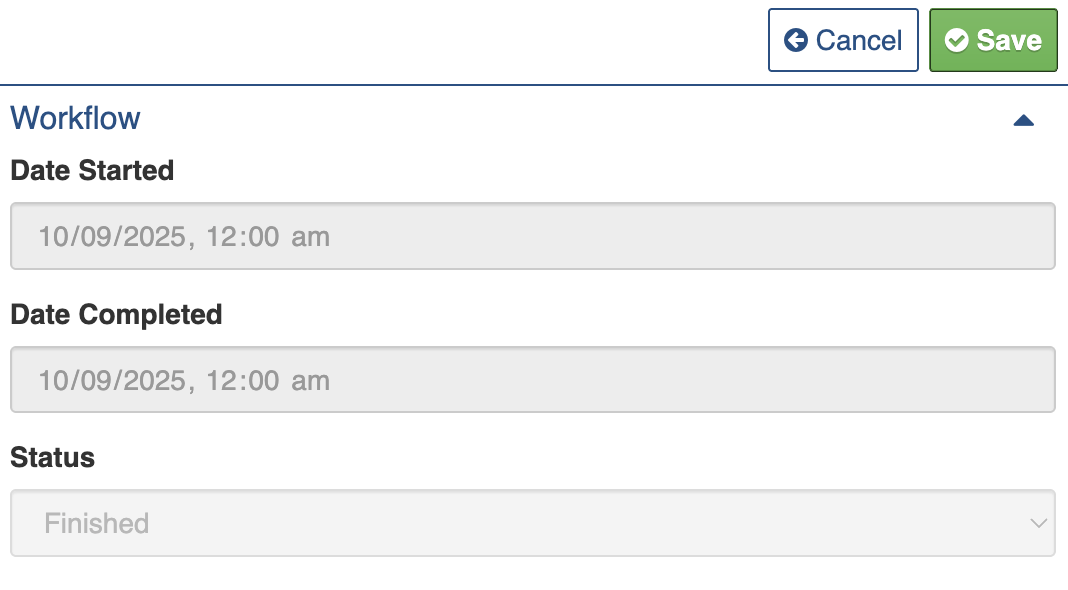
Workflow section in Edit mode
 to add this to your clipboard to paste.
The Description column includes specific instructions for the data expected in each row.
The Required Field indicates which fields must be present in your import file. These fields will say Yes.
to add this to your clipboard to paste.
The Description column includes specific instructions for the data expected in each row.
The Required Field indicates which fields must be present in your import file. These fields will say Yes.
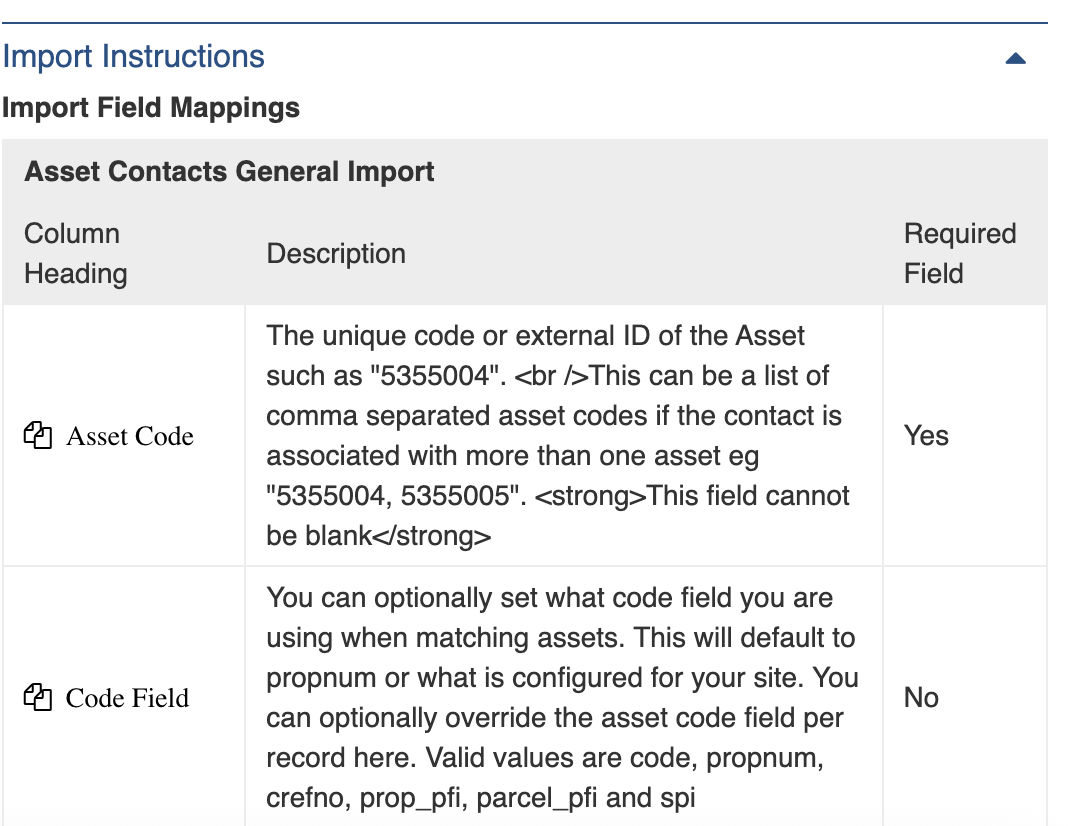
Import Instructions section and Import Field Mappings
 3. Make the necessary changes to the [Settings](#imports-settings)
4. Save
3. Make the necessary changes to the [Settings](#imports-settings)
4. Save  ## Running an Import
To run an Import:
1. Use the [New Item button](/concepts-and-fundamentals/on-a-computer/using-the-datagrid/adding-items.md) for New Import
## Running an Import
To run an Import:
1. Use the [New Item button](/concepts-and-fundamentals/on-a-computer/using-the-datagrid/adding-items.md) for New Import  2. Select a **Type** and **Parsing Rule** and use the Add File button to **Import File**
3. Make any other configurations changes necessary in the [Settings](#imports-settings)
4. Use the **Save** button
2. Select a **Type** and **Parsing Rule** and use the Add File button to **Import File**
3. Make any other configurations changes necessary in the [Settings](#imports-settings)
4. Use the **Save** button  This will initiate the workflow process. You can check the datagrid status or the Result section to see whether the import ran successfully.
{% hint style="warning" %}
Note that the imported items may not show up in the register straight away. Depending on the number of records it may take some time for the items to display and for the counters to update. Please be patient once the import has been run.
{% endhint %}
---
# Agent Instructions
This documentation is published with GitBook. GitBook is the documentation platform designed so that both humans and AI agents can read, navigate, and reason over technical content effectively. Learn more at gitbook.com.
## Querying This Documentation
If you need additional information that is not directly available in this page, you can query the documentation by asking a question.
Perform an HTTP GET request on the following URL with the `ask` and `goal` query parameters:
```
GET https://docs.cw.crisisworks.com/system-administration/configuring-the-system/imports.md?ask=
This will initiate the workflow process. You can check the datagrid status or the Result section to see whether the import ran successfully.
{% hint style="warning" %}
Note that the imported items may not show up in the register straight away. Depending on the number of records it may take some time for the items to display and for the counters to update. Please be patient once the import has been run.
{% endhint %}
---
# Agent Instructions
This documentation is published with GitBook. GitBook is the documentation platform designed so that both humans and AI agents can read, navigate, and reason over technical content effectively. Learn more at gitbook.com.
## Querying This Documentation
If you need additional information that is not directly available in this page, you can query the documentation by asking a question.
Perform an HTTP GET request on the following URL with the `ask` and `goal` query parameters:
```
GET https://docs.cw.crisisworks.com/system-administration/configuring-the-system/imports.md?ask=