Map Layers
This page explains how to use the Map Layers register for site-wide maps management.
Overview
The Map Layers register provides a method of importing geospatial data for system-wide mapping that can only be managed by administrators. The register enables layers of different types and formats to be configured and supports real-time data updates. These maps can include the dashboard map, register map view, asset selection maps or for viewing and editing map annotations.
For individual events, users can upload geospatial features can use the Library module to feature layers using the Geospatial Feature type. Note that only Map Layers are selectable via the mapping user interface.
Administrators can add, update, activate and deactivate layers using the register. They can also control the visibility of layers so that they are available on varoius map screens and registers.
Access
To access the Map Layers register you will need to sign in with System Admin & Data Entry position.
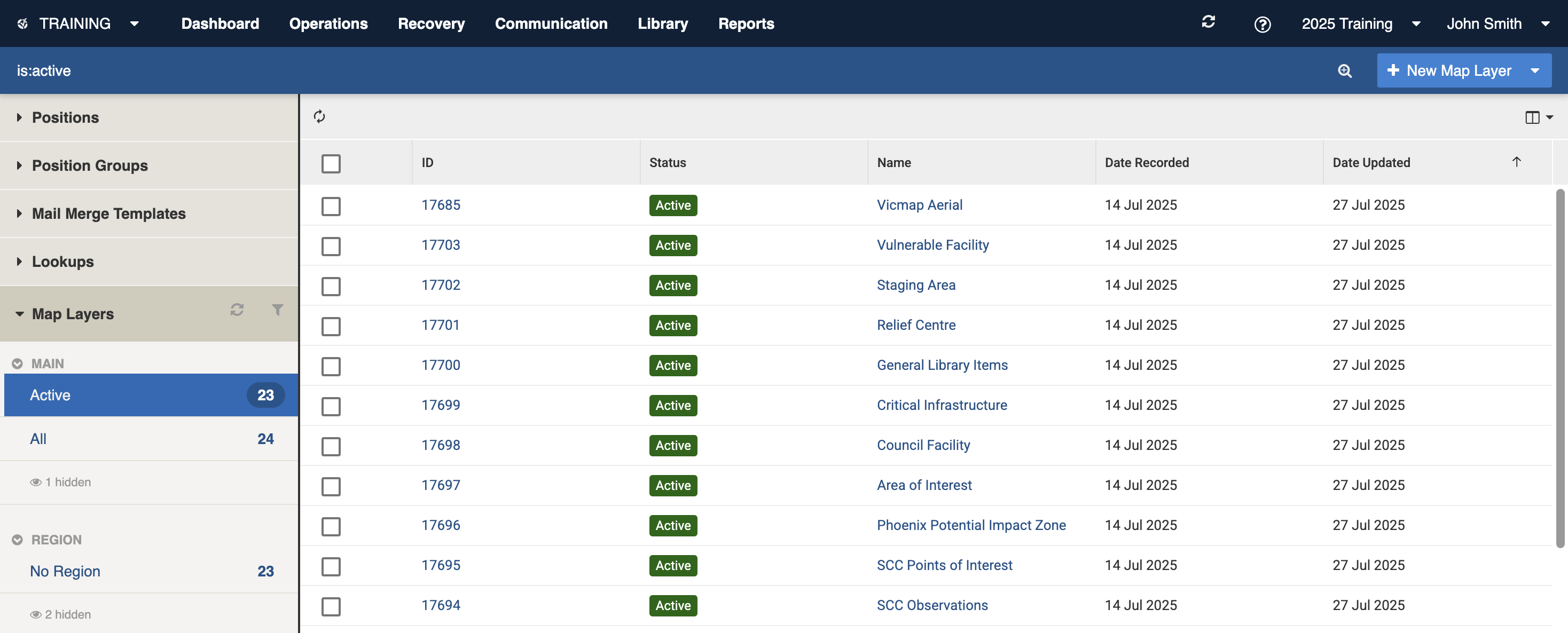
You can find the Map Layers register under System Administration > Map Layers.
Layer Types
There are two supported Layer Types:
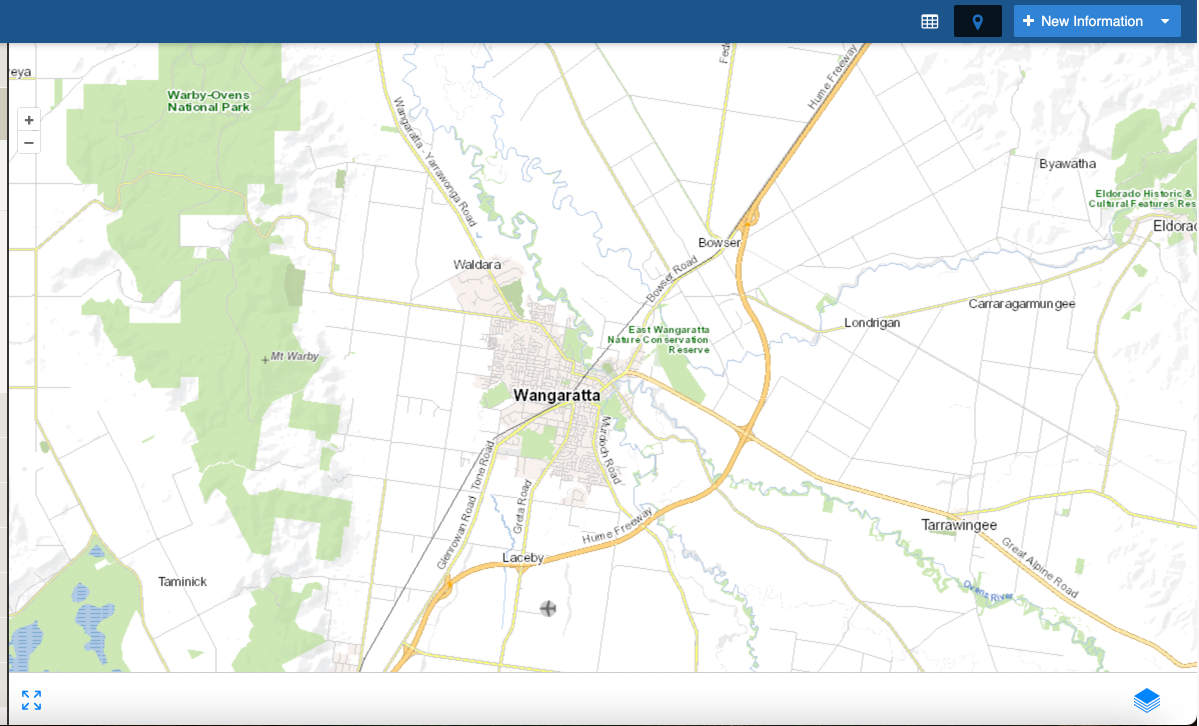
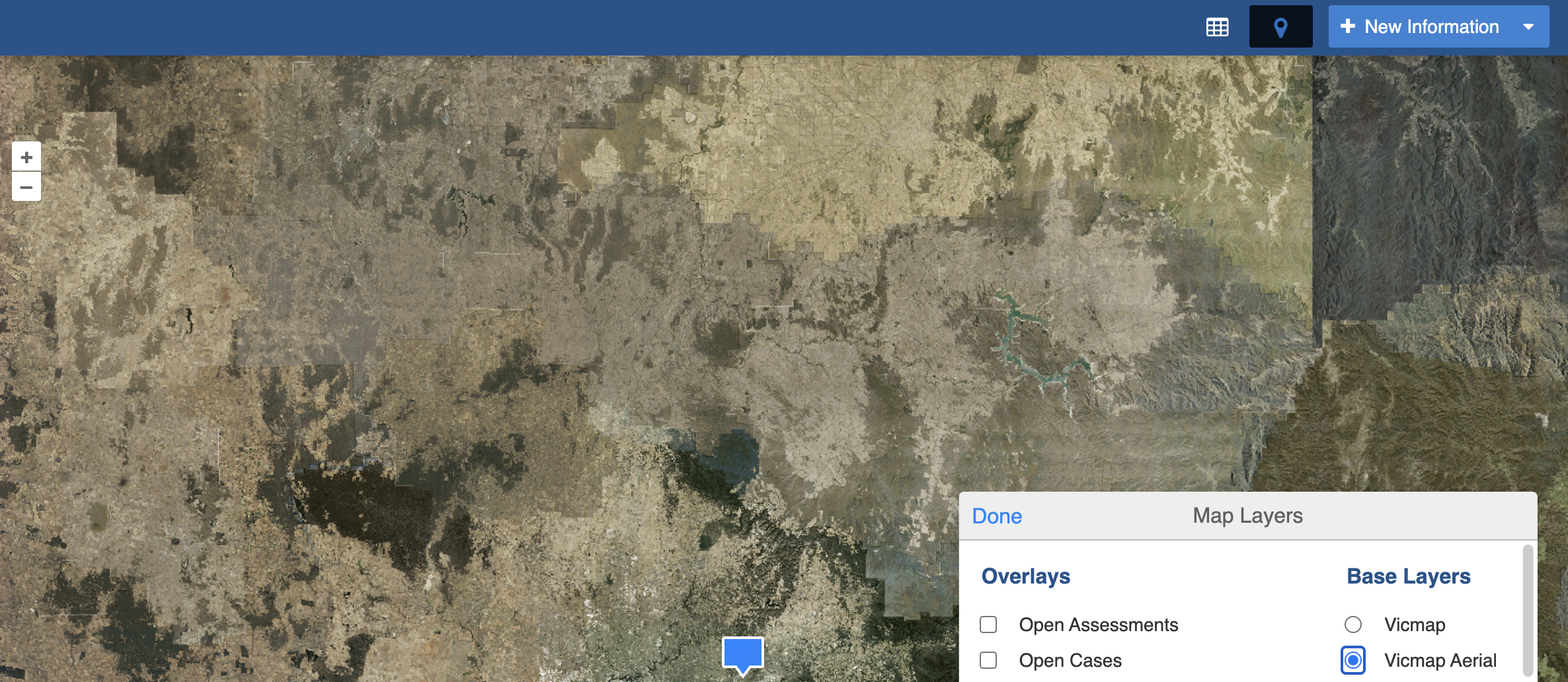
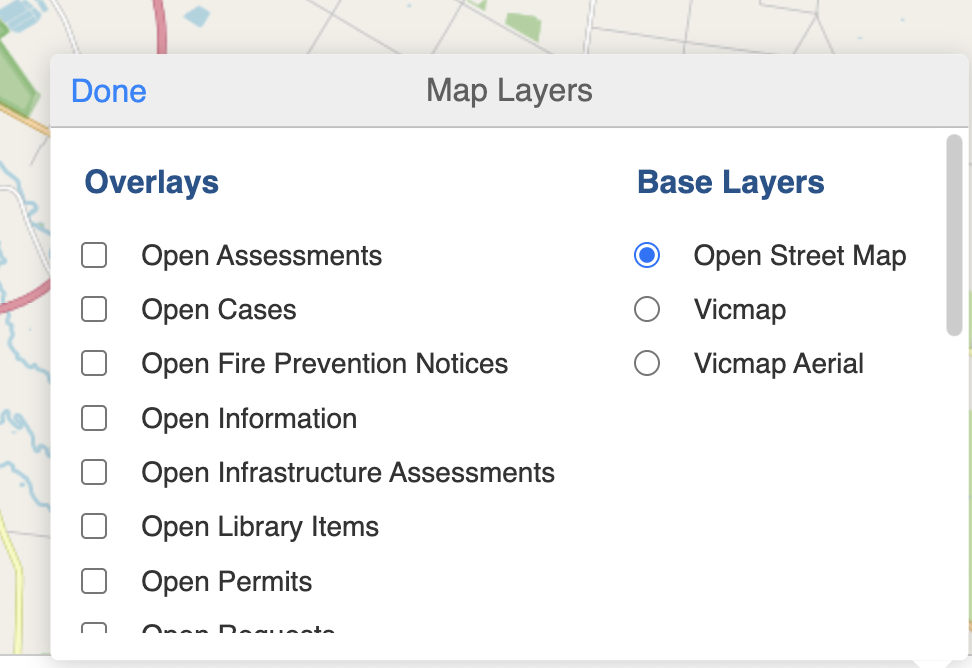
Base Layer - static images or tiles configured as the background map. Depending on your configuration, base layers may be included with your system such as maps or satellite image for your local area where available (these may be subject to separate licensing arrangements). Open Street Map is usually included as standard.
Feature Layer - (or Overlays) features displayed over base layers, such as points, polygons and icons (these may need to have transparent or semi-transparent backgrounds so as not to obscure the base layer underneath). Some feature layers are included as standard for each of the main registers in use on your site. Overlays can also be added via the Library as a geospatial feature, those have the additional benefit of being able to search within.

Formats
The system accepts data from a wide range of standard geospatial formats and additionally has the ability to create custom queries.
If you wish to reference images and files (such as icons) they need to be hosted on the web (outside of system) and correctly referenced by absolute URI. Failure to do this correctly will result in the icons not displaying. As some GIS have their own export format, the KML files may need to be manually edited.
The following formats are accepted (you can select the most suitable format/s for your project):
Feature
Static feature layers in both KML and GeoJSON formats Complex geospatial boundaries and fill styles
Imported data converted from mapping systems such as MapInfo and ArcGIS.
Feature
Query external data sources over the Internet for static geographic features such as building footprints
Base
Add map tiles from an external source or map server like ArcGIS, Nearmap, Google Maps and Bing Maps etc.
Base
Add pre-rendered map tiles from an external source for improved performance.
Crisisworks Query Language (CQL)
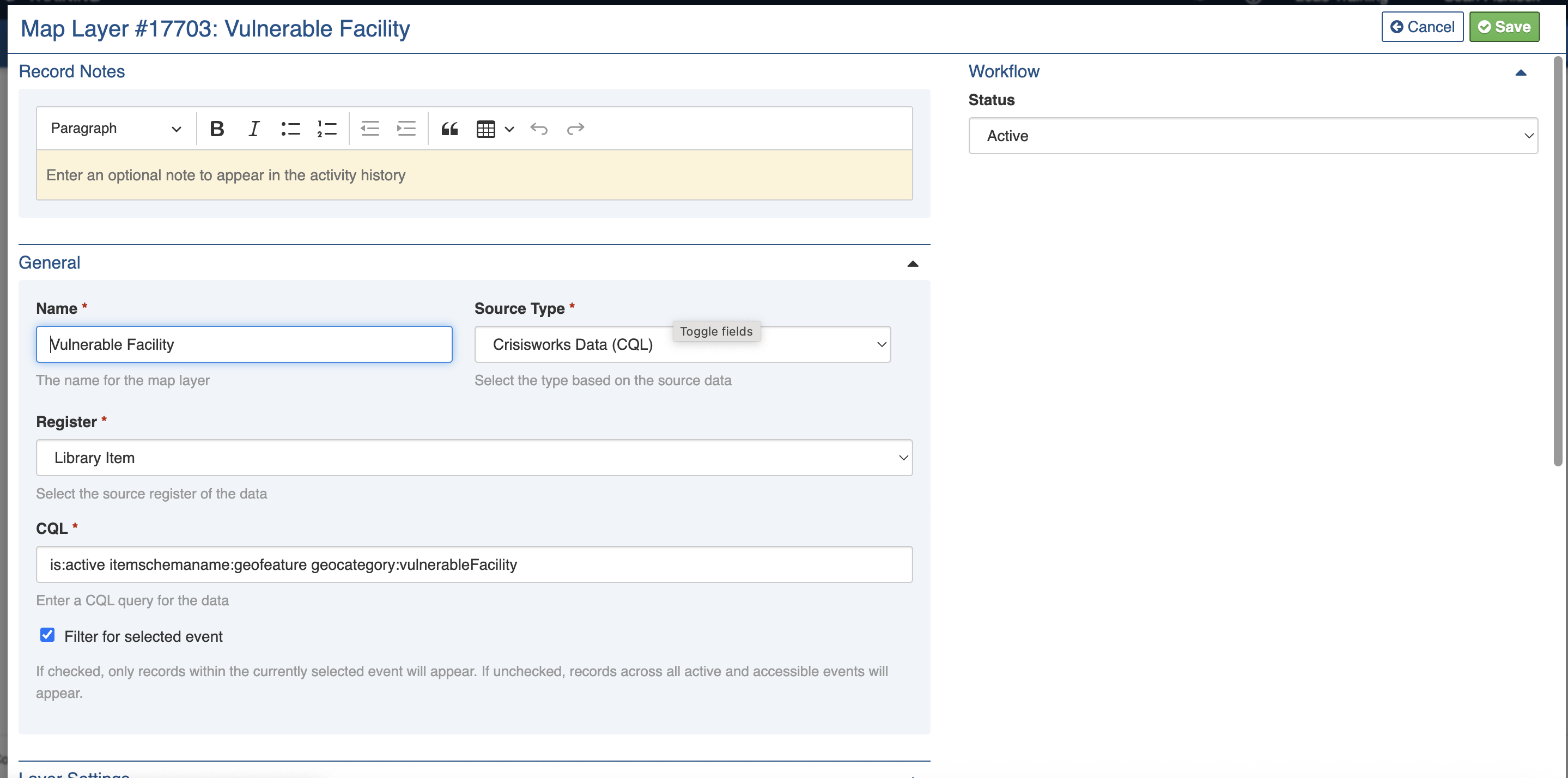
Field type queriesYou can create a map layer based on a query. This is useful if you want to show a filtered view of map data, for example all of the items within a specific zone.
To do this, you'll first need to know the Register you want to query and then write a query for it.
You can create a query using the filtering system which can be for a single event or all events.
GeoJSON
GeoJSON is an open standard for simple geographical features and their attributes.
You can use this to define points, linestrings and polygons and to describe the geospatial features that they point to.
The Map Layers register allows you to use either an uploaded or external URL as a source for GeoJSON data and specify basic attributes such as colours.
GeoJSON feeds provide real-time geographical data. The GeoRSS format (no longer supported) can be converted by web services into this.
Keyhole Markup Language (KML)
Keyhole Markup Language (KML) is an interoperable international standard notation for Internet mapping which is based on XML and is compatible. Use this format for adding layers representing information that change infrequently (ie. Municipal boundaries, 1-in-100 year flood extent etc).
The latest versions of MapInfo and ArcGIS are capable of exporting to this format. Shapefiles can be converted using tools such as shape2ge. Google Earth Pro can also be used for editing and managing KML files. Note: Datalink cannot support you in the use of these third party tools.
Only valid KML files with a .kml extension are accepted, KMZ (.kmz) archives or any other variant of KML are not accepted.
It can only process the one KML file and although it is possible to upload an archive, the map layer will not display.
To use information bubbles on the map, add data into the
nameanddescriptionattributes of the feature. It is common for geospatial tools to support writing an HTML table into thedescriptionattribute.

Open Street Map (OSM)
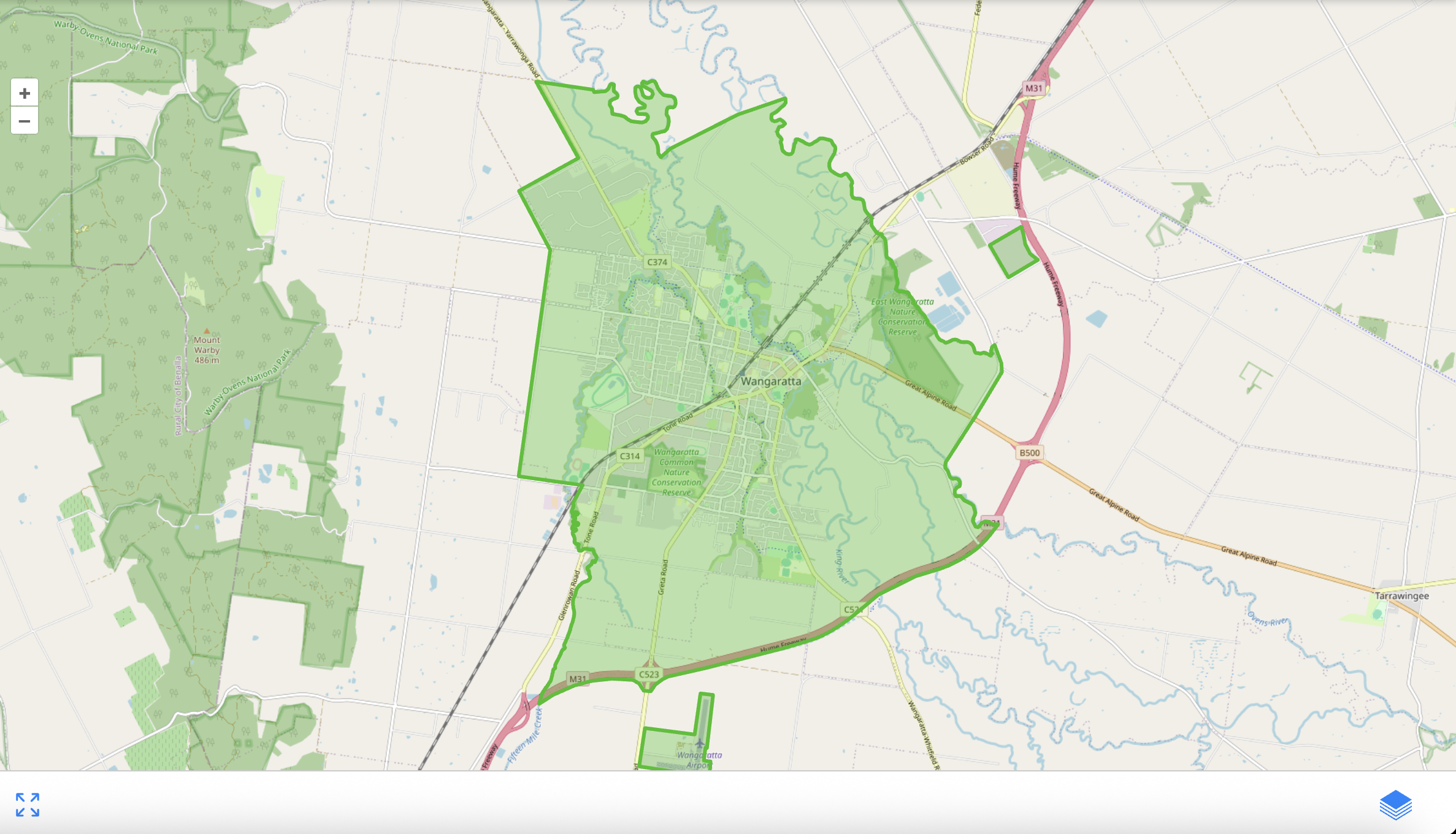
With the OSM function, you can use this free open license map database which is maintained by open collaboration. OSM is usually configured by default as a Base Layer, though you may use your local map provider instead. As such there is nothing you need to do with this. It can be deactivated if not wanted or needed.

Web Feature Service (WFS)
With this function you can use the WFS standard to request geographical features over the web. It supports databases, files and other web services using a Spatial Referencing System (SRS) by referencing the Source and source data layer.
Web Map Service (WMS)
With the WMS function to add map images from an external source or map server server like ArcGIS, Nearmap, Google Maps, QGIS, MapServer, ArcIMS, Bing Maps etc. Note that unlike Open Street Maps, these will be licensed separately to your system. If you have a license you can connect a layer or the Internet this way be specifying the source, layer, format and other dimensions such as Spatial Referencing System (SRS).

Web Map Tile Service (WMTS)
With the WTMS you can access pre-reendered map tiles over the Internet. This supports improved performance over WMS. Tiles are sourced via an external URL referenced using a source layer and matrix set.
XYZ Tile URL
Using this function, you can retrieve specific map tiles from an external source using:
{z} zoom level
{x} the column
{y} the row of the tile
{s} optional subdomain
{extension} specifies the file type (e.g. .png, .jpg)
Access
To access Map Layers you will need to sign in with the System Admin & Data Entry role.
Locate the Map Layers register under Administration > Map Layers in the menu.
Administration
Administrators are able to set up and maintain Map Layers by:
Adding new base or feature Map Layers as required
Updating the settings including visibility
Removing any unneeded Map Layers using the Inactive Status
Finding Map Layers
Searching and FilteringThe register includes a number of features to assist in finding Map Layers:
Datagrid view
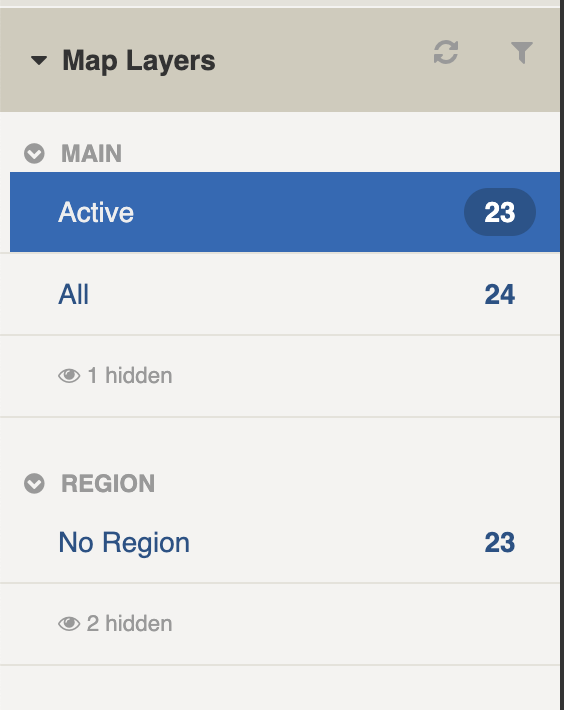
Filters including Active, Inactive or All
Combination filters and search by most fields such as Name or Status

Filters
Filters help make management of Map Layers easier by focusing on specific groups of items on the datagrid.

Filter menu explanations
The following lists some of the filters and how to use them:
Main
Active Recently Updated All
Region*
* May vary based on your system configuration
Opening and Viewing
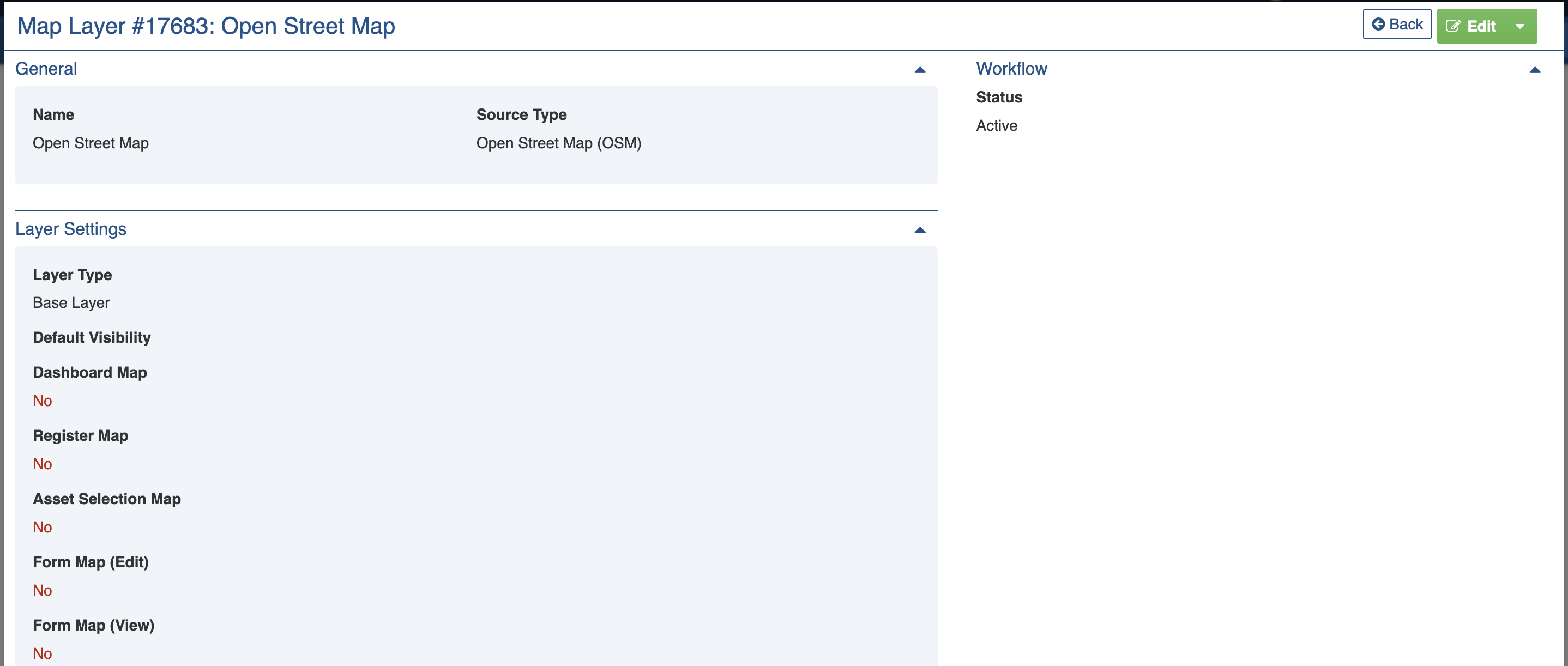
Viewing ItemsWhen viewing Map Layers, sections can be expanded to show information.
As each section is completed, new sections may show additional information.
Source Type is the main setting which opens up additional data fields for specifying the additional settings for each type.

Settings
Map Layers are divided into the following sections (sections may or may not appear depending on what information is entered, your permissions level, and what mode you're viewing):
Record Notes
When editing, record notes in the rich text field as you make changes which will appear in the Activity log.
Refer to: Recording Notes
General
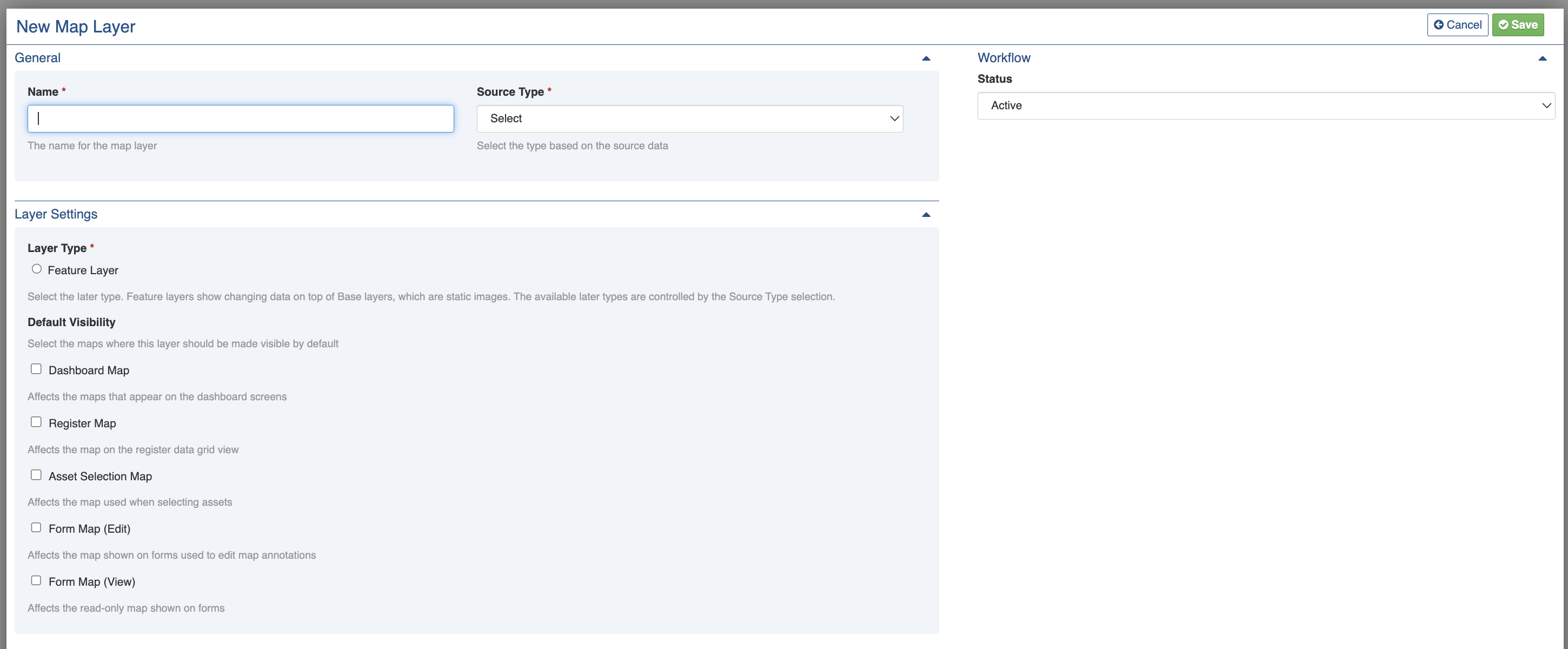
The General section is used to name the map layer, to select the Source Type and specify any additional details required for that type.
Name
Use this to specify the name of the Map Layer. It is important to give it a name that end users will understand and that matches their expectation of what it represents as this name will appear for end users to select the layer.
Source Type
Use this field to select the Source Type. This will open additional data fields for using that type, some may be required.
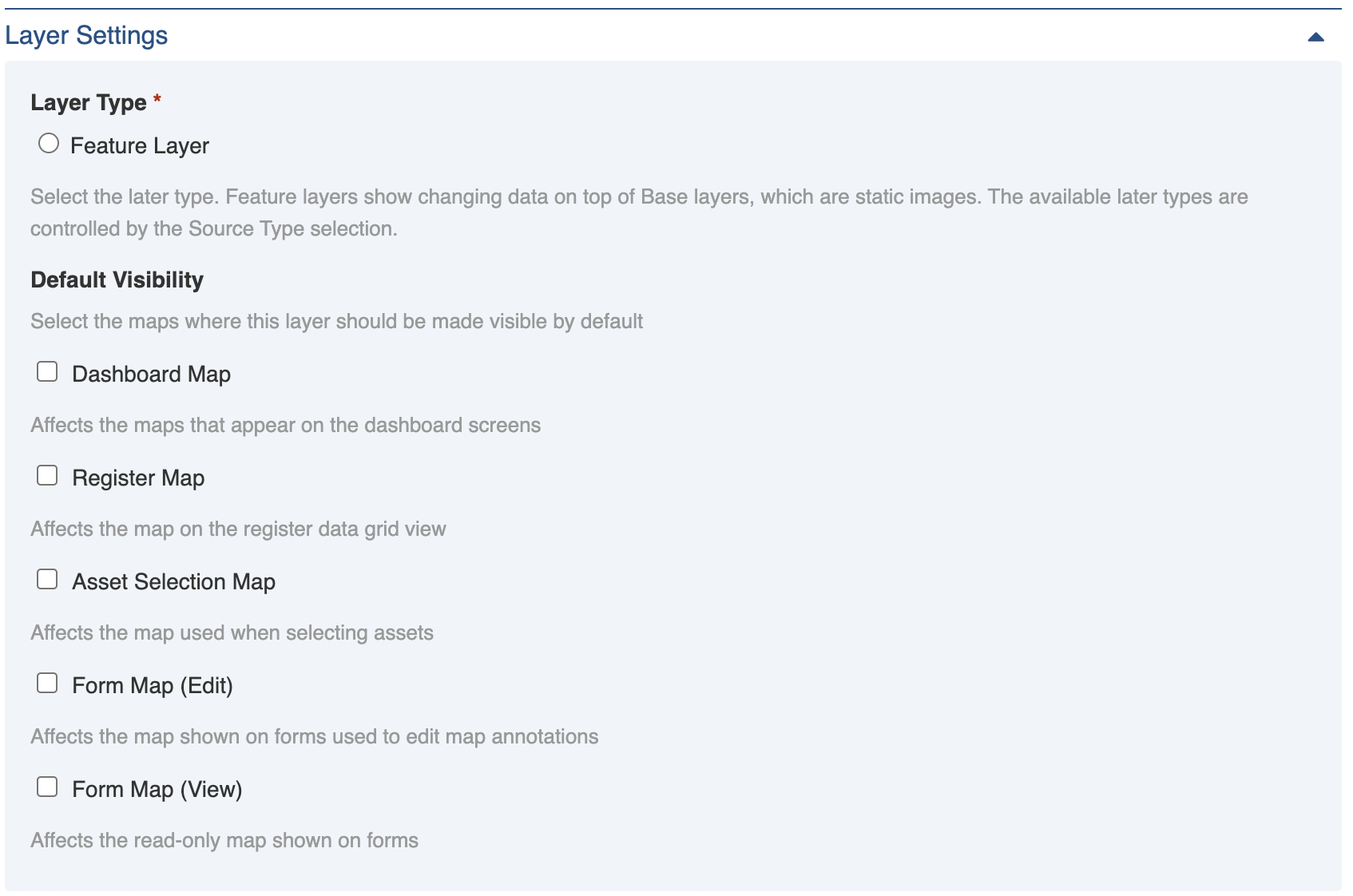
Layer Settings
The Layer Sections setting is used to configure the area where the layer is visible.

Layer Type
This field is used to specify what Layer Type is being used (i.e. a Base Layer or a Feature Layer).
Default Visibility
This section contains field that control where the Map Layer is available.
Use the checkbox to toggle visibility on or off for:
Dashboard map
Register map - when using the map view mode
Asset selection map - when using the map to edit a location of a register item
Form Map (Edit) - when annotating a map in a register item
Form Map (View) - when viewing register items
Workflow
Map Layers have only two statuses: Active and Inactive. Active Map Layers are enabled for use. Inactive lookups cannot be selected as options by users. They can be reactivated and re-added if needed.
Activity
Refer to: Viewing Items: Activity
Updating
Editing ItemsWhen updating Map Layers:
Add notes on your edits in the Record Notes field
Complete each section of the Settings and Layer Settings as required. Note that some options may open up new sections to complete.
Do not attempt to change the Source Type you may lose data

Activating and Deactivating
To deactivate a Map Layer that is no longer needed (or reactivating a previously inactive layer):
Edit the layer
Change the Status to Inactive when deactivating or Active when reactivating
Save
An Inactive layer will no longer be selectable by end users.
Adding
Adding ItemsTo add a new Map Layer:
From the register, in the New item menu select the New Map Layer
buttonComplete each section of the Settings as required. It is important to first select the Source Type and give it a Name and specify the Layer Type (Base or Feature Layer).
Other Settings will depend on the Source Type.
Save


Bulk Actions
Bulk ActionsThe following additional bulk actions can be performed via the Actions menu:
Copy IDs
Refer to: Copy IDs
Last updated
Was this helpful?