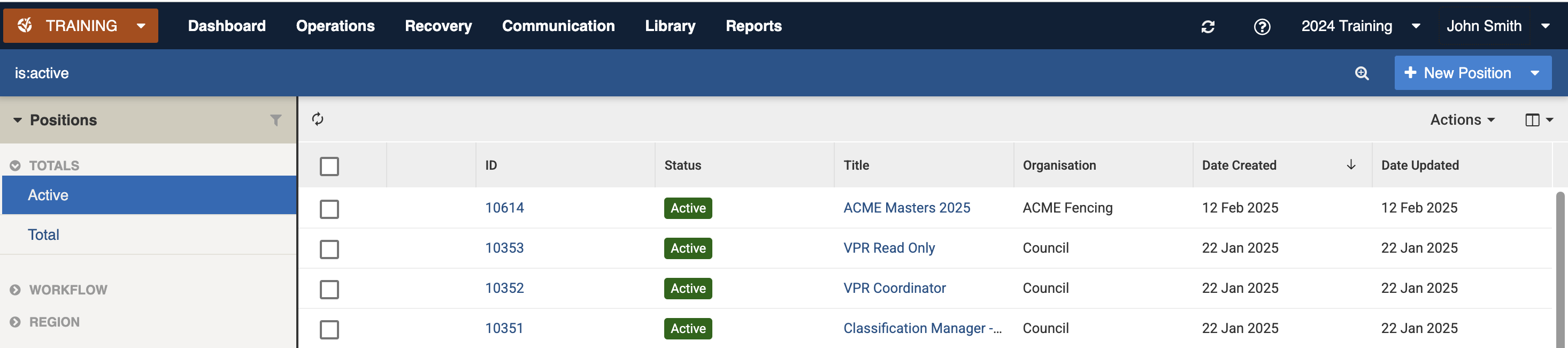
Sample Positions Register datagrid
Sample Positions Register datagrid


View of a sample position including the link to the position group

 3. Make the necessary changes to the [settings](#position-settings)
4. Save
3. Make the necessary changes to the [settings](#position-settings)
4. Save  to save your changes
## Adding
To add a position:
1. Use the [New Item button](/concepts-and-fundamentals/on-a-computer/using-the-datagrid/adding-items.md) for New Position button
to save your changes
## Adding
To add a position:
1. Use the [New Item button](/concepts-and-fundamentals/on-a-computer/using-the-datagrid/adding-items.md) for New Position button  2. Enter a **Title**, **Position Group**, **Organisation** and at lease one Security Policy in **Security Policies**
3. Use the **Save** button
2. Enter a **Title**, **Position Group**, **Organisation** and at lease one Security Policy in **Security Policies**
3. Use the **Save** button  ## Bulk Actions
{% content-ref url="/pages/85HyYT6h2YqK6Qk26AXL" %}
[Bulk Actions](/concepts-and-fundamentals/on-a-computer/using-the-datagrid/bulk-actions.md)
{% endcontent-ref %}
| Action |
| ------------------------------------------------------------------------------------------------------------------------- |
| [Copy IDs](#copy-ids) |
| [Export to Positions with Policies Report](#export-to-positions-with-policies-report) |
| [Export to Positions and users based on current duty Report](#export-to-positions-and-users-based-on-current-duty-report) |
| [Copy](#copy) |
### Copy IDs
Refer to: [Copy IDs](/concepts-and-fundamentals/on-a-computer/using-the-datagrid/bulk-actions.md#copy-ids)
### Export to Positions with Policies Report
Refer to: [Export to Report](/concepts-and-fundamentals/on-a-computer/using-the-datagrid/bulk-actions.md#export-to-report) and [Reports](/modules/reports.md)
Use this action to generate the *Positions with Policies Report* for selected Positions.
### Export to Positions and users based on current duty Report
Refer to: [Export to Report](/concepts-and-fundamentals/on-a-computer/using-the-datagrid/bulk-actions.md#export-to-report) and [Reports](/modules/reports.md)
Use this action to generate the *Positions and users based on current duty Report* for selected Positions.
### Copy
Refer to: [Copying](#copying)
Positions can contain a number of settings including policies for security permissions which can be useful to reuse.
Copying reproduces the security permissions which makes it much easier than setting them from scratch.
{% hint style="info" %}
The process will only complete if you are on duty to an event with a System Administration position
{% endhint %}
To copy position/s:
1. Select one or more positions to copy and use the Actions menu
2. Select the Copy Position action from the Bulk Actions menu
3. Use the Proceed button
## Bulk Actions
{% content-ref url="/pages/85HyYT6h2YqK6Qk26AXL" %}
[Bulk Actions](/concepts-and-fundamentals/on-a-computer/using-the-datagrid/bulk-actions.md)
{% endcontent-ref %}
| Action |
| ------------------------------------------------------------------------------------------------------------------------- |
| [Copy IDs](#copy-ids) |
| [Export to Positions with Policies Report](#export-to-positions-with-policies-report) |
| [Export to Positions and users based on current duty Report](#export-to-positions-and-users-based-on-current-duty-report) |
| [Copy](#copy) |
### Copy IDs
Refer to: [Copy IDs](/concepts-and-fundamentals/on-a-computer/using-the-datagrid/bulk-actions.md#copy-ids)
### Export to Positions with Policies Report
Refer to: [Export to Report](/concepts-and-fundamentals/on-a-computer/using-the-datagrid/bulk-actions.md#export-to-report) and [Reports](/modules/reports.md)
Use this action to generate the *Positions with Policies Report* for selected Positions.
### Export to Positions and users based on current duty Report
Refer to: [Export to Report](/concepts-and-fundamentals/on-a-computer/using-the-datagrid/bulk-actions.md#export-to-report) and [Reports](/modules/reports.md)
Use this action to generate the *Positions and users based on current duty Report* for selected Positions.
### Copy
Refer to: [Copying](#copying)
Positions can contain a number of settings including policies for security permissions which can be useful to reuse.
Copying reproduces the security permissions which makes it much easier than setting them from scratch.
{% hint style="info" %}
The process will only complete if you are on duty to an event with a System Administration position
{% endhint %}
To copy position/s:
1. Select one or more positions to copy and use the Actions menu
2. Select the Copy Position action from the Bulk Actions menu
3. Use the Proceed button

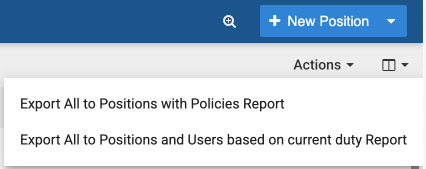
Actions menu for Positions showing Export to Report options