> For the complete documentation index, see [llms.txt](https://docs.cw.crisisworks.com/llms.txt). Markdown versions of documentation pages are available by appending `.md` to page URLs; this page is available as [Markdown](https://docs.cw.crisisworks.com/system-administration/reporting.md).
# Reporting
This section outlines the Reports module including running reports.
## Overview
The Reporting system provides pre-built reports with filters for exporting data, generally downloadable in comma separated (CSV) format.
They provide a more detailed and flexible alternative to [working with registers and datagrids](/concepts-and-fundamentals/on-a-computer/using-the-datagrid.md).
There are two ways to generate reports:
* Indirectly via the Export to Report function in the [Bulk Actions menu](/concepts-and-fundamentals/on-a-computer/using-the-datagrid/bulk-actions.md#export-to-report) in a register (this option may be limited to certain users by permissions) this option provides a pre-filtered pre-selected report
* [Running a Report](/system-administration/reporting/running-reports.md) from the Reports module directly - this option provides more control over the report selection and output
{% hint style="info" %}
Each built-in report is identifiable by a unique Report ID however this is specific to your organisation's [Site](/concepts-and-fundamentals/concepts-and-fundamentals.md#sites-and-regions). The same ID may not refer to the same report in another Site.
{% endhint %}
The Reports module uses a snapshot system, enabling users to see previous runs configured with their original filters. Reports are run as a scheduled process so that they don't affect overall performance of the system.
Reports are configured as part of your package and depending on your subscription, Help Desk can assist with the creation of custom reports. Refer to the module guide for relevant reports or full a full list, [Built-in Reports](/system-administration/reporting/built-in-reports.md).
## Access
Reports is available via the main menu.
The module is typically available only to Coordinator and System Administrator positions. It can be configured for access by other users by a System Administator through a security policy.
If your account doesn't have access to this module and you need to use it, contact your System Administrator.
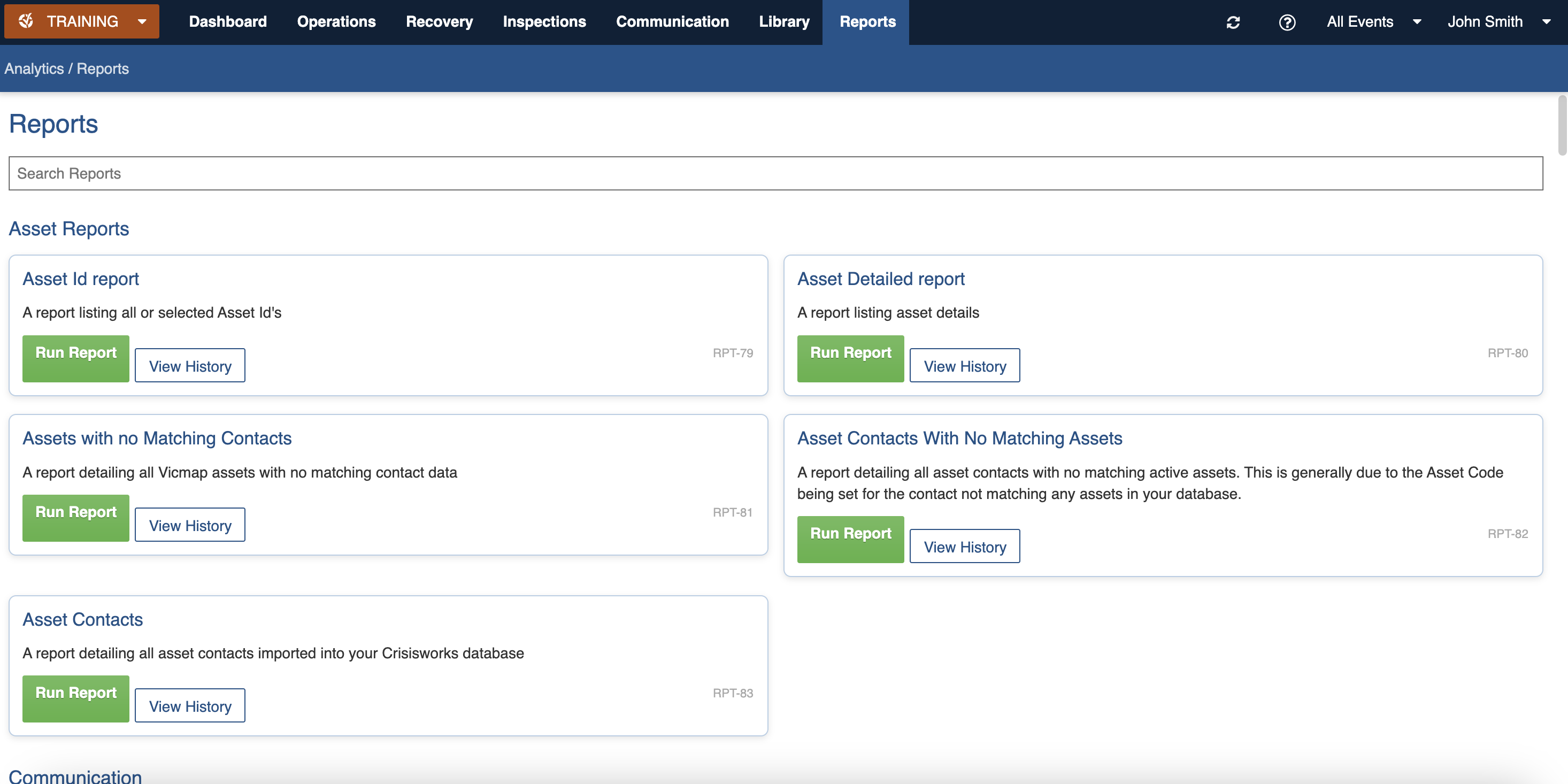
View of the Reports module
## Finding Reports
Your system will typically have more than 50 built-in reports and may include some configured specifically for your organisation's needs.
Reports are grouped by theme and listed alphabetically by theme.
To find a specific report, you can type a keyword into the '**Search Reports**' field located at the top of the Reports screen. Reports will be automatically filtered by the keyword as you type.
Searching for reports by keyword 'cost'
---
# Agent Instructions
This documentation is published with GitBook. GitBook is the documentation platform designed so that both humans and AI agents can read, navigate, and reason over technical content effectively. Learn more at gitbook.com.
## Querying This Documentation
If you need additional information that is not directly available in this page, you can query the documentation dynamically by asking a question.
Perform an HTTP GET request on the current page URL with the `ask` query parameter, and the optional `goal` query parameter:
```
GET https://docs.cw.crisisworks.com/system-administration/reporting.md?ask=&goal=
```
`ask` is the immediate question: it should be specific, self-contained, and written in natural language.
`goal` is optional and describes the broader end goal you are ultimately trying to accomplish on behalf of the user. GitBook uses it to tailor the answer towards what is most useful for that goal.
The response will contain a direct answer to the question and relevant excerpts and sources from the documentation.
Use this mechanism when the answer is not explicitly present in the current page, you need clarification or additional context, or you want to retrieve related documentation sections.