# FPN Subcontractor Tasks

## Overview <a href="#overview" id="overview"></a>

The FPN Subcontractor Tasks register which is used to record the status of tasks performed to contractors and subcontractors.

This register provides the following features:

* Assign tasks to a **Service** (contractor)
* Assignment to a Contractor (**Service)**
* Record instructions for contractors
* Contractors can log in and get a list of tasks assigned to them
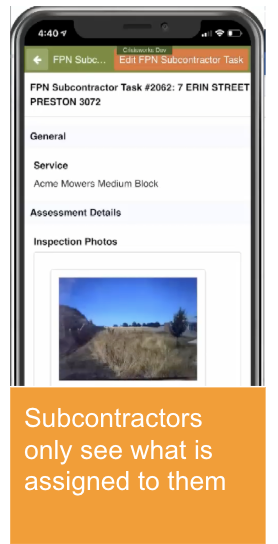
* Contractors can view the **Assessment Details** including **Inspection Photos** as well as cutting grass, removal and, firebreak instructions and map

<figure><img src="https://3923904090-files.gitbook.io/~/files/v0/b/gitbook-x-prod.appspot.com/o/spaces%2FNy7IznbrPLUq6GJDDQDk%2Fuploads%2FIsmeMiBF0hqxPViPH1Sr%2Fimage.png?alt=media&#x26;token=58317316-35fa-4254-a050-eabe468ce1c0" alt="" width="139"><figcaption><p>Contractor view of the app</p></figcaption></figure>

### Positions <a href="#positions" id="positions"></a>

This register can be configured to be viewed and managed by any [FPN position](https://docs.cw.crisisworks.com/modules/inspections/fire-prevention-notices/..#positions) however it is designed to provide access to FPN Subcontractors through the mobile app.

The FPN Contractor position, if set up properly will only see items in this register that are assigned to them. For this, a System Administrator will need to set up a user account for the contractor and assign an FPN Contractor position to them. For more information refer to: [Creating Assignable Users and Organisations](https://docs.cw.crisisworks.com/system-administration/user-and-contact-administration/creating-assignable-users-and-organisations).

### Process <a href="#process" id="process"></a>

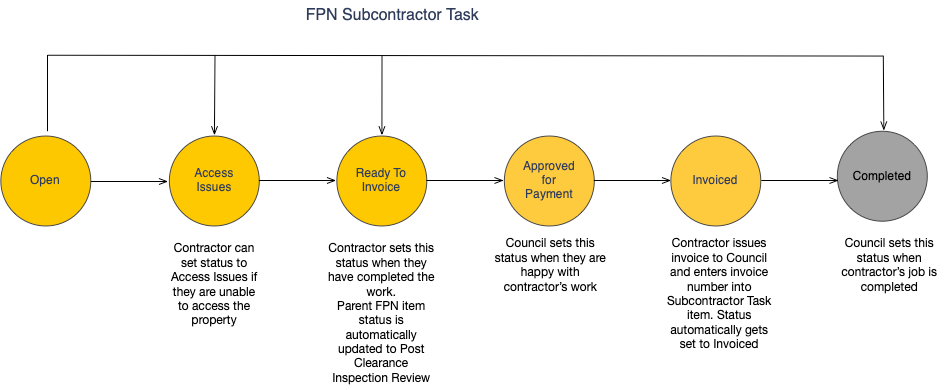
Refer to: [Workflow](#workflow)

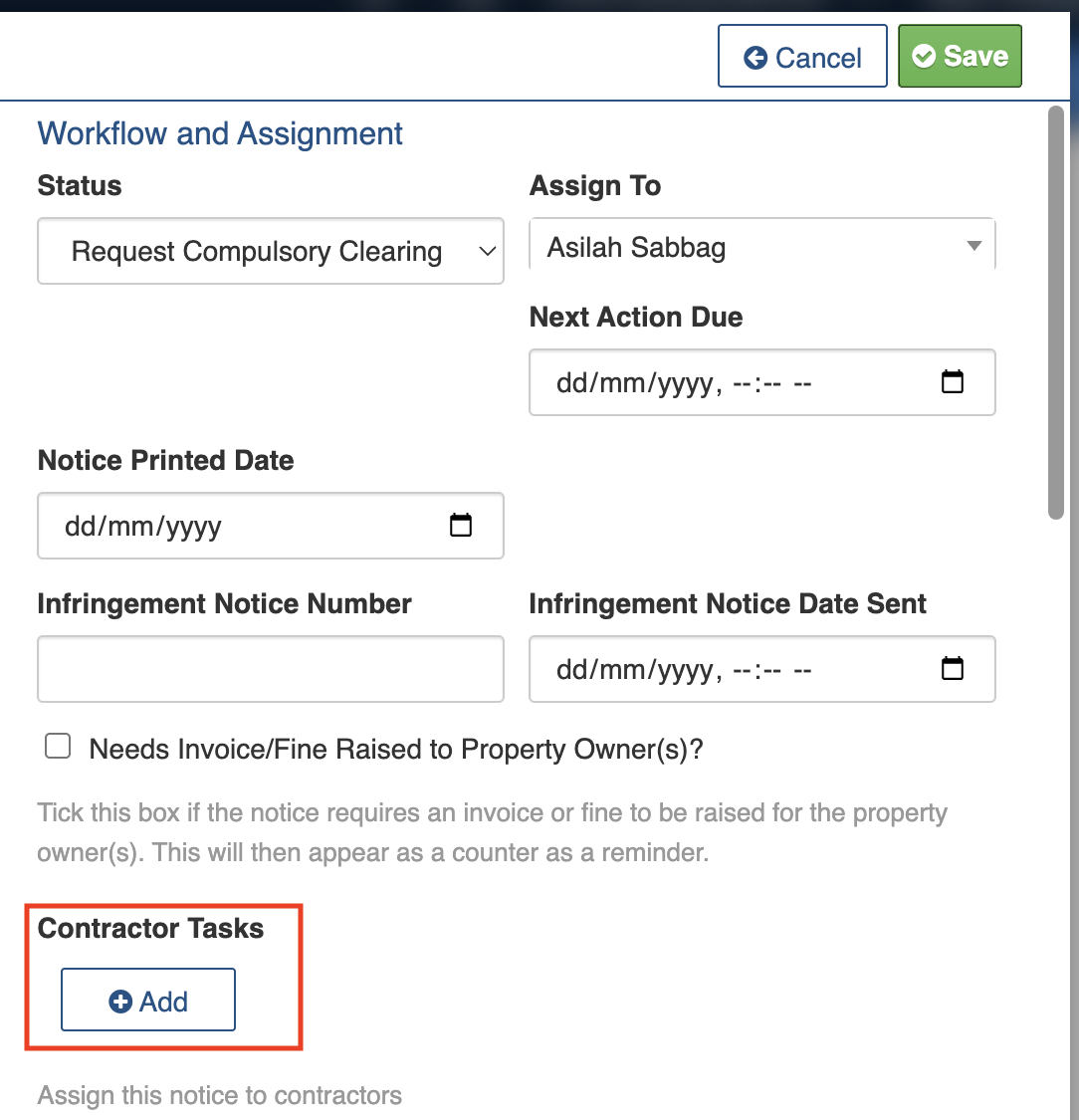
If a compulsory clearing is required, then the FPN Coordinator sets the status to Request Compulsory Clearing. An FPN Coordinator can task items to a subcontractor using the Contractor Tasks sub-item.&#x20;

The FPN Coordinator or Officer can manage the FPN Subcontractor task on behalf of a contractor or they can arrange for the contractor to be set up as an FPN Contractor.&#x20;

If FPN Contractor access is set up then a user from a contractor organisation can view and manage items assigned to them either from a list (datagrid) or the map view. If there are access issues, then the Status should be set to Access Issues. Otherwise when the work is ready to invoice, the Status should be set to Ready to Invoice.

Once the tasks are done, the Status is changed to Completed. An FPN Coordinator can close the Fire Prevention Notice when all related tasks are completed.

### Access <a href="#access" id="access"></a>

To access *FPN Subcontractor Tasks*

* *FPN Subcontractor Tasks* must be [enabled for the event](https://docs.cw.crisisworks.com/system-administration/managing-events#registers), along with Fire Prevention Notices [positions](https://docs.cw.crisisworks.com/system-administration/managing-events#positions)
* [Go on duty](https://docs.cw.crisisworks.com/concepts-and-fundamentals/on-a-computer/working-with-events#setting-your-duties-for-events) with an appropriate role. If you can't access it, ask your administrator to check your permissions.

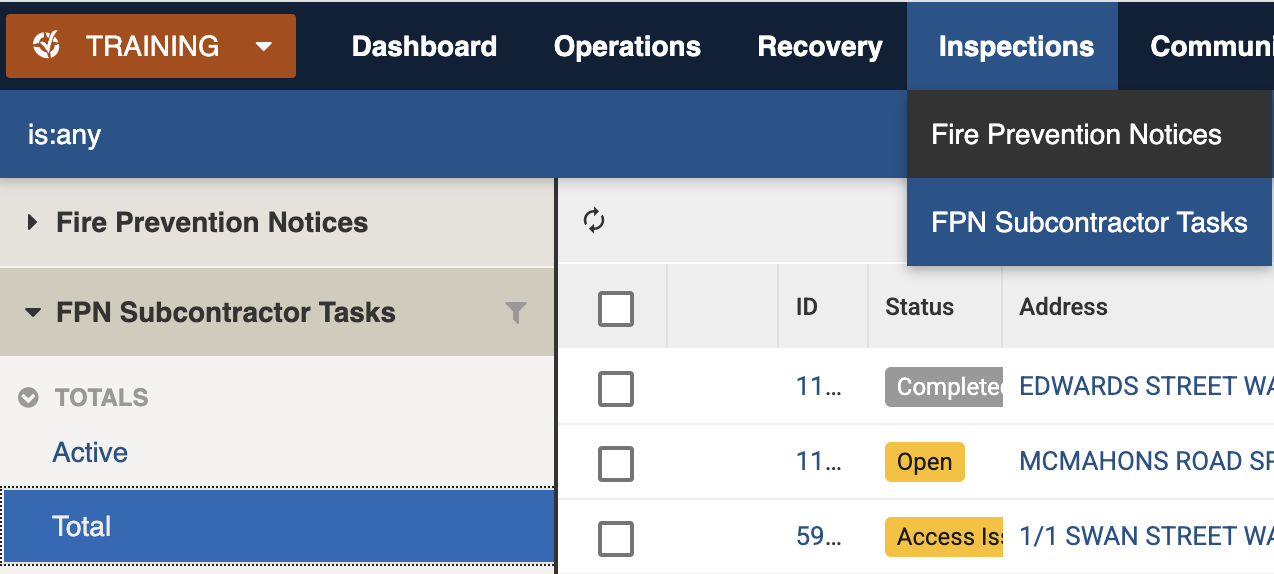
Locate the *FPN Subcontractor Tasks* register under **Inspections > FPN Subcontractor Tasks** in the menu.&#x20;

<figure><img src="https://3923904090-files.gitbook.io/~/files/v0/b/gitbook-x-prod.appspot.com/o/spaces%2FNy7IznbrPLUq6GJDDQDk%2Fuploads%2FjZOAfMWdIrCSCK9eFhFi%2Fimage.png?alt=media&#x26;token=876f9a22-cdbc-4a11-9a1d-143b85360770" alt="" width="375"><figcaption><p>Location of the FPN Subcontractor Tasks register in the Inspections module</p></figcaption></figure>

### Administration <a href="#administration" id="administration"></a>

Administrators are able to set up and maintain the *FPN Contractors* register by:

* Adding the *FPN Contractors* [register](https://docs.cw.crisisworks.com/system-administration/managing-events#registers) and *Fire Prevention Notice* [positions](https://docs.cw.crisisworks.com/system-administration/managing-events#positions) to the event
* Managing *FPN Contractors* via Contacts Organisations register (refer to [Creating Assignable Users and Organisations](https://docs.cw.crisisworks.com/system-administration/user-and-contact-administration/creating-assignable-users-and-organisations))

## Finding FPN Subcontractor Tasks <a href="#finding" id="finding"></a>

{% content-ref url="../../../concepts-and-fundamentals/on-a-computer/searching-filtering-and-querying-registers" %}
[searching-filtering-and-querying-registers](https://docs.cw.crisisworks.com/concepts-and-fundamentals/on-a-computer/searching-filtering-and-querying-registers)
{% endcontent-ref %}

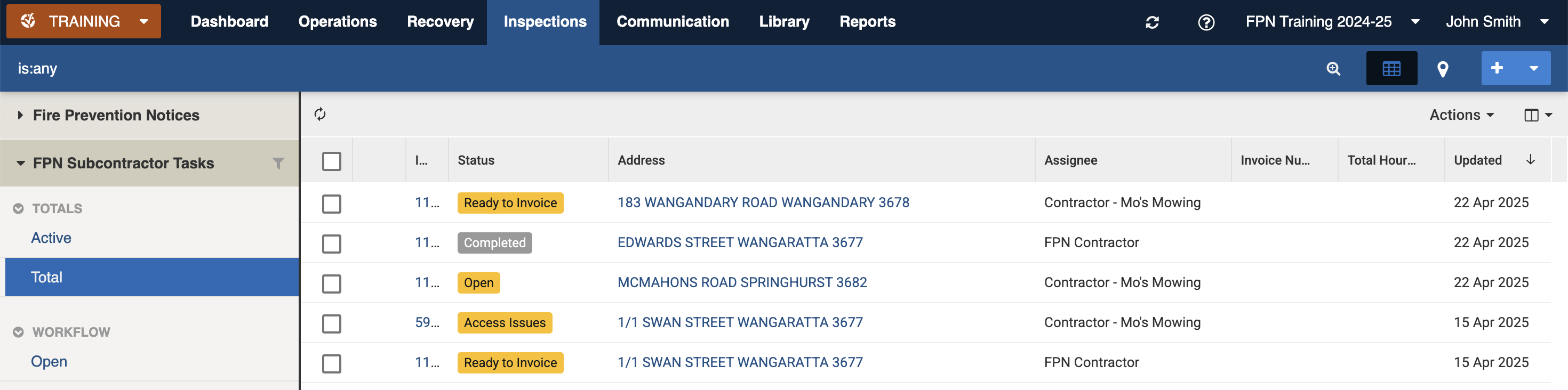
The register includes a number of features to assist in finding *FPN Subcontractor Tasks*:

* [Datagrid](https://docs.cw.crisisworks.com/concepts-and-fundamentals/on-a-computer/using-the-datagrid#data-grid-view) view
* [Map](https://docs.cw.crisisworks.com/concepts-and-fundamentals/on-a-computer/using-the-datagrid#map-view) view
* [Filters](#information-editinganexistinginformationitem-1) including workflow, region and assignments
* Combination filters and search by most fields

<figure><img src="https://3923904090-files.gitbook.io/~/files/v0/b/gitbook-x-prod.appspot.com/o/spaces%2FNy7IznbrPLUq6GJDDQDk%2Fuploads%2FXZb6j5Dso2NXR4wG1QS0%2Fimage.png?alt=media&#x26;token=3b4c9085-ea59-481f-96c5-ccb3f433350b" alt=""><figcaption><p>FPN Subcontractors datagrid (sample view)</p></figcaption></figure>

<figure><img src="https://3923904090-files.gitbook.io/~/files/v0/b/gitbook-x-prod.appspot.com/o/spaces%2FNy7IznbrPLUq6GJDDQDk%2Fuploads%2F7cGuNVWY6qeANfsCne6f%2Fimage.png?alt=media&#x26;token=a799a765-5407-40ef-9558-b493e0720186" alt="" width="375"><figcaption><p>FPN Subcontractor map with item summary (sample view)</p></figcaption></figure>

### Filters <a href="#filters" id="filters"></a>

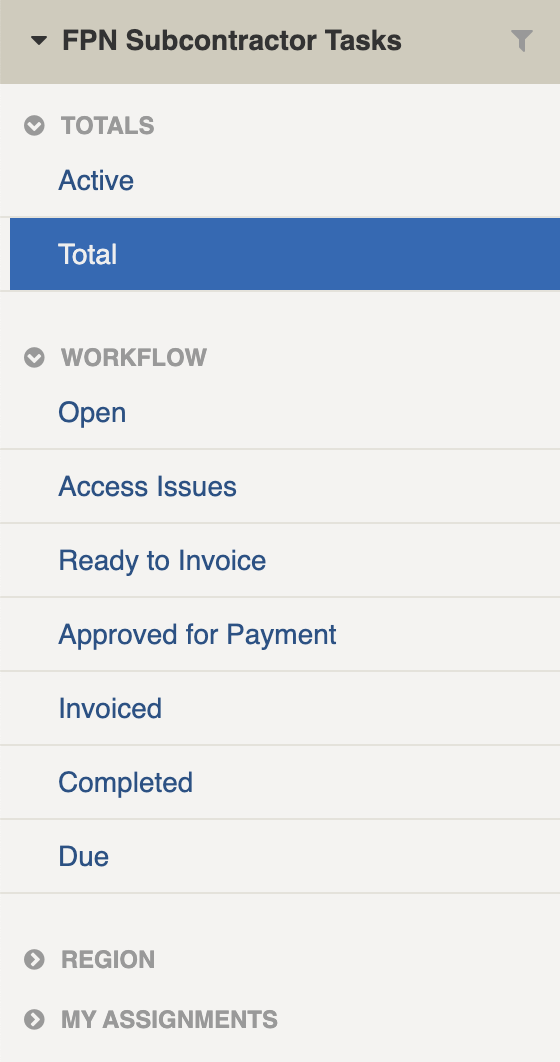
Filters help make management of *FPN Subcontractor Tasks* easier by focusing on specific groups of items on the datagrid.

<figure><img src="https://3923904090-files.gitbook.io/~/files/v0/b/gitbook-x-prod.appspot.com/o/spaces%2FNy7IznbrPLUq6GJDDQDk%2Fuploads%2Ffi2SD5W9InupDdK0xk8B%2Fimage.png?alt=media&#x26;token=2ce35277-d6eb-47af-b91c-acb3db4274b3" alt="" width="140"><figcaption><p>Filter menu</p></figcaption></figure>

<details>

<summary>Filter menu explanations</summary>

The following lists some of the filters and how to use them:

<table><thead><tr><th width="247">Filter Group</th><th>Filter/s</th><th>Use</th></tr></thead><tbody><tr><td>Totals</td><td><p>Active</p><p>Total</p></td><td>Finds either all active or all items</td></tr><tr><td><a href="#workflow">Workflow</a></td><td>Open</td><td>Finds all items with the Status of Open</td></tr><tr><td></td><td>Access Issues</td><td>Finds all items with the Status of Access Issues</td></tr><tr><td></td><td>Ready to Invoice</td><td>Finds all items with the Status of Ready to Invoice</td></tr><tr><td></td><td>Approved for Payment</td><td>Finds all items with the Status of Ready for Payment</td></tr><tr><td></td><td>Invoiced</td><td>Finds all items with the Status of Invoiced</td></tr><tr><td></td><td>Completed</td><td>Finds all items with the Status of Completed</td></tr><tr><td></td><td>Due</td><td>Finds all items with a Due Date that has passed</td></tr><tr><td>Region</td><td>[List is based on your system configuration]*</td><td>Finds all items for a specific <a href="../../../../concepts-and-fundamentals/concepts-and-fundamentals#sites-and-regions">Region</a>.</td></tr><tr><td>My Assignments</td><td>Unassigned</td><td>Finds all items that have no assignment</td></tr></tbody></table>

&#x20;\* May vary based on your system configuration

</details>

## Opening and Viewing <a href="#opening-and-viewing" id="opening-and-viewing"></a>

{% content-ref url="../../../concepts-and-fundamentals/on-a-computer/using-the-datagrid/viewing-items" %}
[viewing-items](https://docs.cw.crisisworks.com/concepts-and-fundamentals/on-a-computer/using-the-datagrid/viewing-items)
{% endcontent-ref %}

When viewing *FPN Subcontractor Tasks*, sections can be expanded to show information.

As each section is completed, new sections may show additional information.&#x20;

<figure><img src="https://3923904090-files.gitbook.io/~/files/v0/b/gitbook-x-prod.appspot.com/o/spaces%2FNy7IznbrPLUq6GJDDQDk%2Fuploads%2FCQ0j5m5Pxdzjh7OIM08F%2Fimage.png?alt=media&#x26;token=92bac2a3-62af-44f0-8725-3171051eefbd" alt=""><figcaption><p>An FPN Subcontractor Task assigned to Mo's Mowing which is Approved for Payment</p></figcaption></figure>

## Settings <a href="#settings" id="settings"></a>

*FPN Subcontractor Tasks* are divided into the following sections (sections may or may not appear depending on what information is entered, your permissions level, and what mode you're viewing):&#x20;

| Left Column                             | Right Column                      |
| --------------------------------------- | --------------------------------- |
| [Record Notes](#record-notes)           | [Status](#status)                 |
| [General](#general)                     | [Location](#location)             |
| [Work Started](#work-started)           | [Classification](#classification) |
| [Work Completed](#work-completed)       | [Activity](#activity)             |
| [Assessment Details](#work-completed-1) |                                   |

### Record Notes <a href="#record-notes" id="record-notes"></a>

When editing, record notes in the [rich text field](https://docs.cw.crisisworks.com/concepts-and-fundamentals/on-a-computer/using-the-datagrid/editing-items#rich-text-fields) to summarise your changes. These notes will appear in the Activity log.

Refer to: [Recording Notes](https://docs.cw.crisisworks.com/concepts-and-fundamentals/on-a-computer/using-the-datagrid/editing-items#recording-notes)

### General <a href="#general" id="general"></a>

The General section is used to manage the Services, Resources and Details to be passed to the FPN Subcontractors.

#### Service <a href="#service" id="service"></a>

FPN Coordinators use this field to assign to contractors and only FPN Coordinators can change this. This is usually done through the [Fire Prevention Notice](https://docs.cw.crisisworks.com/modules/inspections/fire-prevention-notices) record. If your contractor is not listed, make sure they're in your system with the rigtht permissions (Refer to [Creating Assignable Users and Organisations](https://docs.cw.crisisworks.com/system-administration/user-and-contact-administration/creating-assignable-users-and-organisations)).

#### Resource <a href="#resource" id="resource"></a>

FPN Coordinators use this field to add [Resources](https://docs.cw.crisisworks.com/modules/operations/resources) (for example a 'tractor' or 'medium block clearing') to assist tracking of costs. Start typing the name of the resource to start searching. You can use \* to find words that contain your search. For example sand\* (which can find sandbags and sandpit).

#### Details <a href="#details" id="details"></a>

This [rich text ](https://docs.cw.crisisworks.com/concepts-and-fundamentals/on-a-computer/using-the-datagrid/editing-items#rich-text-fields)field records specific instructions that aren't included in the FPN assessment.

#### Tags <a href="#tags" id="tags"></a>

Refer to: [Tagging Items](https://docs.cw.crisisworks.com/concepts-and-fundamentals/on-a-computer/using-the-datagrid/tagging-items)

### Work Started <a href="#work-started" id="work-started"></a>

This section is used by the FPN Contractor when their onsite work begins.

<figure><img src="https://3923904090-files.gitbook.io/~/files/v0/b/gitbook-x-prod.appspot.com/o/spaces%2FNy7IznbrPLUq6GJDDQDk%2Fuploads%2F6zGF6L38CotvaAsHhEhs%2Fimage.png?alt=media&#x26;token=f5984a50-c6c1-4b45-8104-3f5c4f614835" alt="" width="375"><figcaption><p>Work Started section</p></figcaption></figure>

#### Work Start Time <a href="#work-start-time" id="work-start-time"></a>

This field records the time work started as a [date and time](https://docs.cw.crisisworks.com/concepts-and-fundamentals/on-a-computer/using-the-datagrid/editing-items#selecting-dates). FPN Contractors can open this on their mobile device and select 'Today' when commencing their work to record the current time.

#### Photos - Before Work <a href="#photos-before-work" id="photos-before-work"></a>

This field is has an [Add File button](https://docs.cw.crisisworks.com/concepts-and-fundamentals/on-a-computer/using-the-datagrid/editing-items#attaching-files) to attach photos. FPN Contractors can use this on their mobile device to take photos to as evidence of the state of the property before they began work.

### Work Completed <a href="#work-completed" id="work-completed"></a>

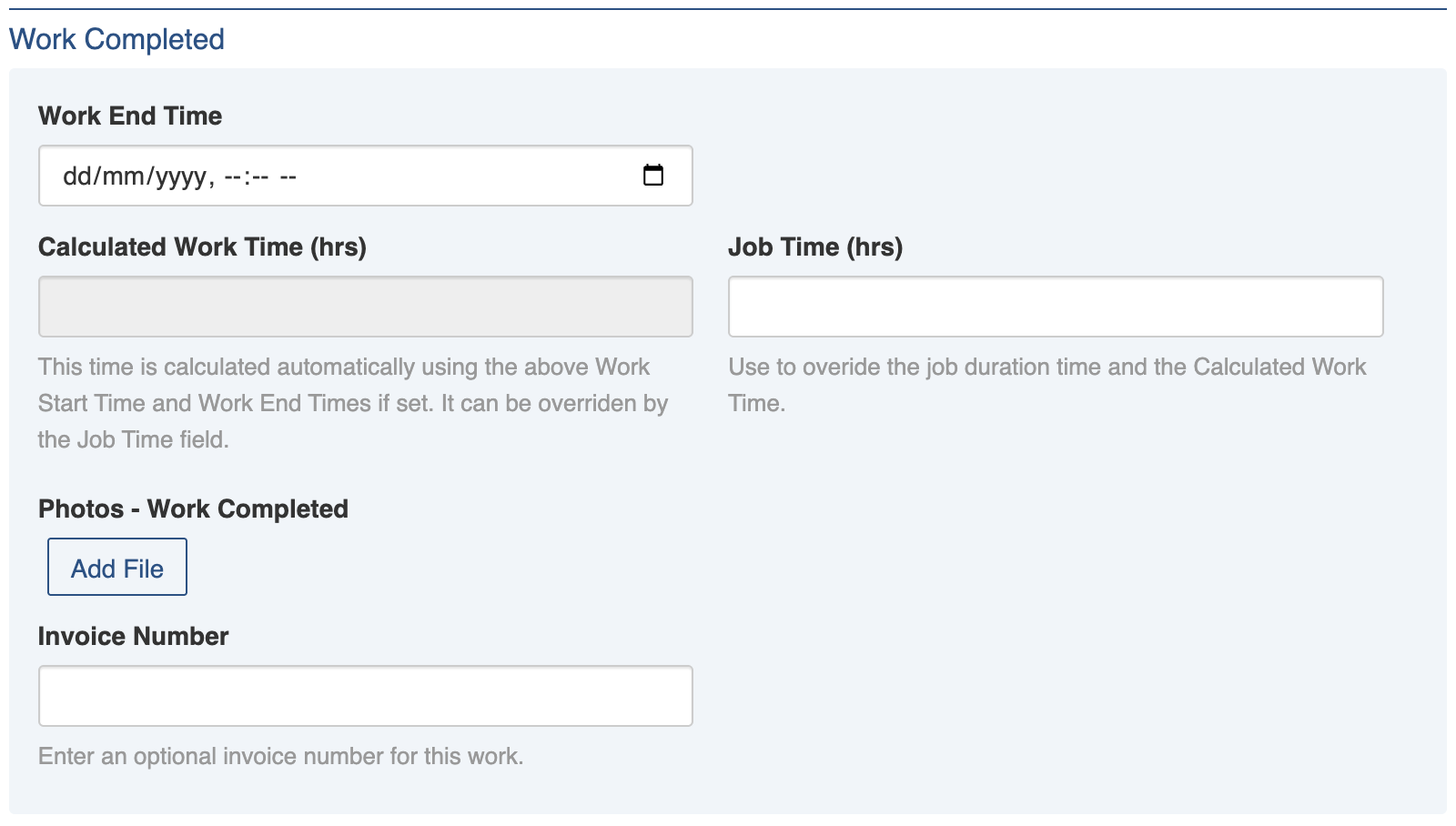
This section is used by the FPN Contractor when their onsite work has finished.

<figure><img src="https://3923904090-files.gitbook.io/~/files/v0/b/gitbook-x-prod.appspot.com/o/spaces%2FNy7IznbrPLUq6GJDDQDk%2Fuploads%2FzaklmArX270a84Y0upHb%2Fimage.png?alt=media&#x26;token=f4231dfd-257e-442f-8819-3ddb346496ca" alt="" width="375"><figcaption><p>Work Completed section</p></figcaption></figure>

#### Work End Time <a href="#work-end-time" id="work-end-time"></a>

This field records the time work was finished as a [date and time](https://docs.cw.crisisworks.com/concepts-and-fundamentals/on-a-computer/using-the-datagrid/editing-items#selecting-dates). FPN Contractors can open this on their mobile device and select 'Today' when finishing their work to record the current time.

#### Calculated Work Time (hrs) <a href="#calculated-work-time-hrs" id="calculated-work-time-hrs"></a>

This field calculates the total time from the Work End Time from the Work Start Time and rounding it to the nearest number of hours. This happens when the Task is saved and appears greyed out until this happens.

#### Job Time (hrs) <a href="#job-time-hrs" id="job-time-hrs"></a>

This field is used to manually override any calculated work time. Use this for example for work taking more than a day or when work stopped for breaks.

#### Photos - Work Completed <a href="#photos-work-completed" id="photos-work-completed"></a>

This field is has an [Add File button](https://docs.cw.crisisworks.com/concepts-and-fundamentals/on-a-computer/using-the-datagrid/editing-items#attaching-files) to attach photos. FPN Contractors can use this on their mobile device to take photos to as evidence of the state of the property after they finished work. This can be useful to check that the contractor has adequately performed their duties.

#### Invoice Number <a href="#invoice-number" id="invoice-number"></a>

This field is used to record the invoice number. The FPN Contractor can put this in once an invoice has been raised.

### Assessment Details <a href="#work-completed" id="work-completed"></a>

This section is read only and reflects what is recorded in the Fire Prevention Notice including any Inspection Photos and Special Instructions. It is for reference so that the FPN Contractor can see what instructions were given to make the property compliant.

### Status <a href="#status" id="status"></a>

<figure><img src="https://3923904090-files.gitbook.io/~/files/v0/b/gitbook-x-prod.appspot.com/o/spaces%2FNy7IznbrPLUq6GJDDQDk%2Fuploads%2FAJB3rcyNXmkNBp4bCRxm%2Funknown.png?alt=media&#x26;token=3710b892-83fa-40f2-8a40-bd47ee44bd64" alt=""><figcaption><p>Overview of the FPN Subcontractor Task workflow</p></figcaption></figure>

<table><thead><tr><th width="130">Status</th><th width="143">Datagrid Icon</th><th>Next available steps</th><th>Notes</th></tr></thead><tbody><tr><td>Open</td><td> <img src="https://3923904090-files.gitbook.io/~/files/v0/b/gitbook-x-prod.appspot.com/o/spaces%2FNy7IznbrPLUq6GJDDQDk%2Fuploads%2Fm6JxmRtIekSalO3n7Qwv%2Fimage.png?alt=media&#x26;token=67585822-9d4c-4c5e-b4a2-7abf68894bbd" alt="" data-size="line"></td><td>Access Issues, Ready to Invoice, Completed</td><td>All new tasks start with this status</td></tr><tr><td>Access Issues</td><td> <img src="https://3923904090-files.gitbook.io/~/files/v0/b/gitbook-x-prod.appspot.com/o/spaces%2FNy7IznbrPLUq6GJDDQDk%2Fuploads%2FRDnXo4oOyxEF0GIhwldf%2Fimage.png?alt=media&#x26;token=e48719f4-a4de-49f9-9fb2-c887f6a0c853" alt="" data-size="line"></td><td>Open, Ready to Invoice, Completed</td><td>Used to indicate when the contractor is having difficulties accessing the property.</td></tr><tr><td>Ready to Invoice</td><td> <img src="https://3923904090-files.gitbook.io/~/files/v0/b/gitbook-x-prod.appspot.com/o/spaces%2FNy7IznbrPLUq6GJDDQDk%2Fuploads%2FGPCfq7Jnvad79aNqPNXb%2Fimage.png?alt=media&#x26;token=50217098-ca26-412c-8fc2-6304eb13f19c" alt="" data-size="line"></td><td>Open, Access Issues, Approved for Payment, Invoiced, Completed</td><td>Used to indicate that the work is done and an invoice will be prepared.</td></tr><tr><td>Approved for Payment</td><td> <img src="https://3923904090-files.gitbook.io/~/files/v0/b/gitbook-x-prod.appspot.com/o/spaces%2FNy7IznbrPLUq6GJDDQDk%2Fuploads%2FGv7QMgki0VVcfxlPEKl3%2Fimage.png?alt=media&#x26;token=b07aa974-67a3-4e5e-822f-98bc512f463e" alt="" data-size="line"></td><td>Open, Invoiced, Completed</td><td>Used by an FPN Coordinator to indicate that the invoice has been approved to be paid.</td></tr><tr><td>Invoiced</td><td> <img src="https://3923904090-files.gitbook.io/~/files/v0/b/gitbook-x-prod.appspot.com/o/spaces%2FNy7IznbrPLUq6GJDDQDk%2Fuploads%2FShlIItrYQ4s5RVq9ItxN%2Fimage.png?alt=media&#x26;token=6c2f660b-0d4e-4939-8aba-bb38272b838a" alt="" data-size="line"></td><td>Open, Access Issues, Completed</td><td>Used to indicate that an invoice has been generated. An <a href="#invoice-number">Invoice number</a> will usually be recorded at this stage.</td></tr><tr><td>Completed</td><td> <img src="https://3923904090-files.gitbook.io/~/files/v0/b/gitbook-x-prod.appspot.com/o/spaces%2FNy7IznbrPLUq6GJDDQDk%2Fuploads%2FNcmsfsGK3Qq5HVHLF6cg%2Fimage.png?alt=media&#x26;token=3199c369-e46c-4e2c-af8c-3954afb63add" alt="" data-size="line"></td><td>Open, Ready to Invoice</td><td>Used to indicate that the task has been completed.</td></tr></tbody></table>

### Location <a href="#location" id="location"></a>

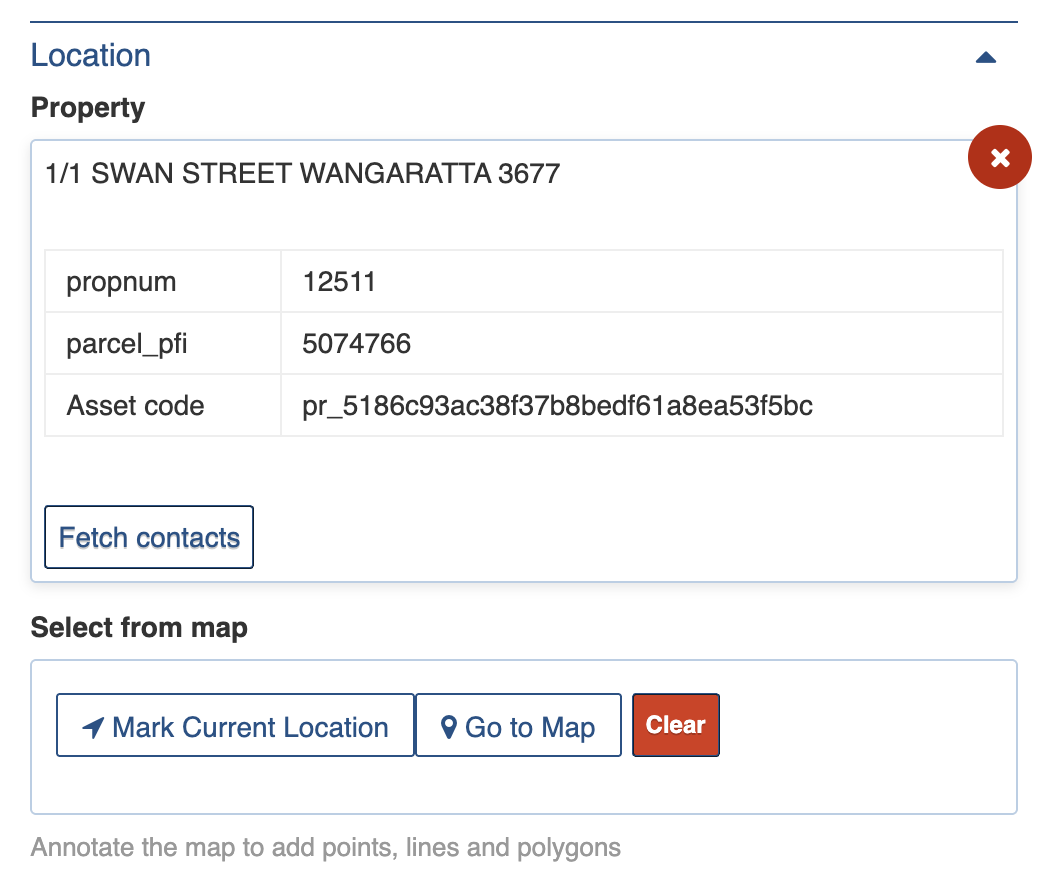
This field records the [location](https://docs.cw.crisisworks.com/concepts-and-fundamentals/on-a-computer/using-the-datagrid/editing-items#location) of the property including the address, any map markers and any contact information for the owner along with the property number, parcel number and any additional identifying information. FPN Contractors and Coordinators with permission to can use the [Fetch Contacts](https://docs.cw.crisisworks.com/concepts-and-fundamentals/on-a-computer/using-the-datagrid/viewing-items#assets-and-properties) button to retrieve contact information for the owner from the asset record.

<figure><img src="https://3923904090-files.gitbook.io/~/files/v0/b/gitbook-x-prod.appspot.com/o/spaces%2FNy7IznbrPLUq6GJDDQDk%2Fuploads%2F3c8lWGjT1V6kPFQQwanl%2Fimage.png?alt=media&#x26;token=4e8d8216-1b29-47a1-8b31-de6f5fd61973" alt="" width="375"><figcaption><p>Location section</p></figcaption></figure>

### Classification <a href="#classification" id="classification"></a>

Refer to:  [Editing Items: Classification](https://docs.cw.crisisworks.com/concepts-and-fundamentals/on-a-computer/using-the-datagrid/editing-items#classification)

Event records the event that the tasks are in (this is usually the event for the current FPN season).

### Activity

Refer to: [Viewing and Opening Register Items: Activity](https://docs.cw.crisisworks.com/concepts-and-fundamentals/on-a-computer/using-the-datagrid/viewing-items#activity)

## Adding <a href="#adding" id="adding"></a>

FPN Subcontractor Tasks are sub-items of Fire Prevention Notices.

As such they can only be added by FPN Coordinators as [sub-items within a Fire Prevention Notice](https://docs.cw.crisisworks.com/concepts-and-fundamentals/on-a-computer/using-the-datagrid/editing-items#adding-sub-items).

The FPN must have had a Status of [Request Compulsory Clearance](https://docs.cw.crisisworks.com/modules/inspections/fire-prevention-notices/..#status) (or later such as Post Clearance Inspection Review) before the add button is unlocked.&#x20;

<figure><img src="https://3923904090-files.gitbook.io/~/files/v0/b/gitbook-x-prod.appspot.com/o/spaces%2FNy7IznbrPLUq6GJDDQDk%2Fuploads%2Fwf7rkIDblKP2Jc8jbdox%2Fimage.png?alt=media&#x26;token=f0ae9a55-053c-46e2-86cf-38df722cd21b" alt="" width="375"><figcaption><p>Contractor Tasks section will only appear when in Request Compulsory Clearing</p></figcaption></figure>

You can add as many Contractor Tasks as required following the steps below:

1. Use the Add <img src="https://3923904090-files.gitbook.io/~/files/v0/b/gitbook-x-prod.appspot.com/o/spaces%2FNy7IznbrPLUq6GJDDQDk%2Fuploads%2Ftyj5ACqBzqdhyRysShHl%2Fimage.png?alt=media&#x26;token=c1ec1337-1bc2-418b-9907-09d0b587098e" alt="" data-size="line"> button under Contractor Tasks
2. Complete each section of the [Settings](#register-item-settings) as required (a Service/contractor must be assigned at minimum). \
   ![](https://3923904090-files.gitbook.io/~/files/v0/b/gitbook-x-prod.appspot.com/o/spaces%2FNy7IznbrPLUq6GJDDQDk%2Fuploads%2FqcUmXne8ml7S6UmkZgR3%2Fimage.png?alt=media\&token=421cfeae-10ab-4112-b5e8-075e159be636)
3. Save <img src="https://3923904090-files.gitbook.io/~/files/v0/b/gitbook-x-prod.appspot.com/o/spaces%2FNy7IznbrPLUq6GJDDQDk%2Fuploads%2F2qJNRqfHczOPl1cKEcMo%2Fimage.png?alt=media&#x26;token=1f653f47-1199-4f87-88da-313768ca3dac" alt="" data-size="line">
4. To add more than one task, use the Add Another <img src="https://3923904090-files.gitbook.io/~/files/v0/b/gitbook-x-prod.appspot.com/o/spaces%2FNy7IznbrPLUq6GJDDQDk%2Fuploads%2Fzs0XHuhboGpZHdqrecZC%2Fimage.png?alt=media&#x26;token=35b1db0b-55b9-43c1-b51a-0cd98e92a731" alt="" data-size="line"> button

## Bulk Actions <a href="#bulk-actions" id="bulk-actions"></a>

{% content-ref url="../../../concepts-and-fundamentals/on-a-computer/using-the-datagrid/bulk-actions" %}
[bulk-actions](https://docs.cw.crisisworks.com/concepts-and-fundamentals/on-a-computer/using-the-datagrid/bulk-actions)
{% endcontent-ref %}

The following additional bulk actions can be performed via the Actions menu:

| Action           | Description                                                                                                                                                                             |
| ---------------- | --------------------------------------------------------------------------------------------------------------------------------------------------------------------------------------- |
| Copy IDs         | Refer to: [Copy IDs](https://docs.cw.crisisworks.com/concepts-and-fundamentals/on-a-computer/using-the-datagrid/bulk-actions#copy-ids)                                                  |
| Export to Report | <p>Refer to: <a href="../../../../concepts-and-fundamentals/on-a-computer/using-the-datagrid/bulk-actions#export-to-report">Export to Report</a><br>Exports to the FPN Tasks Report</p> |

## Reports <a href="#reports" id="reports"></a>

{% content-ref url="../../../system-administration/reporting/running-reports" %}
[running-reports](https://docs.cw.crisisworks.com/system-administration/reporting/running-reports)
{% endcontent-ref %}

The main Report is the FPN Tasks Report and this can also be accessed via Export to Report in the [bulk actions](#bulk-actions).