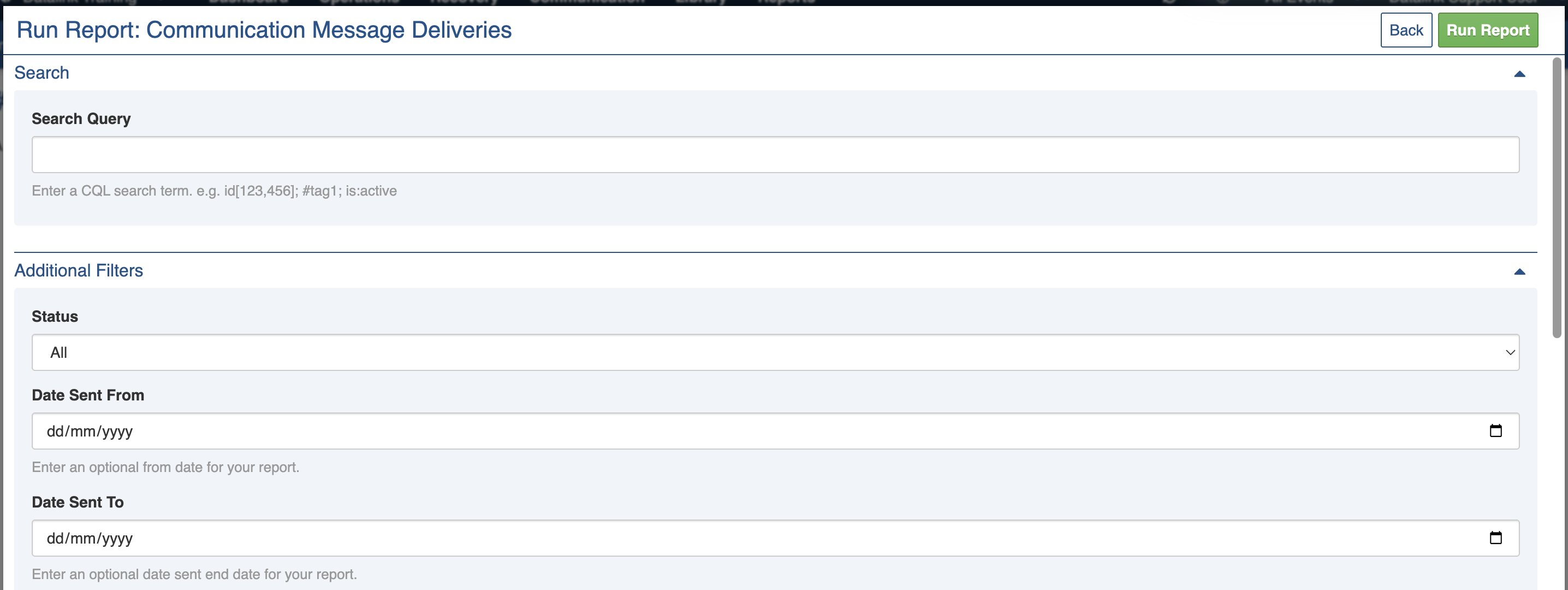
An example Settings screen
.png?alt=media) to open the report
4. Configure optional report [Settings](#settings)
5. Use the 'Run Report' button to run using the selected options or the 'Back'
to open the report
4. Configure optional report [Settings](#settings)
5. Use the 'Run Report' button to run using the selected options or the 'Back'  button to select a different report
## Settings
The settings screen is used to configure and customise the report output and uses same process a [editing items](/concepts-and-fundamentals/on-a-computer/using-the-datagrid/editing-items.md) but instead of being saved, report instances are *Run*.
button to select a different report
## Settings
The settings screen is used to configure and customise the report output and uses same process a [editing items](/concepts-and-fundamentals/on-a-computer/using-the-datagrid/editing-items.md) but instead of being saved, report instances are *Run*.
An example Settings screen
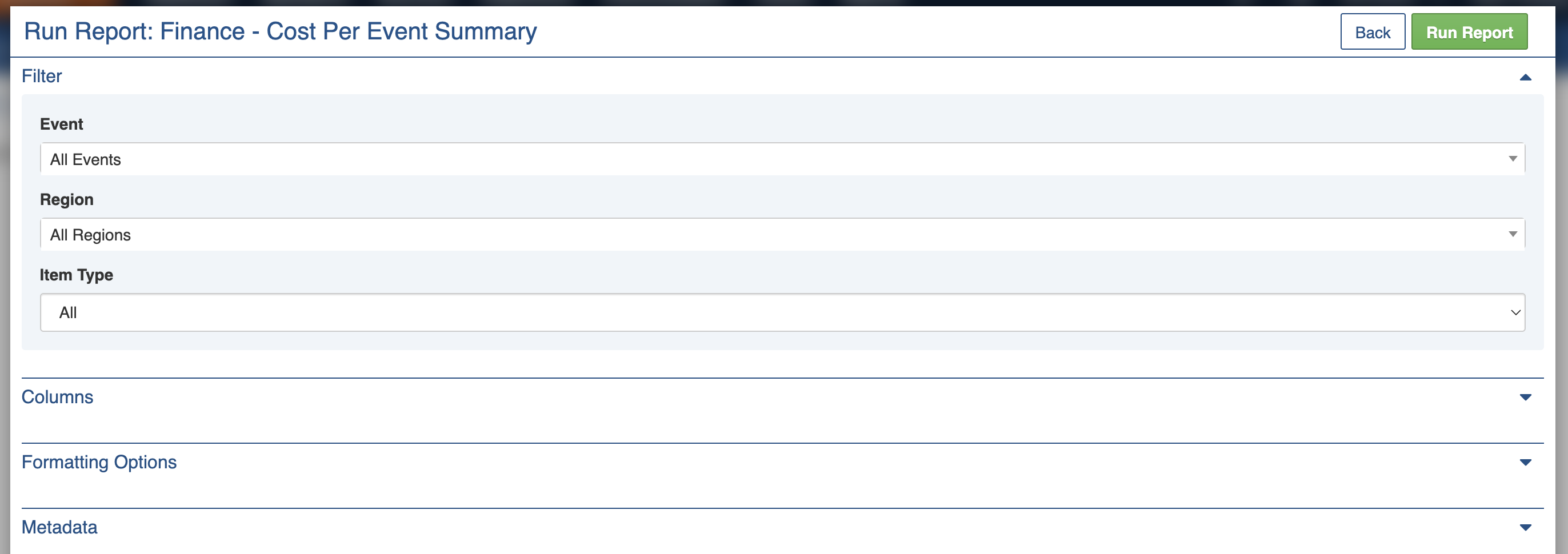
Example Run Report screen filter section with options
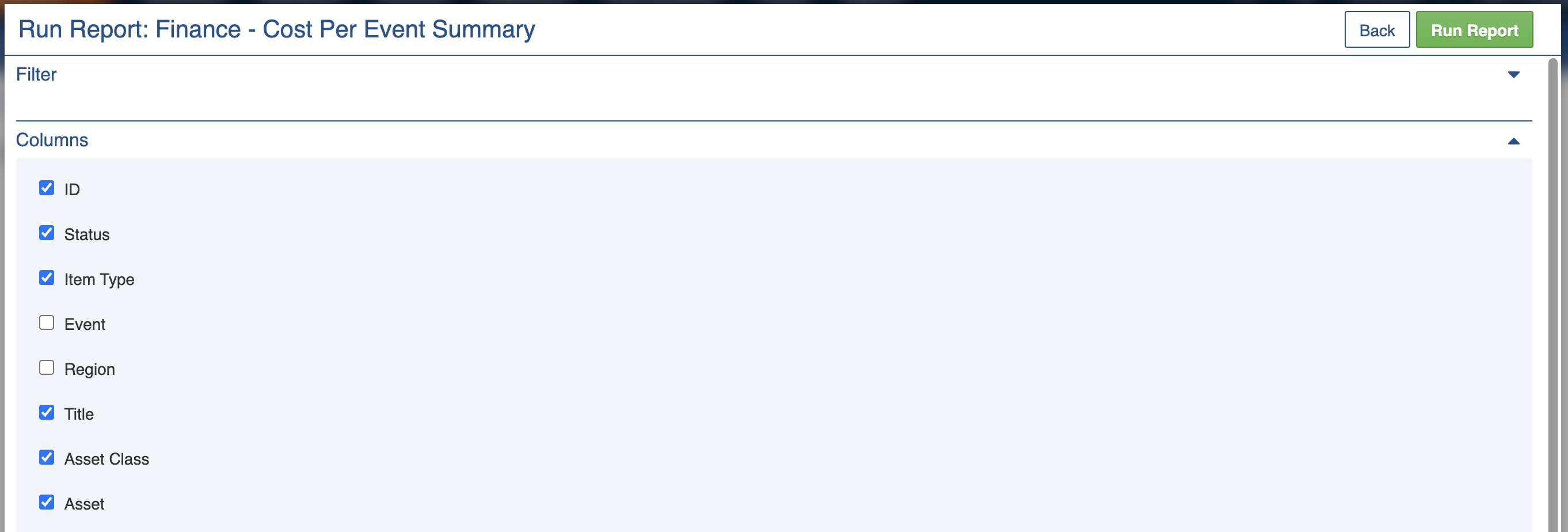
Example Run Report screen columns section with options

Example Run Report screen with formatting options
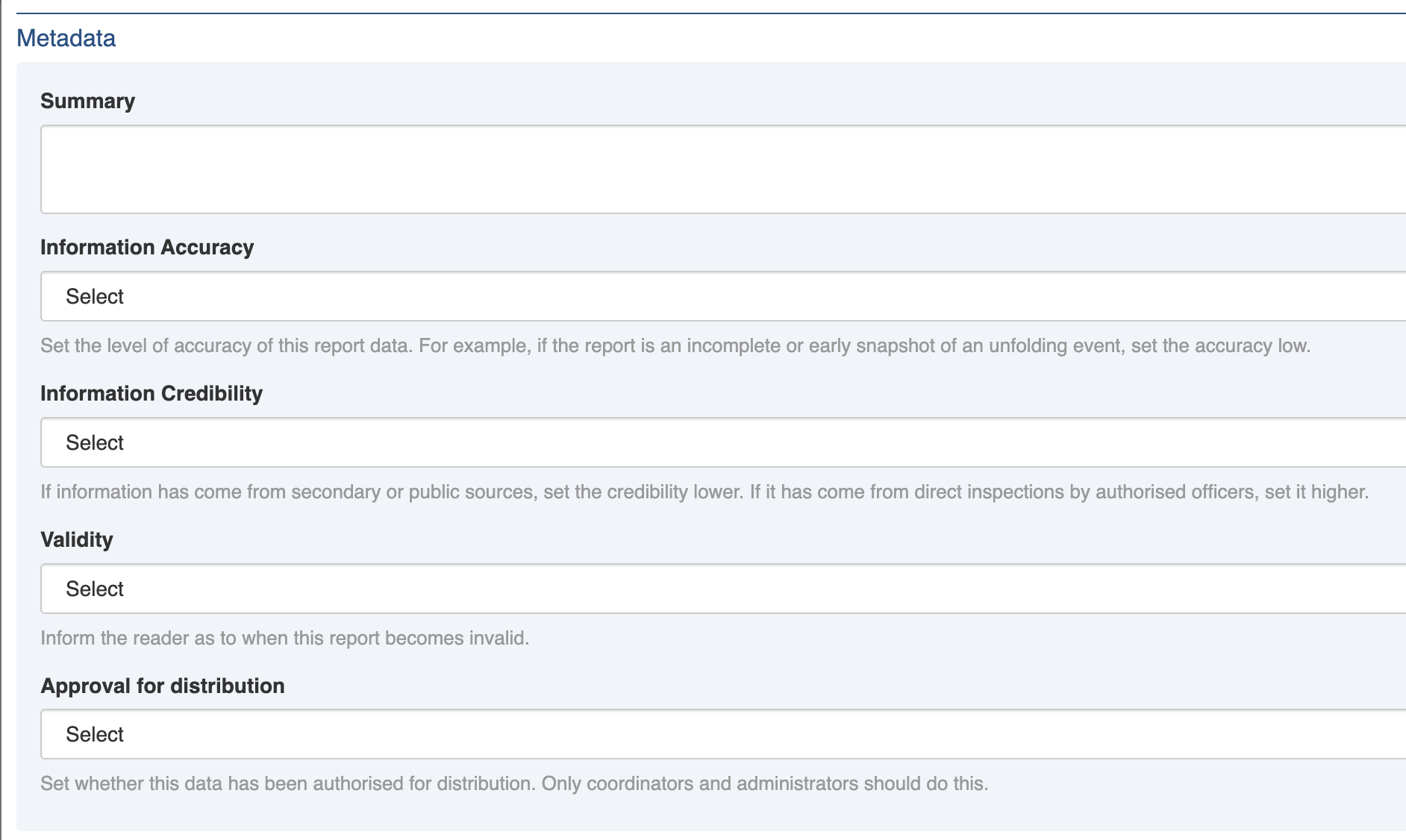
The Reports Metadata section
button.
### Completed Report
A successfully run report will show a Status with a green tick and a Message field saying 'Completed' and by the person's name who ran it. It will also have information on the time and date run, the number of rows produced and how long it took to execute. If a preview is available, some sample records will be displayed in tabular format below.

Example Report output with tabular data
 button.
To download the results, use the 'Download'
button.
To download the results, use the 'Download'  button. This downloads the default format, CSV.
To download a Microsoft Excel friendly version use the 'To Excel'
button. This downloads the default format, CSV.
To download a Microsoft Excel friendly version use the 'To Excel'  button.
### Failed Report
A report with a Failed status was not able to be run and there will be no Download button. It may be that the process was not able to complete or that the report did not produce any data. A reason code will be identified in the Result screen Message field and may contain information on the system logs. This message can be quoted for support reasons.
## Viewing and Running Previously Run Reports
To view previously run reports:
1. Navigate to the Reports module using the main menu
2. Select the report you wish to View
3. Use the 'View History' button
button.
### Failed Report
A report with a Failed status was not able to be run and there will be no Download button. It may be that the process was not able to complete or that the report did not produce any data. A reason code will be identified in the Result screen Message field and may contain information on the system logs. This message can be quoted for support reasons.
## Viewing and Running Previously Run Reports
To view previously run reports:
1. Navigate to the Reports module using the main menu
2. Select the report you wish to View
3. Use the 'View History' button  4. The Recent Runs section displays recent runs including their Status, Run Date, User (you or someone else) and the number of Rows produced in the results.
1. Use the ID or Status to show the Report Result screen for a specific run (and optionally run again) OR
2. Run the Report using the 'Run Report' button or return to the Reports menu by using the 'Back' button
4. The Recent Runs section displays recent runs including their Status, Run Date, User (you or someone else) and the number of Rows produced in the results.
1. Use the ID or Status to show the Report Result screen for a specific run (and optionally run again) OR
2. Run the Report using the 'Run Report' button or return to the Reports menu by using the 'Back' button

An example 'Recent Runs' screen showing previous runs by status, date, user and rows