
Location of Library module and Library Items register in the menu
| Type | Summary of use |
|---|---|
| Document | This is the most general library schema, and most commonly used for general documentation and information sharing. |
| Geospatial Feature | A flexible information storage record with geospatial (map-based) information, which allows storage of data such as affected area extents, location of key facilities, etc. |
| Meeting | An agenda and minutes of a meeting, including audio recording and attachments such as photos of whiteboards. |
| System Text | Help text that appears on public forms pages such as Relief Registration, Offers and Permits. See Special Library Items |
Location of Library module and Library Items register in the menu
| Security Policy | Use |
|---|---|
Library Access | Read only access to library items in involved events. |
Library Officer | Full read/write access to library items in involved events |

Sample Library items datagrid
 3. Make any necessary changes to the settings (see below).
4. Save
3. Make any necessary changes to the settings (see below).
4. Save  ## Library Settings
Library records are divided into the following sections (sections may or may not appear depending on information entered, your permissions level, and what mode you're viewing):
| Left Column | Right Column |
| ----------------------------- | --------------------------------- |
| [Record Notes](#record-notes) | [Details](#details) |
| [Content](#content) | [Communication](#communication) |
| | [Classification](#classification) |
### Content
The Content selection presents the settings for the selected [Reference Type](#types).
Refer to the specific Reference Type article for relevant type specific settings:
{% content-ref url="library/document" %}
[document](https://docs.cw.crisisworks.com/modules/library/document)
{% endcontent-ref %}
{% content-ref url="library/geospatial-feature" %}
[geospatial-feature](https://docs.cw.crisisworks.com/modules/library/geospatial-feature)
{% endcontent-ref %}
{% content-ref url="library/system-text" %}
[system-text](https://docs.cw.crisisworks.com/modules/library/system-text)
{% endcontent-ref %}
### Details
#### Reference Type
The Type field controls the [type of library item](#type) and will change the list of fields. The default type is Document which is the most flexible and commonly used type.
To select a different type, under **Details** select the **Reference Type** field before proceeding.
## Library Settings
Library records are divided into the following sections (sections may or may not appear depending on information entered, your permissions level, and what mode you're viewing):
| Left Column | Right Column |
| ----------------------------- | --------------------------------- |
| [Record Notes](#record-notes) | [Details](#details) |
| [Content](#content) | [Communication](#communication) |
| | [Classification](#classification) |
### Content
The Content selection presents the settings for the selected [Reference Type](#types).
Refer to the specific Reference Type article for relevant type specific settings:
{% content-ref url="library/document" %}
[document](https://docs.cw.crisisworks.com/modules/library/document)
{% endcontent-ref %}
{% content-ref url="library/geospatial-feature" %}
[geospatial-feature](https://docs.cw.crisisworks.com/modules/library/geospatial-feature)
{% endcontent-ref %}
{% content-ref url="library/system-text" %}
[system-text](https://docs.cw.crisisworks.com/modules/library/system-text)
{% endcontent-ref %}
### Details
#### Reference Type
The Type field controls the [type of library item](#type) and will change the list of fields. The default type is Document which is the most flexible and commonly used type.
To select a different type, under **Details** select the **Reference Type** field before proceeding.

Select Library Type
| Status | Datagrid Icon | Usage |
|---|---|---|
| Current |  | The document contacts current information |
| Expired |  | The document has expired and is no longer current |
| Review |  | The document should be reviewed for currency. This status is transitioned automatically whenever a review date is set and becomes due |
| Delete |  | The library item is marked as deleted and is no longer current. Note there is no way to physically delete items in Crisisworks, however you can move the item to an archive event to remove it completely from view. |
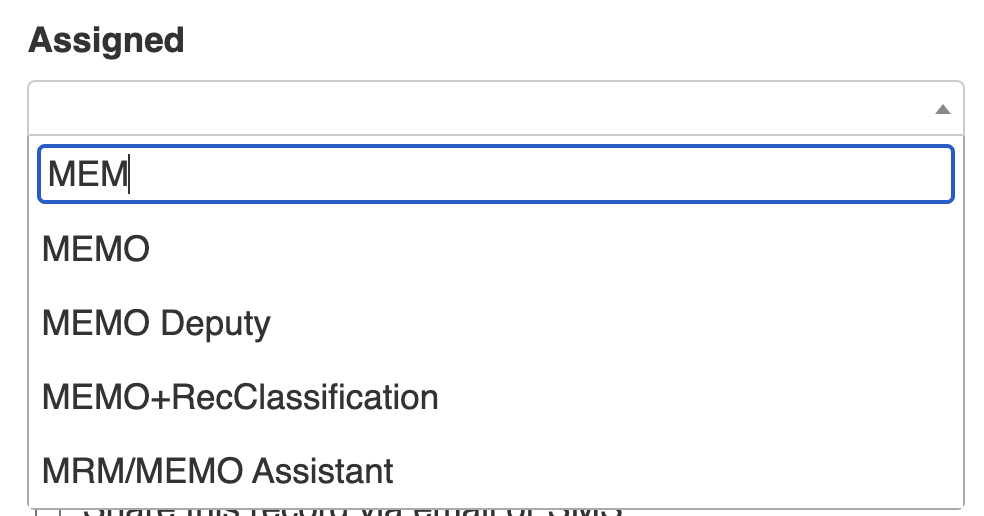
 and a notification will be sent to users on duty on the assigned position.
#### Featured
Tick the **Featured** checkbox to include the document in the "Featured" counter.
### Communication
The Library supports the **Create a new communication** function to Share this record via email or SMS.
This function is only available for certain user types.
For more on this function see [Communication](https://docs.cw.crisisworks.com/modules/communication).
### Classification
Refer to: [Editing Register Items: Classification](https://docs.cw.crisisworks.com/concepts-and-fundamentals/on-a-computer/using-the-datagrid/editing-items#classification).
## Updating Library items
{% content-ref url="../concepts-and-fundamentals/on-a-computer/using-the-datagrid/editing-items" %}
[editing-items](https://docs.cw.crisisworks.com/concepts-and-fundamentals/on-a-computer/using-the-datagrid/editing-items)
{% endcontent-ref %}
When updating Library items:
* Make sure to add notes using the yellow [**Record Notes**](https://docs.cw.crisisworks.com/concepts-and-fundamentals/on-a-computer/using-the-datagrid/editing-items#recording-notes) field, these can be useful as the item is managed.
* **Workflow** should be progressively updated to reflect the current status of the item.
### Record Notes
When editing, you can record notes as you make changes to the Library item in this section which will appear in the Activity log.
See [Recording Notes](https://docs.cw.crisisworks.com/concepts-and-fundamentals/on-a-computer/using-the-datagrid/editing-items#recording-notes)
## Adding Library items
To add a new library item:
1. Select the **New Library Item**
and a notification will be sent to users on duty on the assigned position.
#### Featured
Tick the **Featured** checkbox to include the document in the "Featured" counter.
### Communication
The Library supports the **Create a new communication** function to Share this record via email or SMS.
This function is only available for certain user types.
For more on this function see [Communication](https://docs.cw.crisisworks.com/modules/communication).
### Classification
Refer to: [Editing Register Items: Classification](https://docs.cw.crisisworks.com/concepts-and-fundamentals/on-a-computer/using-the-datagrid/editing-items#classification).
## Updating Library items
{% content-ref url="../concepts-and-fundamentals/on-a-computer/using-the-datagrid/editing-items" %}
[editing-items](https://docs.cw.crisisworks.com/concepts-and-fundamentals/on-a-computer/using-the-datagrid/editing-items)
{% endcontent-ref %}
When updating Library items:
* Make sure to add notes using the yellow [**Record Notes**](https://docs.cw.crisisworks.com/concepts-and-fundamentals/on-a-computer/using-the-datagrid/editing-items#recording-notes) field, these can be useful as the item is managed.
* **Workflow** should be progressively updated to reflect the current status of the item.
### Record Notes
When editing, you can record notes as you make changes to the Library item in this section which will appear in the Activity log.
See [Recording Notes](https://docs.cw.crisisworks.com/concepts-and-fundamentals/on-a-computer/using-the-datagrid/editing-items#recording-notes)
## Adding Library items
To add a new library item:
1. Select the **New Library Item**  button.
2. Select the schema [**Type**](#types-of-library-items)
3. Enter the **Title** and add details in the **Body** of the document.
4. Upload any **Attachments** by dragging and dropping files from your computer into the attachments box, or by clicking Add File.
5. Optionally add **Tags** to identify the document, and set **Is Featured** to add the document to the **Featured** filter.
6. Select the **Event** to save the document. By default this will be the currently-selected event, however, you may wish to save the document into the Global Workspace or the Agency Workspace, if the document is to be permanently accessible.
7. Optionally **Assign** the record to a Position and set a review date.
8. Save
button.
2. Select the schema [**Type**](#types-of-library-items)
3. Enter the **Title** and add details in the **Body** of the document.
4. Upload any **Attachments** by dragging and dropping files from your computer into the attachments box, or by clicking Add File.
5. Optionally add **Tags** to identify the document, and set **Is Featured** to add the document to the **Featured** filter.
6. Select the **Event** to save the document. By default this will be the currently-selected event, however, you may wish to save the document into the Global Workspace or the Agency Workspace, if the document is to be permanently accessible.
7. Optionally **Assign** the record to a Position and set a review date.
8. Save
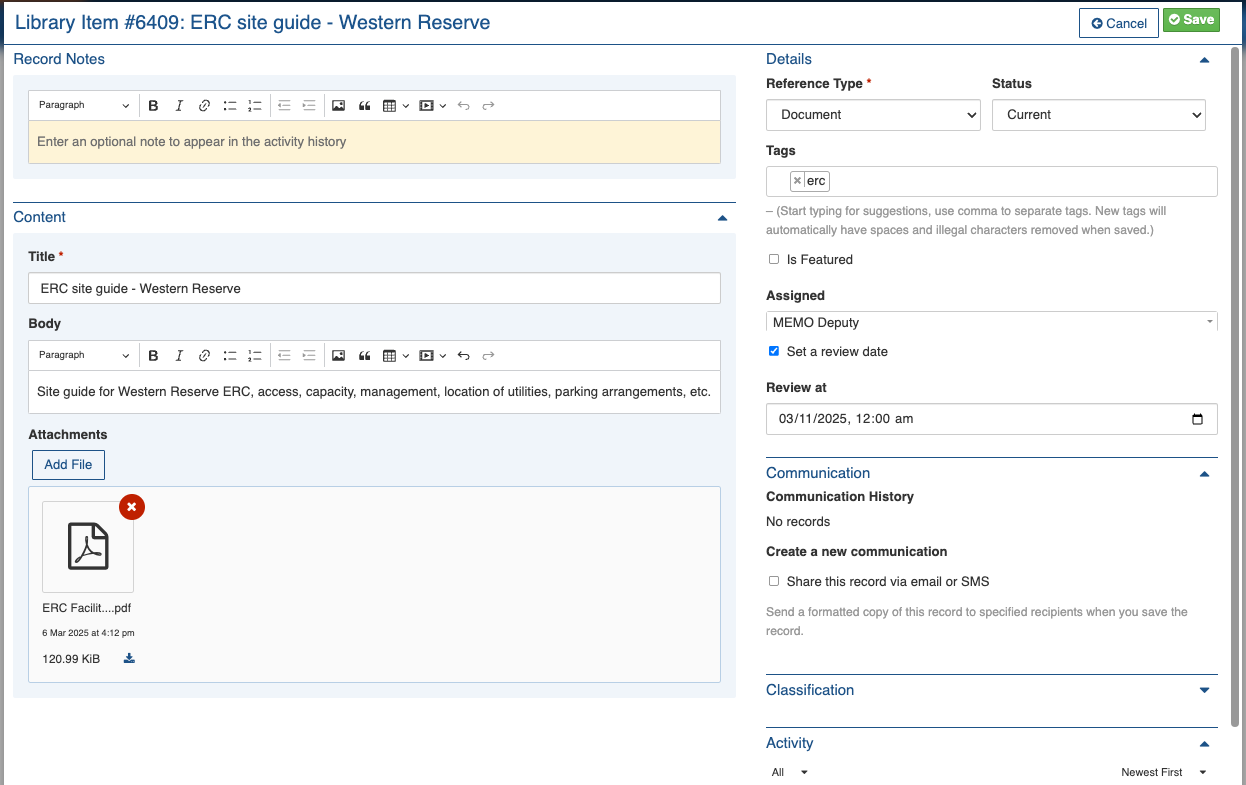
Sample Library Item
See Bulk Edit
Update for multiple Library items: Record Notes, Status
| | Export Selected to Report |See Export to Report
Generates Library Report
| ## Reports A **Library Documents Report** can be found under the Reports menu. Enter the search term 'library' to find it quickly.