# Contacts
## Overview
A *Contact* is a record for a person or an organisation that can be stored for the current event or retained for all events.
Contacts are a key component of the system. Different types of contacts are used in different circumstances.
* *Administrators* can enable a Contact to become a **User**, allowing them to sign in to the system. See our section on [Users](https://docs.cw.crisisworks.com/system-administration/user-and-contact-administration) under [System Administration](https://docs.cw.crisisworks.com/system-administration/configuring-the-system).
* Contacts can have [**Expertise**](https://docs.cw.crisisworks.com/modules/operations/contacts/expertise) recorded to easily identify staff with specific skills and experience
* Contact records can be linked to **Items** making data entry faster and more accurate when contacts are kept up to date.
* Some registers automatically generate contacts (as sub-items) when new records are created.
* Contacts can be linked to **resources**, for example for contractor management.
* Contacts are accessible in the **mobile app**, making it easy to store and retreied key staff and stakeholder details anywhere at any time.
* The contact record controls **communication preferences**, including how they can be contacted, for example by SMS, Email or both.
### Access
To access Contacts:
* Contacts must be enabled within the current event
* Sign in with an appropriate role. Contacts is available to almost all user roles as it is a global register, if you can't access it, ask your administrator to check your permissions.
* Contacts with User accounts enabled are stored in the Contacts Directory (Private) which means only users with coordinator level access will be able to view their details.
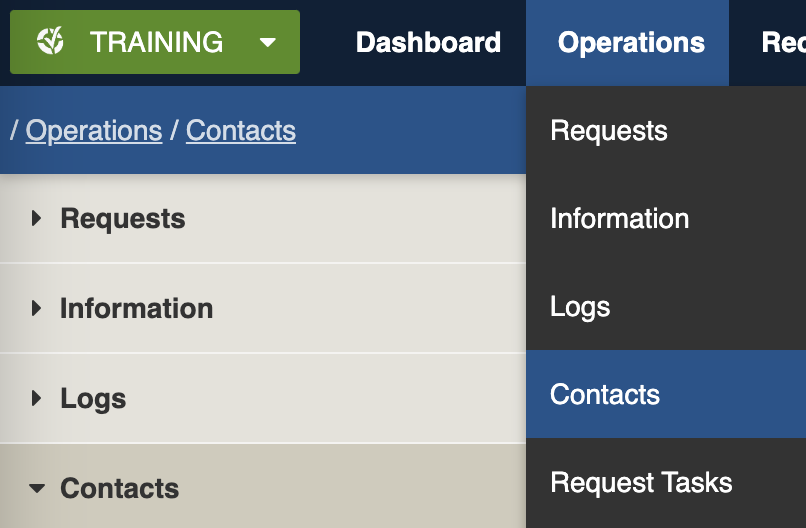
Locate the *Contacts* register under **Operations** > **Contacts** in the menu.
Location of the Logs register in the Operations module
### Types of Contacts
Name
Summary of use
Individual
A person
Organisation
A company or group
Users
A contact that can log in, must be an individual
Shared
A contact that can be used in any event
Private
A contact that can only be accessed by administrators. This is the default for all contacts.
Volunteers
A special contact type for volunteer positions
## Finding Contacts
The register includes a number of features to assist in finding *Contacts*:
* [Datagrid](https://app.gitbook.com/o/XTVHxRDLJsgVRj4dNFUc/s/Ny7IznbrPLUq6GJDDQDk/concepts-and-fundamentals/on-a-computer/registers-and-data-grid#data-grid-view) view
* [Map](https://app.gitbook.com/o/XTVHxRDLJsgVRj4dNFUc/s/Ny7IznbrPLUq6GJDDQDk/concepts-and-fundamentals/on-a-computer/registers-and-data-grid#map-view) view
* [Filters](https://app.gitbook.com/o/XTVHxRDLJsgVRj4dNFUc/s/Ny7IznbrPLUq6GJDDQDk/modules/information-editinganexistinginformationitem-1) including type (Individuals, Organisations and Users), Active and On Duty users and tags
* Combination filters and search by most fields
A sample Contacts register and datagrid
#### Filtering
Filters help make management of *Contacts* easier by focusing on specific groups of items on the datagrid.
Contacts filter menu
Filter menu explanations
| Main | Active | |
| --------------- | ----------------------------------------------- | ----------------------------------------------------------------------------------------------------------------------------------------------------------------------------------------------------------------------------------------------- |
| | Recently Updated | |
| | All | |
| Type | Individuals | Finds all items with Type of Individual |
| | Organisations | Finds all items with Type of Organisation |
| | Users | Finds all items with Is User set to true (Enable user account for this contact is ticked). This is only available to System Administrators. |
| Users | Active Users | Finds all items with Is User set to true (Enable user account for this contact is ticked) that have a Status of Active |
| | On Duty | Finds all items with Is User set to true (Enable user account for this contact is ticked) that have a Status of Active and are On Duty to at least one event |
| Classifications | \[List is based on your system configuration]\* |
|
| Workflow | Active | Finds all items with a Status of Active |
| | Inactive | Finds all items with a Status of Inactive |
| Active Tags | \[List is based on your system configuration]\* |
|
\* May vary based on your system configuration
#### Querying
CQL searches can be performed via either the Filter menu or Search bar.
The following provides some sample searches for users. For a list of available fields, consult the [Contacts Data Dictionary](https://docs.cw.crisisworks.com/modules/operations/broken-reference).
Query examples
#### **First and Last Name searches**
Find contacts with the first name of rick or Rick
`firstName:rick`
Find contacts with last name matching O’Shea or o’shea
`lastname:O'Shea`
Find contacts with first name Rick **and** last name O’Shea (as well as lowercase versions)
`firstName:Rick lastName:O'Shea`
Find contacts that have a first name starting with Ric and contacts with last that sounds like Smith. For example this could return a contact called Rick Smith or Ricky Smyth
`firstName:Ric* lastName:~Smith`
Perform a full-text search on all fields with the term Rick
`"Rick"`
## Opening and Viewing
Contacts are listed in and searchable via the register [Datagrid](https://docs.cw.crisisworks.com/concepts-and-fundamentals/on-a-computer/using-the-datagrid#data-grid-view).
To view an existing Contact:
1. Navigate to the Contact register datagrid.
2. Locate the item you wish to view. The register includes filters for Totals, Type, Users (Active or On Duty), Special (Alphabetical Index), Classifications and Tags.
3. Open the item using the ID, Status or Name (Full name: Surname, Firstname)
4. To return to the Datagrid use the Back button
## Contact Settings
The following section outlines the most important settings for managing contacts.
| Left Column | Right Column |
| -------------------------------------------------------------------------------- | ------------------------------------------------------------------------- |
| [Record Notes](#record-notes) | [User Account](#user-account-individual-contacts-only) |
| [General](#general) | [Workflow](#workflow) |
| [Expertise](https://docs.cw.crisisworks.com/modules/operations/broken-reference) | [Communication Preferences](#communications-preferences-individuals-only) |
| [Communication](https://docs.cw.crisisworks.com/modules/communication) | [Advanced](#advanced) |
### Record Notes
When editing, record notes in the [rich text field](https://docs.cw.crisisworks.com/concepts-and-fundamentals/on-a-computer/using-the-datagrid/editing-items#rich-text-fields) as you make changes which will appear in the Activity log.
Refer to: [Recording Notes](https://docs.cw.crisisworks.com/concepts-and-fundamentals/on-a-computer/using-the-datagrid/editing-items#recording-notes)
### General
The General section contains information on the contact.
#### Contact Type
Use the Contact Type to classify a contact as an [Individual or Organisation](#contact-type). \
Note that you can only enable user accounts for individuals.
#### **Contact Details**
This section contains the First Name and Last Name; and other details including Job Title; Phone and Email contact information and Location.
Both Phone and Email are important to complete as they enable automatic notifications and communications to be sent to the contact.
#### Organisation
If the Contact belongs to an organisation you can enter it here. Note that Organisations differ from Positions. This is the company or organisation that the contact belongs to or works for. Your organisation may have a special organisation that should be used (such as 'Council') for various integrated applications refer to Practice Notes.
#### Main Location
Location information is optional but can help you to identify contacts available in different areas on the map. The map location can be selected using the [Location selector](https://docs.cw.crisisworks.com/concepts-and-fundamentals/on-a-computer/using-the-datagrid/editing-items#location).
### Expertise (Individual Contacts only)
{% content-ref url="contacts/expertise" %}
[expertise](https://docs.cw.crisisworks.com/modules/operations/contacts/expertise)
{% endcontent-ref %}
In this section, you can add one or more Expertise items for the Contact.
### Communication
{% content-ref url="../communication" %}
[communication](https://docs.cw.crisisworks.com/modules/communication)
{% endcontent-ref %}
In this section you can view the message history for any [Communications](https://docs.cw.crisisworks.com/modules/communication) sent to the Contact.
### User Account (Individual Contacts only)
A Contact can become a User in your system by selecting **Enable user account for this contact**. Only users with Administrator rights will be able to edit this section of the record.
Other User sections include:
* Email Subscriptions
* Advanced
Refer to [Managing Users](https://docs.cw.crisisworks.com/system-administration/user-and-contact-administration) for more on managing User accounts.
### Workflow
#### Contact Status
This field is used to manage whether the contact is active or inactive (that is, visible or hidden or deactivated from the register view). You can still find inactive records via the filter menus.
#### Event (Contact Event & Shared Contacts)
By default, all newly created contacts are private to the event in which they were created. This means they cannot be accessed from other events and only users with access to that event can see the contacts.
To make the contact accessible to a different Event or Workspace use the Event selector under Workflow.
Refer to the [Contact Types](#requests-usingrequests-1) for more on public and private contacts.
#### Tags
Tags can be used to categorise and group contacts and users for later retrieval.
#### On Call (Users only)
A user can be marked as **On Call**, allowing coordinators to quickly place them on duty in an event for their designated positions. Communications can also be sent to all 'On Call' users.
### Communications Preferences
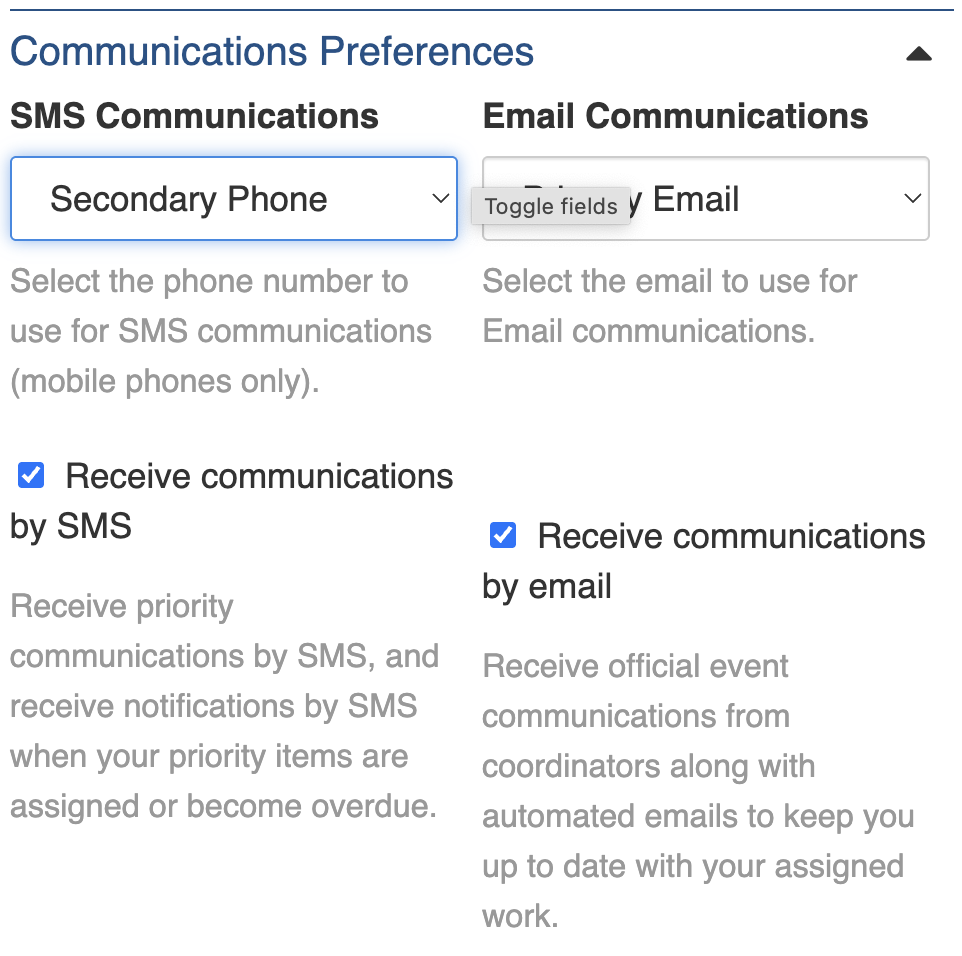
The **Communications Preferences** section determines how communications Contacts and Users receive communications and system notifications.
* Contacts can only receive communications if they have a **Primary** or **Secondary Phone** number recorded.
* If **Receive Communications by SMS** is enabled, the contact can receive text messages.
* If **Receive Communications by Email** is enabled, the contact can receive communications via email.
* Ideally both SMS and email should be enabled in case one of the methods is not available.
Example of Communication Preferences, this contact will receive emails to their primary address and SMS to their secondary phone number
### Advanced
Advanced is used mainly for technical integrations and should not be used unless you've referred to integration specifications or the [API reference](https://docs.cw.crisisworks.com/security-and-support/technical-reference/api-reference).
#### External ID
This setting is used to specify an ID for the contact in an external system.
#### External Source
This setting is used to define an external data source for the Contact.
### Activity
Refer to: [Viewing and Opening Register Items: Activity](https://docs.cw.crisisworks.com/concepts-and-fundamentals/on-a-computer/using-the-datagrid/viewing-items#activity)
## Editing Contacts
Contacts can be edited from the Contact Register datagrid.
1. Navigate to the Contacts register
2. Locate the Contact you wish to edit by using the Edit button
3. Make the necessary changes to the settings
4. Save
{% hint style="info" %}
You must have the sufficient level of access to be able to edit a contact. Some contacts such as users may only be accessed by an Administrator.
{% endhint %}
## Adding Contacts
To add a new **Contact**:
1. Click the from any screen.
2. Select the type — Individual or Organisation
3. To create a User, select **Enable user account for this contact**
4. Enter the details including Name, Organisation, Job Title, Phone numbers, Email addresses
5. Include any optional information such as Location/address etc
6. Configure optional settings such as User Account, Event, Tags, Communications Preferences etc
7. Save
See [**Adding new register items**](https://docs.cw.crisisworks.com/concepts-and-fundamentals/on-a-computer/using-the-datagrid/adding-items) for more information
### Adding Individuals
To add an individual (person), you will need to select the Contact Type of Individual under the General section.
For individuals, both first and last name must be included.
### Adding Organisations
To add an organisation, you will need to select the Contact Type of Organisation under the General section.
For organisations, the Organisation name must be included.
It is recommended to make organisations as a Shared Contacts as they are likely to be used in multiple events.
### Adding Users
See the section on [Users](https://docs.cw.crisisworks.com/system-administration/user-and-contact-administration) under [System Administration](https://docs.cw.crisisworks.com/system-administration/configuring-the-system) for more on how to create and manage user accounts.
## Bulk Actions
{% content-ref url="../../concepts-and-fundamentals/on-a-computer/using-the-datagrid/bulk-actions" %}
[bulk-actions](https://docs.cw.crisisworks.com/concepts-and-fundamentals/on-a-computer/using-the-datagrid/bulk-actions)
{% endcontent-ref %}
The following additional bulk actions can be performed via the Actions menu (note that some are only available to administrators for this refer to [User and Contact Administration: Bulk Actions](https://docs.cw.crisisworks.com/system-administration/user-and-contact-administration#bulk-actions):
| Action | Description |
| ------------------ | ------------------------------------------------------------------------------------------------------------------------------------------------------------------------------------------------------------------------------------------------------ |
| Copy IDs | Refer to: [Copy IDs](https://docs.cw.crisisworks.com/concepts-and-fundamentals/on-a-computer/using-the-datagrid/bulk-actions#copy-ids) |
| Bulk Edit |
Refer to: Bulk Edit Change Contact Status, Event, Classifications, On Call status, Communication Preferences, Tags and record notes
|
| Export to Report | Refer to: [Export to Report](https://docs.cw.crisisworks.com/concepts-and-fundamentals/on-a-computer/using-the-datagrid/bulk-actions#export-to-report) |
| Merge | Refer to: Merge |
| Send Communication | Refer to: [Send Communication](https://docs.cw.crisisworks.com/concepts-and-fundamentals/on-a-computer/using-the-datagrid/bulk-actions#send-communication) |
## Importing Contacts
{% content-ref url="../../system-administration/configuring-the-system/imports" %}
[imports](https://docs.cw.crisisworks.com/system-administration/configuring-the-system/imports)
{% endcontent-ref %}
A System Administrator can import in bulk via the Import system using the **Contacts Import** option.
## Reports
{% content-ref url="../../system-administration/reporting/running-reports" %}
[running-reports](https://docs.cw.crisisworks.com/system-administration/reporting/running-reports)
{% endcontent-ref %}
The main report for Contacts is the **Contacts Report** found in [Operations Reports](https://docs.cw.crisisworks.com/modules/reports/operations-reports).


 ## Contact Settings
The following section outlines the most important settings for managing contacts.
| Left Column | Right Column |
| -------------------------------------------------------------------------------- | ------------------------------------------------------------------------- |
| [Record Notes](#record-notes) | [User Account](#user-account-individual-contacts-only) |
| [General](#general) | [Workflow](#workflow) |
| [Expertise](https://docs.cw.crisisworks.com/modules/operations/broken-reference) | [Communication Preferences](#communications-preferences-individuals-only) |
| [Communication](https://docs.cw.crisisworks.com/modules/communication) | [Advanced](#advanced) |
### Record Notes
When editing, record notes in the [rich text field](https://docs.cw.crisisworks.com/concepts-and-fundamentals/on-a-computer/using-the-datagrid/editing-items#rich-text-fields) as you make changes which will appear in the Activity log.
Refer to: [Recording Notes](https://docs.cw.crisisworks.com/concepts-and-fundamentals/on-a-computer/using-the-datagrid/editing-items#recording-notes)
### General
The General section contains information on the contact.
#### Contact Type
Use the Contact Type to classify a contact as an [Individual or Organisation](#contact-type). \
Note that you can only enable user accounts for individuals.
#### **Contact Details**
This section contains the First Name and Last Name; and other details including Job Title; Phone and Email contact information and Location.
Both Phone and Email are important to complete as they enable automatic notifications and communications to be sent to the contact.
#### Organisation
If the Contact belongs to an organisation you can enter it here. Note that Organisations differ from Positions. This is the company or organisation that the contact belongs to or works for. Your organisation may have a special organisation that should be used (such as 'Council') for various integrated applications refer to Practice Notes.
#### Main Location
Location information is optional but can help you to identify contacts available in different areas on the map. The map location can be selected using the [Location selector](https://docs.cw.crisisworks.com/concepts-and-fundamentals/on-a-computer/using-the-datagrid/editing-items#location).
### Expertise (Individual Contacts only)
{% content-ref url="contacts/expertise" %}
[expertise](https://docs.cw.crisisworks.com/modules/operations/contacts/expertise)
{% endcontent-ref %}
In this section, you can add one or more Expertise items for the Contact.
### Communication
{% content-ref url="../communication" %}
[communication](https://docs.cw.crisisworks.com/modules/communication)
{% endcontent-ref %}
In this section you can view the message history for any [Communications](https://docs.cw.crisisworks.com/modules/communication) sent to the Contact.
### User Account (Individual Contacts only)
A Contact can become a User in your system by selecting **Enable user account for this contact**. Only users with Administrator rights will be able to edit this section of the record.
Other User sections include:
* Email Subscriptions
* Advanced
Refer to [Managing Users](https://docs.cw.crisisworks.com/system-administration/user-and-contact-administration) for more on managing User accounts.
### Workflow
#### Contact Status
This field is used to manage whether the contact is active or inactive (that is, visible or hidden or deactivated from the register view). You can still find inactive records via the filter menus.
#### Event (Contact Event & Shared Contacts)
By default, all newly created contacts are private to the event in which they were created. This means they cannot be accessed from other events and only users with access to that event can see the contacts.
To make the contact accessible to a different Event or Workspace use the Event selector under Workflow.
Refer to the [Contact Types](#requests-usingrequests-1) for more on public and private contacts.
## Contact Settings
The following section outlines the most important settings for managing contacts.
| Left Column | Right Column |
| -------------------------------------------------------------------------------- | ------------------------------------------------------------------------- |
| [Record Notes](#record-notes) | [User Account](#user-account-individual-contacts-only) |
| [General](#general) | [Workflow](#workflow) |
| [Expertise](https://docs.cw.crisisworks.com/modules/operations/broken-reference) | [Communication Preferences](#communications-preferences-individuals-only) |
| [Communication](https://docs.cw.crisisworks.com/modules/communication) | [Advanced](#advanced) |
### Record Notes
When editing, record notes in the [rich text field](https://docs.cw.crisisworks.com/concepts-and-fundamentals/on-a-computer/using-the-datagrid/editing-items#rich-text-fields) as you make changes which will appear in the Activity log.
Refer to: [Recording Notes](https://docs.cw.crisisworks.com/concepts-and-fundamentals/on-a-computer/using-the-datagrid/editing-items#recording-notes)
### General
The General section contains information on the contact.
#### Contact Type
Use the Contact Type to classify a contact as an [Individual or Organisation](#contact-type). \
Note that you can only enable user accounts for individuals.
#### **Contact Details**
This section contains the First Name and Last Name; and other details including Job Title; Phone and Email contact information and Location.
Both Phone and Email are important to complete as they enable automatic notifications and communications to be sent to the contact.
#### Organisation
If the Contact belongs to an organisation you can enter it here. Note that Organisations differ from Positions. This is the company or organisation that the contact belongs to or works for. Your organisation may have a special organisation that should be used (such as 'Council') for various integrated applications refer to Practice Notes.
#### Main Location
Location information is optional but can help you to identify contacts available in different areas on the map. The map location can be selected using the [Location selector](https://docs.cw.crisisworks.com/concepts-and-fundamentals/on-a-computer/using-the-datagrid/editing-items#location).
### Expertise (Individual Contacts only)
{% content-ref url="contacts/expertise" %}
[expertise](https://docs.cw.crisisworks.com/modules/operations/contacts/expertise)
{% endcontent-ref %}
In this section, you can add one or more Expertise items for the Contact.
### Communication
{% content-ref url="../communication" %}
[communication](https://docs.cw.crisisworks.com/modules/communication)
{% endcontent-ref %}
In this section you can view the message history for any [Communications](https://docs.cw.crisisworks.com/modules/communication) sent to the Contact.
### User Account (Individual Contacts only)
A Contact can become a User in your system by selecting **Enable user account for this contact**. Only users with Administrator rights will be able to edit this section of the record.
Other User sections include:
* Email Subscriptions
* Advanced
Refer to [Managing Users](https://docs.cw.crisisworks.com/system-administration/user-and-contact-administration) for more on managing User accounts.
### Workflow
#### Contact Status
This field is used to manage whether the contact is active or inactive (that is, visible or hidden or deactivated from the register view). You can still find inactive records via the filter menus.
#### Event (Contact Event & Shared Contacts)
By default, all newly created contacts are private to the event in which they were created. This means they cannot be accessed from other events and only users with access to that event can see the contacts.
To make the contact accessible to a different Event or Workspace use the Event selector under Workflow.
Refer to the [Contact Types](#requests-usingrequests-1) for more on public and private contacts.

 3. Make the necessary changes to the settings
4. Save
3. Make the necessary changes to the settings
4. Save  {% hint style="info" %}
You must have the sufficient level of access to be able to edit a contact. Some contacts such as users may only be accessed by an Administrator.
{% endhint %}
## Adding Contacts
To add a new **Contact**:
1. Click the
{% hint style="info" %}
You must have the sufficient level of access to be able to edit a contact. Some contacts such as users may only be accessed by an Administrator.
{% endhint %}
## Adding Contacts
To add a new **Contact**:
1. Click the  from any screen.
2. Select the type — Individual or Organisation
3. To create a User, select **Enable user account for this contact**
4. Enter the details including Name, Organisation, Job Title, Phone numbers, Email addresses
5. Include any optional information such as Location/address etc
6. Configure optional settings such as User Account, Event, Tags, Communications Preferences etc
7. Save
from any screen.
2. Select the type — Individual or Organisation
3. To create a User, select **Enable user account for this contact**
4. Enter the details including Name, Organisation, Job Title, Phone numbers, Email addresses
5. Include any optional information such as Location/address etc
6. Configure optional settings such as User Account, Event, Tags, Communications Preferences etc
7. Save  See [**Adding new register items**](https://docs.cw.crisisworks.com/concepts-and-fundamentals/on-a-computer/using-the-datagrid/adding-items) for more information
### Adding Individuals
To add an individual (person), you will need to select the Contact Type of Individual under the General section.
See [**Adding new register items**](https://docs.cw.crisisworks.com/concepts-and-fundamentals/on-a-computer/using-the-datagrid/adding-items) for more information
### Adding Individuals
To add an individual (person), you will need to select the Contact Type of Individual under the General section.

