
Resources register in the Operations module
| Name | Summary of use |
|---|---|
| Consumable | Resources that can be used once including units and rates |
| Equipment | An inventory of equipment including model, serial and products that can be re-used |
| Offer | In-kind offers of assistance |
| Service Provider | Organisation/contact and can be set up to be assigned tasks in the system |
| Volunteer | Individual contacts who can be assigned to tasks in the system |
| Global Resources | Can be added to any event. If a global resource is used in a record, it will be copied into the event to assist with tracking usage and costs. Global Resources are an Event, not a type and are configured via the Classification section. |
Resources register in the Operations module
| Security Policy | Use |
|---|---|
Manage Resources | Can view and edit all resources |
Resource Contractor Limited | Limited access to receive notifications and work on items assigned to resources owned by the user's organisation |
| Resources Coordination | Full read/write access to resources within involved events, with the ability to manage assignments and move records between events |
| Resources Limited | Limited read/write access to resources within involved events only where the data is assigned. |
| Resources Officer | Full read access to resources within involved events, with the ability to edit and re-assign data that is assigned. |
| Resources Read Only Assigned | Can view resources they have been assigned but not update |

A sample Permits register and datagrid
 ## Resource Settings
Settings may vary depending on the type of Resource.
Resources are divided into the following sections (sections may or may not appear depending on the Type of Resource selected so do this first, as well as your permissions level, and what mode you're viewing):
| Left Column | Right Column |
| --------------------------------------------- | --------------------------------- |
| [Record Notes](#record-notes) | [Workflow](#workflow) |
| [Contact Details](#contact-details) | [Classification](#classification) |
| [Resource Particulars](#resource-particulars) | [Activity](#activity) |
| [Type Particulars](#type-particulars) | |
| [Location](#location) | |
### Record Notes
When editing, record notes in the [rich text field](https://docs.cw.crisisworks.com/concepts-and-fundamentals/on-a-computer/using-the-datagrid/editing-items#rich-text-fields) as you make changes which will appear in the Activity log.
Refer to: [Recording Notes](https://docs.cw.crisisworks.com/concepts-and-fundamentals/on-a-computer/using-the-datagrid/editing-items#recording-notes)
### Contact Details
This section stores the person who is responsible for the Resource or the **Primary Contact**. This person will also be a [Contact](https://docs.cw.crisisworks.com/modules/operations/contacts) in the system.
In Edit mode you can specify a contact ([identify and select and enter an existing contact as a sub-item](https://docs.cw.crisisworks.com/concepts-and-fundamentals/on-a-computer/using-the-datagrid/editing-items#adding-contact-sub-items)), use your own contact record or *No Contact*.
In View mode you can view the full details by following the link to the Contact sub-item record.
## Resource Settings
Settings may vary depending on the type of Resource.
Resources are divided into the following sections (sections may or may not appear depending on the Type of Resource selected so do this first, as well as your permissions level, and what mode you're viewing):
| Left Column | Right Column |
| --------------------------------------------- | --------------------------------- |
| [Record Notes](#record-notes) | [Workflow](#workflow) |
| [Contact Details](#contact-details) | [Classification](#classification) |
| [Resource Particulars](#resource-particulars) | [Activity](#activity) |
| [Type Particulars](#type-particulars) | |
| [Location](#location) | |
### Record Notes
When editing, record notes in the [rich text field](https://docs.cw.crisisworks.com/concepts-and-fundamentals/on-a-computer/using-the-datagrid/editing-items#rich-text-fields) as you make changes which will appear in the Activity log.
Refer to: [Recording Notes](https://docs.cw.crisisworks.com/concepts-and-fundamentals/on-a-computer/using-the-datagrid/editing-items#recording-notes)
### Contact Details
This section stores the person who is responsible for the Resource or the **Primary Contact**. This person will also be a [Contact](https://docs.cw.crisisworks.com/modules/operations/contacts) in the system.
In Edit mode you can specify a contact ([identify and select and enter an existing contact as a sub-item](https://docs.cw.crisisworks.com/concepts-and-fundamentals/on-a-computer/using-the-datagrid/editing-items#adding-contact-sub-items)), use your own contact record or *No Contact*.
In View mode you can view the full details by following the link to the Contact sub-item record.

Contact Details section in Edit mode

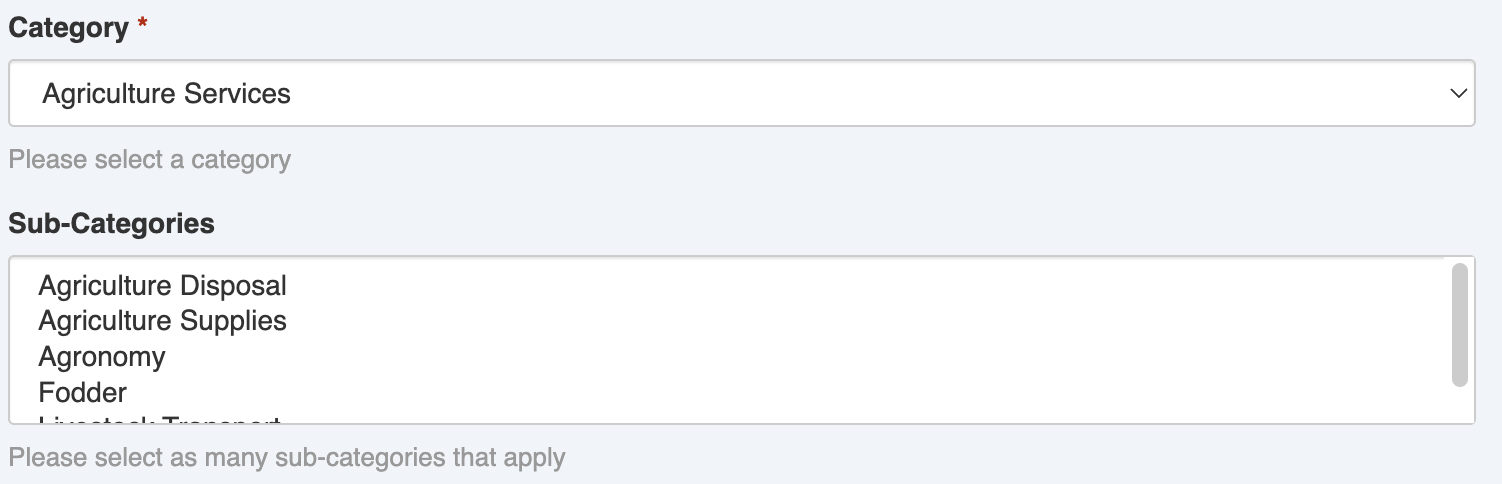
Category selection

How resources units relate to allocated resources
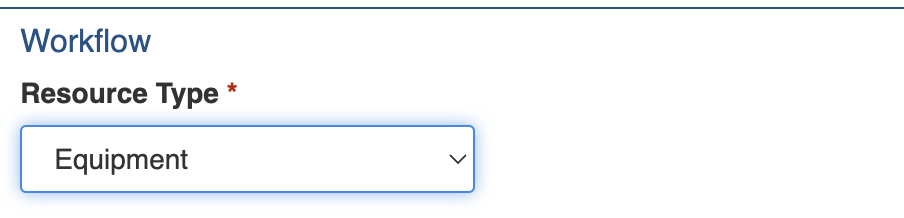
Resource Type selection
| Icon | Name | Summary of use |
|---|---|---|
 | Pending | Set for a Resource that is not yet available for use. It may be in an acquisition process prior to being deployed. |
 | Available | Set for Resource that is available for use |
 | Review | Set for a Resource that is currently being reviewed. |
 | Closed | Set for a Resource that is no longer available to be used. Closed Resources can no longer be selected for allocation and will not be visible in the Active filter. |
| Closed (Duplicate) | ||
| Closed (Error) | ||
 | Unavailable | Set if the Resource for some reason, is not currently available for use. It might be In Use, under maintenance or on break. |
| In Use | Set if the Resource is being used. |
 3. Make the necessary changes to the settings
4. Save
3. Make the necessary changes to the settings
4. Save  ## Adding Resources
{% content-ref url="../../concepts-and-fundamentals/on-a-computer/using-the-datagrid/adding-items" %}
[adding-items](https://docs.cw.crisisworks.com/concepts-and-fundamentals/on-a-computer/using-the-datagrid/adding-items)
{% endcontent-ref %}
To general process to add a Resources is:
1. Click the [**New Resource** button](https://docs.cw.crisisworks.com/concepts-and-fundamentals/on-a-computer/using-the-datagrid/adding-items) from any screen.
2. Under Workflow, specify the **Resource Type** (Consumable, Equipment, Offer, Service Provider or Volunteer)
3. Optionally add a Primary Contact
4. In the Resources Particulars section, add an appropriate **Title** and select a **Category** and optionally a Sub-Category
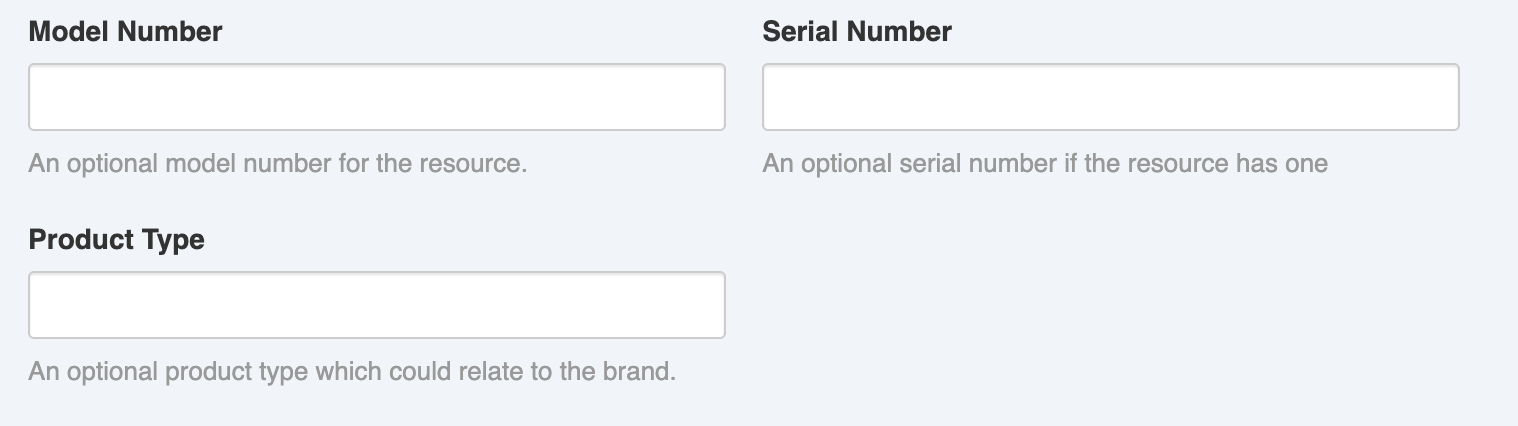
5. Depending on the Resource Type, enter particulars in the Particulars section
6. Save
## Adding Resources
{% content-ref url="../../concepts-and-fundamentals/on-a-computer/using-the-datagrid/adding-items" %}
[adding-items](https://docs.cw.crisisworks.com/concepts-and-fundamentals/on-a-computer/using-the-datagrid/adding-items)
{% endcontent-ref %}
To general process to add a Resources is:
1. Click the [**New Resource** button](https://docs.cw.crisisworks.com/concepts-and-fundamentals/on-a-computer/using-the-datagrid/adding-items) from any screen.
2. Under Workflow, specify the **Resource Type** (Consumable, Equipment, Offer, Service Provider or Volunteer)
3. Optionally add a Primary Contact
4. In the Resources Particulars section, add an appropriate **Title** and select a **Category** and optionally a Sub-Category
5. Depending on the Resource Type, enter particulars in the Particulars section
6. Save  ## Bulk Actions
{% content-ref url="../../concepts-and-fundamentals/on-a-computer/using-the-datagrid/bulk-actions" %}
[bulk-actions](https://docs.cw.crisisworks.com/concepts-and-fundamentals/on-a-computer/using-the-datagrid/bulk-actions)
{% endcontent-ref %}
The following additional bulk actions can be performed via the Actions menu:
| Action | Description |
| ---------------- | ----------------------------------------------------------------------------------------------------------------------------------------------------------------------------------------------------- |
| Copy IDs | Refer to: [Copy IDs](https://docs.cw.crisisworks.com/concepts-and-fundamentals/on-a-computer/using-the-datagrid/bulk-actions#copy-ids) |
| Bulk Edit | Refer to: [Bulk Edit](https://docs.cw.crisisworks.com/concepts-and-fundamentals/on-a-computer/using-the-datagrid/bulk-actions#bulk-edit) |
| Export to Report |
## Bulk Actions
{% content-ref url="../../concepts-and-fundamentals/on-a-computer/using-the-datagrid/bulk-actions" %}
[bulk-actions](https://docs.cw.crisisworks.com/concepts-and-fundamentals/on-a-computer/using-the-datagrid/bulk-actions)
{% endcontent-ref %}
The following additional bulk actions can be performed via the Actions menu:
| Action | Description |
| ---------------- | ----------------------------------------------------------------------------------------------------------------------------------------------------------------------------------------------------- |
| Copy IDs | Refer to: [Copy IDs](https://docs.cw.crisisworks.com/concepts-and-fundamentals/on-a-computer/using-the-datagrid/bulk-actions#copy-ids) |
| Bulk Edit | Refer to: [Bulk Edit](https://docs.cw.crisisworks.com/concepts-and-fundamentals/on-a-computer/using-the-datagrid/bulk-actions#bulk-edit) |
| Export to Report | Refer to: Export to Report
Runs the Resources Report