Cases

This page covers the Cases register. Cases are assignable and encompass a broad range of case management functions.

Overview

The main record of the Recovery module is the Case, which encapsulates all the other records into a single, managed record. Although it appears complex, there are very few required fields within this form, meaning users can simply collect the information they know, and leave the rest unfilled.

circle-info

Privacy and Security is extremely important when working with Cases. Ensure that security permissions and consent are observed in sharing personally identifiable information.

Cases provide the following features:

  • Users adding Cases can nominate a Case Manager and Field Officer by searching existing users, entering a new requestor or nominating themselves. These officers have special permissions to view and edit Cases that they manage.

  • Easy information capture through sections and fields for capturing notes, multimedia, documents and sketches.

  • Contact Details for the Primary Contact and other Affected Persons or Organisations. The system tracks consent and permission to share with external agencies and provides permissions and fields for additional privacy and security control. Additionally, their attendance at relief centres can also be tracked through integration with the Relief Registration register.

  • An Affected Property can be looked up and attached to the request and associated with an owner or tenant. Additionally, damages to Private Assets, Agriculture, Livestock and Environmental Health Assessments and identified hazards can be attached the the property. A map can be annotated to show the property. Attaching a Property is optional, to allow you to record impacts to assets where the owner or occupier information is not yet known, or in the instance of assisting persons who may be homeless.

  • Initial Impact Assessment (IIA) data can be processed using the Assessments register.

  • Infrastructure damage (such as damage to public assets, roads or bridges) can be associated with a Case, or managed as a standalone record

  • Various workflow fields allow for prioritising, assigning, setting of due dates and tagging to aid in management.

  • Ability to create Needs & Tasks to help meet an Applicant's Recovery needs and to refer Cases to external agencies with security policies for access levels.

  • Financial tracking of damages and impacts to property

  • Assignment and management of Cases can be handled by Recovery Coordinators or Recovery Managers

  • Users with permission to send the contents of the Case can create a Communication Message with Persons as recipients

  • Detailed Case Files can be generated using the Correspondence functions. Using the consent and information sharing policies to observe security and privacy, Case Files can help for example to provide evidence in legal or insurance claims.

The Case record acts as flexible container for case management of multiple assessments

Sub-Items

The following information can be recorded as sub-items in relevant sections of the Case record.

Access to each of the listed registers is based on your system's configuration and license.

Register
Uses

For managing contact information of affected persons

For recording the recovery needs and followup tasks for the Case

For recording details and evidence of impacted assets of the case/property

Track and manage infrastructure such as roads, culverts, signs and facilities that have been affected by disasters Can be added to Cases or standalone

For recording impacted livestock

For recording detailed environmental health assessments of the property

For recording impacted agriculture

Access

To access Cases:

  • Cases must be enabled for the event.

  • Go on duty with an appropriate role such as a Recovery Officer or Recovery Manager. If you can't access it you may need to ask your administrator to check your permissions.

Locate the Cases register under Recovery > Cases in the menu.

Location of the Cases register in the Recovery module

Finding Cases

Searching and Filteringchevron-right

The register includes a number of features to assist in finding Cases:

  • Map view

  • Filters including workflow, A&TSI, applicant sharing consent, property damage, priority, saved searches, assignments, classifications and tags

  • Combination filters and search by most fields including property type

Links to Cases can also be found in Sub-Items such as records of Affected Persons, Relief Registrations etc.

Sample Cases register Datagrid
A sample Cases register map view with item summary

Filtering

Filters help make management easier by focusing on specific groups of items on the datagrid.

Cases filter menu
chevron-rightFilter menu explanationshashtag

The following lists some of the filters and how to use them.

For CQL queries and field definitions consult the CQL Reference.

Filter Group
Filter/s
CQL
Use

Main

Active

is:active

Finds all Cases with a positive Status code

Recently Updated

is:active dateUpdated:>today-5d

Finds all Casesupdated in the last 5 days

All

is:any

Finds all Cases

Custom

[List is based on your system configuration]*

ATSI Cultural Specific Support

applicant:(ATSICulturalSupport:[yes,potentially]) OR relatedContacts:(ATSICulturalSupport:[yes,potentially])

Finds Cases containing related Contacts with ATSI cultural support requirements

Sharing Level - Not Yet Asked

sharingLevel:notYetAsked

Identifies Cases where consent has not been requested to share details

Urgent Priority

priority:4

Finds all Cases marked as Urgent

High Priority

priority:3

Finds all Cases marked as High Priority

No Applicants

is:active applicant:none

Identifies Active Cases without a related Contact

Major - Damage Primary Residence

is:active AND (privateAssets:(primaryPlaceOfResidence:true AND is:active AND buildingDamage:[4,3,2])) OR (recoveryEnvironmentalHealth:(is:active AND (waterOnsite:no OR isSepticAndEffluentLinesOperational:no OR hazardousChemicals:yes OR isPotentialHazardsPresent:yes OR electricityOnsite:no)))

Identifies Cases where there is major damage to the primary residence

My Inspections Required

status:INSPECT assigned:@me

Finds Cases with a Status of Inspect that are assigned to you

Property Damage

Damage Requires Inspection

propertyDamage:unsure

Identifies Cases where the Damage is possible and requires inspection/follow up flag is set

Primary Contact's Relationship to Property

[List is based on your system configuration]*

is:active relationshipToProperty:

Finds cases witha relationship to property match

Referral Source

[List is based on your system configuration]*

is:active referralSource:

Classification

[List is based on your system configuration]*

is:active systemClassification:

Region

No Region

is:active region:none

Finds all Assessments with no Region set

[List is based on your system configuration]*

is:active region:

Workflow

Inspection Required

status:inspect

New

status:new

No Action Required

status:open_no_action

Open

status:open

Reopen

status:reopen

Resolved

status:resolved

Review

status:review

Active tags

is:active #

Any tags in use.

Refer to: tags

Assignments

Unassigned

is:active assigned:none

Finds all Cases not assigned to any Position

[List is based on your system configuration]*

* May vary based on your system configuration

Querying

CQL searches can be performed via either the Filter menu or Search bar.

The following provides some sample searches for users. For a list of available fields, consult the Contacts Data Dictionary.

chevron-rightQuery exampleshashtag

Assigned to

  • assigned:value Filter on a specific value of assigned

  • has:assigned Filter records where assigned is set to any value

  • hasnt:assigned Filter records where assigned is not set

Case Officer

  • assignee:value Filter on a specific value of assignee

  • has:assignee Filter records where assignee is set to any value

  • hasnt:assignee Filter records where assignee is not set

Field Officer

  • fieldofficer:value Filter on a specific value of fieldofficer

  • has:fieldofficer Filter records where fieldofficer is set to any value

  • hasnt:fieldofficer Filter records where fieldofficer is not set

This field has a defined set of values: notYetAsked ,none ,full

  • sharinglevel:value Filter records with sharinglevel set to value

  • sharinglevel:[value1,value2] Filter records with sharinglevel set to any specified value

  • has:sharinglevel Filter records where sharinglevel is set to any value

  • hasnt:sharinglevel Filter records where sharinglevel is not set

  • isapplicantknown:value Filter records with isapplicantknown set to value

  • isapplicantknown:[value1,value2] Filter records with isapplicantknown set to any specified value

  • has:isapplicantknown Filter records where isapplicantknown is set to any value

  • hasnt:isapplicantknown Filter records where isapplicantknown is not set

This field has a defined set of values:

  • unknown The affected person(s) are unknown

  • known The affected person(s) or organisation are known

  • applicant:(id:123) Search the related record by related record ID 123

  • applicant:(field1:value field2:value2) Search the related record using a nested set of filters

  • has:applicant Filter records where applicant is set to any value

  • hasnt:applicant Filter records where applicant is not set

ATSI Origin

This field has a defined set of values: yes , no , preferNotToSay and notYetAsked

  • atsiorigin:value Filter records with atsiorigin set to value

  • atsiorigin:[value1,value2] Filter records with atsiorigin set to any specified value

  • has:atsiorigin Filter records where atsiorigin is set to any value

  • hasnt:atsiorigin Filter records where atsiorigin is not set

Relationship to Property

  • relationshiptoproperty:value Filter records with relationshiptoproperty set to value

  • relationshiptoproperty:[value1,value2] Filter records with relationshiptoproperty set to any specified value

  • has:relationshiptoproperty Filter records where relationshiptoproperty is set to any value

  • hasnt:relationshiptoproperty Filter records where relationshiptoproperty is not set

  • privateassets:(id:123) Search the related record by related record ID 123

  • privateassets:(field1:value field2:value2) Search the related record using a nested set of filters

  • has:privateassets Filter records where privateassets is set to any value

  • hasnt:privateassets Filter records where privateassets is not set

Property Use

The following queries check whether or not the following property use boxes are ticked.

Accommodation

  • propertyuseaccommodation:true

  • propertyuseaccommodation:false

Community

  • propertyusecommunity:true

  • propertyusecommunity:false

Farm

  • propertyusefarm:true

  • propertyusefarm:false

Government

  • propertyusegovernment:true

  • propertyusegovernment:false

Infrastructure

  • propertyuseinfrastructure:true

  • propertyuseinfrastructure:false

Residential

  • propertyuseother:true

  • propertyuseother:false

Residential (Primary)

  • propertyuseresidentialprimary:true

  • propertyuseresidentialprimary:false

Residential (Secondary)

  • propertyuseresidentialsecondary:true

  • propertyuseresidentialsecondary:false

Residential (Unclassified)

  • propertyuseresidentialunclassified:true

  • propertyuseresidentialunclassified:false

Vacant

  • propertyusevacant:true

  • propertyusevacant:false

Other

  • propertyuseother:true

  • propertyuseother:false

This field has a defined set of values: no ,yes ,unknown

  • propertyinsured:value Filter records with propertyinsured set to value

  • propertyinsured:[value1,value2] Filter records with propertyinsured set to any specified value

  • has:propertyinsured Filter records where propertyinsured is set to any value

  • hasnt:propertyinsured Filter records where propertyinsured is not set

Property Damage

This field has a defined set of values: no ,unsure ,yes

  • propertydamage:value Filter records with propertydamage set to value

  • propertydamage:[value1,value2] Filter records with propertydamage set to any specified value

  • has:propertydamage Filter records where propertydamage is set to any value

  • hasnt:propertydamage Filter records where propertydamage is not set

  • agriculture:(id:123) Search the related record by related record ID 123

  • agriculture:(field1:value field2:value2) Search the related record using a nested set of filters

  • has:agriculture Filter records where agriculture is set to any value

  • hasnt:agriculture Filter records where agriculture is not set

Livestock

  • livestock:(id:123) Search the related record by related record ID 123

  • livestock:(field1:value field2:value2) Search the related record using a nested set of filters

  • has:livestock Filter records where livestock is set to any value

  • hasnt:livestock Filter records where livestock is not set

Environmental Health

  • recoveryenvironmentalhealth:(id:123) Search the related record by related record ID 123

  • recoveryenvironmentalhealth:(field1:value field2:value2) Search the related record using a nested set of filters

  • has:recoveryenvironmentalhealth Filter records where recoveryenvironmentalhealth is set to any value

  • hasnt:recoveryenvironmentalhealth Filter records where recoveryenvironmentalhealth is not set

Assessments

  • relatedassessmentswithsameasset:(id:123) Search the related record by related record ID 123

  • relatedassessmentswithsameasset:(field1:value field2:value2) Search the related record using a nested set of filters

  • has:relatedassessmentswithsameasset Filter records where relatedassessmentswithsameasset is set to any value

  • hasnt:relatedassessmentswithsameasset Filter records where relatedassessmentswithsameasset is not set

Relief Registrations

  • relatedreliefregistrations:(id:123) Search the related record by related record ID 123

  • relatedreliefregistrations:(field1:value field2:value2) Search the related record using a nested set of filters

  • has:relatedreliefregistrations Filter records where relatedreliefregistrations is set to any value

  • hasnt:relatedreliefregistrations Filter records where relatedreliefregistrations is not set

Needs & Tasks

  • tasks:(id:123) Search the related record by related record ID 123

  • tasks:(field1:value field2:value2) Search the related record using a nested set of filters

  • has:tasks Filter records where tasks is set to any value

  • hasnt:tasks Filter records where tasks is not set

Case Documents

  • has:casedocuments Filter records where casedocuments is set to any value

  • hasnt:casedocuments Filter records where casedocuments is not set

Referral Date

  • referraldate:<now-30d Is less than 30 days from now

  • referraldate:2026-12-31 Is the date 2026-12-31

  • referraldate:<2026-12-31 Is earlier than the date 2026-12-31

  • referraldate:>2026-01-01 AND referraldate:<2026-12-31 Is in the year 2026

  • referraldate:<"2026-12-31 12:31:00" Is before 2026-12-31 12:31:00 (your local timezone)

  • has:referraldate Filter records where referraldate is set to any value

  • hasnt:referraldate Filter records where referraldate is not set

Referral Source

  • referralsource:value Filter records with referralsource set to value

  • referralsource:[value1,value2] Filter records with referralsource set to any specified value

  • has:referralsource Filter records where referralsource is set to any value

  • hasnt:referralsource Filter records where referralsource is not set

Region

  • region:value Filter records with region set to value

  • region:[value1,value2] Filter records with region set to any specified value

  • has:region Filter records where region is set to any value

  • hasnt:region Filter records where region is not set

Viewing Cases

Viewing Itemschevron-right

Open and view a case record, the records are long and have multiple sections so when working with specific attributes (such as persons or damage), it can be useful to collapse sections that you don't need to work with.

Sample Case record with sections

As each section is completed, new fields and options will become available.

The Contacts, Property Damage, Needs & Tasks and other sub-items can be opened and viewed in detail using the View button.

Case Settings

circle-info

The Case form is lengthy, however it is not necessary to complete it in one sitting. It is designed to have information added progressively as it comes to hand. This can be completed section by section as different recovery processes are initiated.

Case records are divided into the following sections (sections may or may not appear depending on what information is entered, your permissions level, and what mode you're viewing):

The form is in an interactive questionnaire format, making it easy for Case and Field officers to complete even on a mobile device or iPad.

Broadly speaking, the following steps are made based on key case considerations:

  1. Are any contacts known? If so, complete the Contacts section

  2. Is there an affected property? If so, then complete the Impacted Property section including any property damage.

  3. Are any follow-up services or tasks required? If so, then add Needs & Tasks

  4. Update the record

The system caters for various scenarios including the following:

  • Homeless or displaced people where there is no property to record

  • Visitors from another region

  • Properties that are owner occupied or tenanted

  • Impacted or damaged businesses and their owner or manager details

  • Damaged property that is vacant or for which the owners or occupiers are not known

  • Visitors to evacuation or relief centres who have long term recovery needs

  • Affected owners who don't live at the address

  • Damaged property or infrastructure which is declared hazardous

Record Notes

When editing, you can record notes as you make changes which will appear in the Activity log.

See Recording Notes

Affected Person(s)

This section attaches Persons to a Case.

If you know any affected people or organisations associated with the case, you should add their details starting with the applicant.

Add persons and organisations to the case

If you don't know who the Case contact is (for example, if you are adding the case via a field inspection or initial impact assessment) leave the default setting to The affected person(s) are unknown. The No Applicants counter helps track cases without applicants.

Add persons and organisation to this case
Add persons section

If you have a contact Person for the Case select The affected person(s) are known.

When selected a series of sub-forms appear.

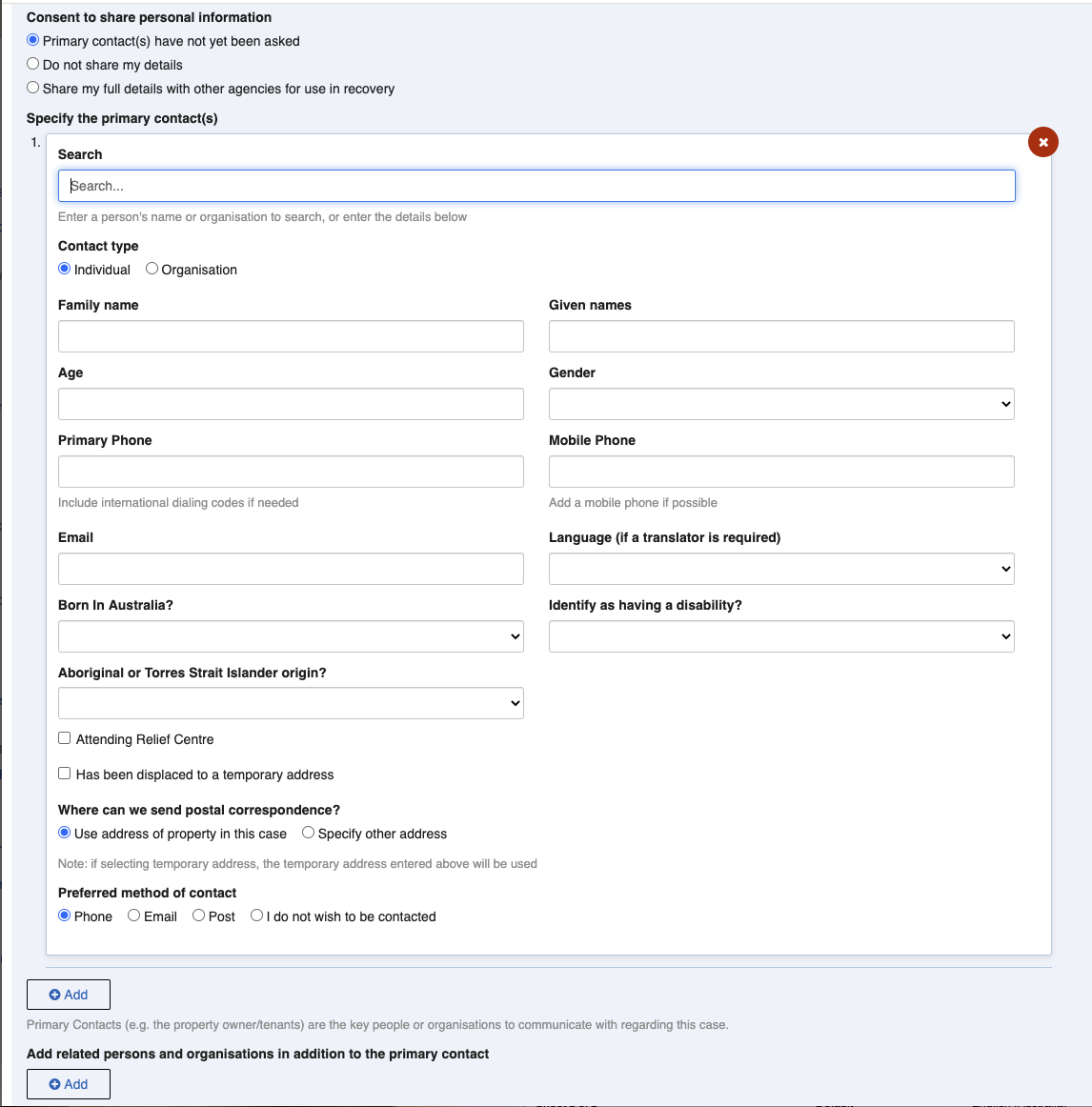
This setting records consent status and provides three options.

Consent statuses are colour coded. The box at the top of the Case indicates its current consent status by colour.

Consent section
circle-info

Only share information with other agencies if there is a green consent box

Option
Consent message
Consent box colour

Primary contact(s) have not yet been asked (Default)

Please let the person know that the information they share will be recorded and shared with the appropriate agencies.

Orange

Do not share my details

Primary Contact does not consent to sharing information

Red

Share my full details with other agencies for use in recovery

Primary Contact consents to sharing information

Green

Aboriginal or Torres Strait Islander question

For assisting in the provision of cultural support you must specify if any of the group is of Aboriginal or Torres Strait Islander origin. If yes, this question will be asked for each individual in the case with an additional question asking if 'culturally specific support' is needed. If the response is yes, a reminder will appear to 'Please add a Need/Task record to manage it' prompting you to add a Need/Task for the case using the 'A&TSI Specific Referral' category for assignment to the responsible external agency.

Aborignal or Torres Strait Islander question
Specify the Primary Contact(s)

This section stores one or more Persons designated as primary contact(s) in the Case. These are the ones that the Case Officer speaks with first about the Case.

You can add multiple primary contacts to the case if needed by clicking the Add Another button directly under the applicant form.

Affected Persons section

When completing the Persons sub-form:

  1. You may Search for existing primary contacts — this searches only the current event, and allows you to avoid duplicates.

  2. Use the Contact Type to classify them as an individual or businesses

  3. Enter optional Contact information (these appear in guided questionnaire format) including the Family Name; Given names; Age; Gender; Primary Phone; Mobile Phone, Email; Language (if translator is required); Born in Australia?; Identify as having a disability?

  4. If they are attending a relief centre, check the Attending Relief Centre box, and then select the Relief Centre from the list provided (these are set by an administrator using the Recovery: Relief Centres Lookup).

  5. If they are living in a temporary address as a result of displacement, check the Has been displaced to a temporary address checkbox, and then enter their Temporary Address in the fields provided.

  6. Nominate their preferred postal address in the Where can we send postal communication? section:

    1. Use address of property in this case — this will use the case's primary property address which will be entered later

    2. Use temporary address — if the primary contact is using a temporary address, this will use the temporary address

    3. Specify other address — allows another address to be specified

  7. Nominate their Preferred method of contact

This section records additional related persons and organisations. It is similar to the primary contact with some small differents, notably the Relationship to primary contact.

Use the Add (or Add Another) button to add as many as required.

Relationship to primary contact

If the primary contact represents a family, then affected family members can be entered here. If the primary contact is a business owner, their affected staff or customers may be entered.

Related persons section

Impacted Property

This section records any affected properties involved in the Case.

Many cases will have affected (or possibly affected) properties.

For example, any primary contact with a property within the municipality should have their property recorded. Visitors to the municipality are an example of a case that will not have an affected property.

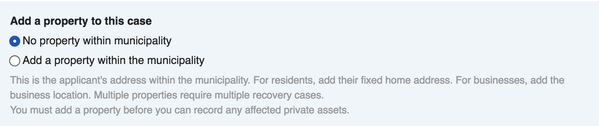
If there is no affected property

If there is no affected property, you can skip the entire section.

Adding property to a case

If there is an affected property

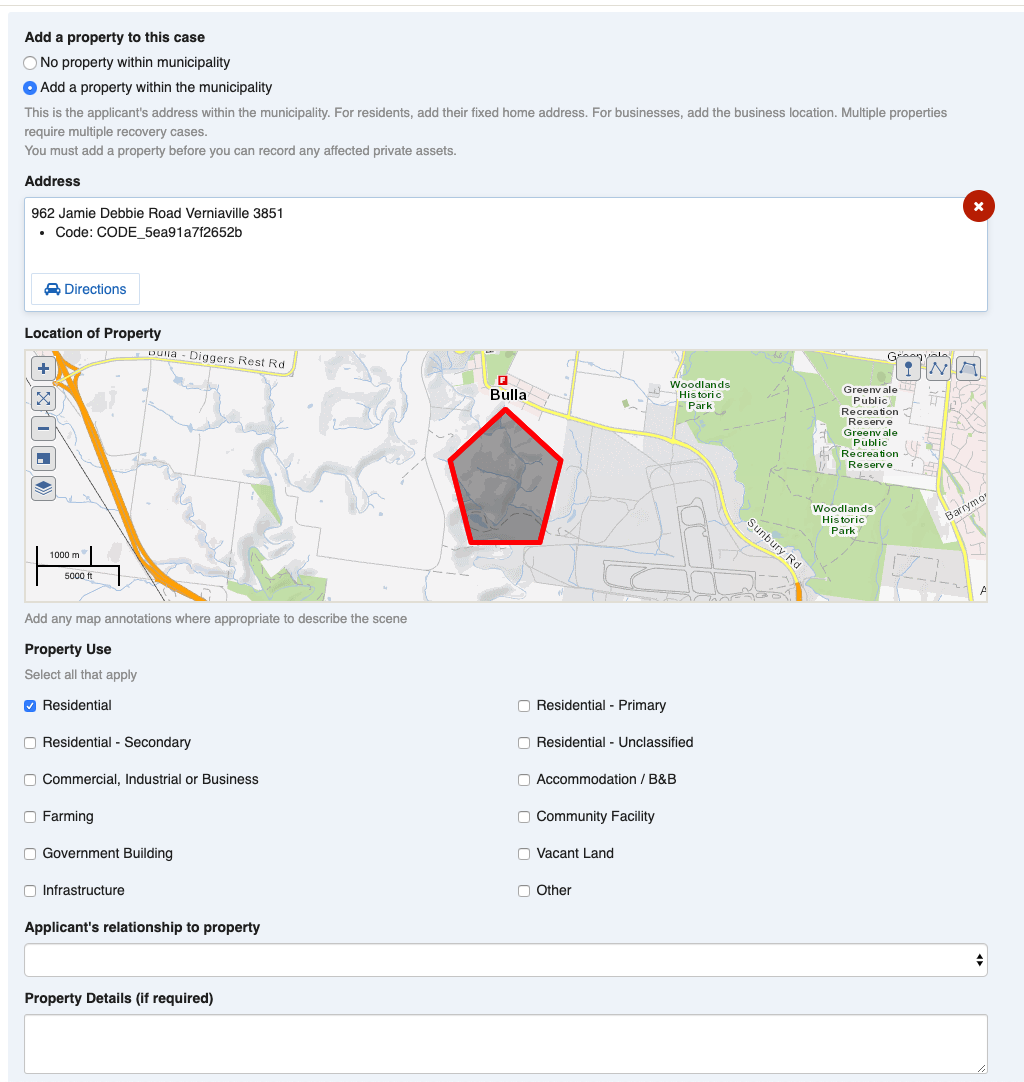
If you specify Add a property within the municipality, then a subform will appear with additional options for the property.

  1. Enter the property's Address. This will look up your local property database and will match the asset database, and confirm the location of the property on a map.

  2. Specify the Property Use by ticking on the appropriate checkboxes. You can select multiple property uses for the property if needed.

    If you click on the Residential Property Use checkbox, three additional checkboxes will appear: Residential - Primary, Residential - Secondary and Residential - Unclassified. If you click on the Residential checkbox and don't choose one of these options, Residential - Unclassified will be automatically selected on save of the case.

  3. Specify the Primary Contact's Relationship to the property.

  4. If required, enter any additional Property Details to aid in identifying the property and its purpose. This is useful for farming and business cases.

Add property section

Property Damage

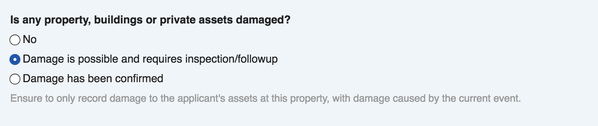
If you added a property, you can now define any property damage in the Is any property, buildings or private assets damaged? field.

Property Damage section

If there is no property damage, then you can answer No and skip this section.

If damage is known, select Damage has been confirmed.

In some cases, you may not know whether there is any property damage, for example when entering cases from a relief centre. If this is the case, select Damage is possible and requires inspection/followup. This activates the inspection workflow counter that guides post-impact assessment teams to coordinate field inspections to determine the damage.

The following sections will only appear if you specify Damage has been confirmed.

If you know the applicant's insurance details, you can specify in the Is the property insured? and Insurance Details fields.

Affected Private Assets

Private Assetschevron-right

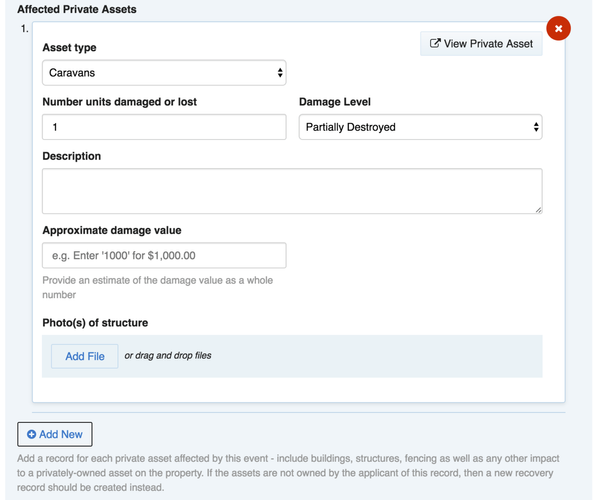
Affected private assets includes homes, sheds, machinery, fencing and economic loss. Your administrator can also define custom asset types specific to your area.

Private Assets section

To add an affected asset:

  1. Click Add New to enter any affected private assets such as homes, vehicles, fencing, etc.

  2. For each private asset:

    1. Select the asset type

    2. Enter the number of units damaged or lost

    3. Specify the damage level

    4. Enter a description of the asset and its damage

    5. Upload any photos

    6. Enter an approximate damage value

Some assets have additional fields. For example, fencing offers fields for the internal and external fencing length, in kilometres.

Affected Agriculture

Agriculturechevron-right

Tip: Agriculture types can be defined by your administrator to match your local area.

To add details on the affected crops:

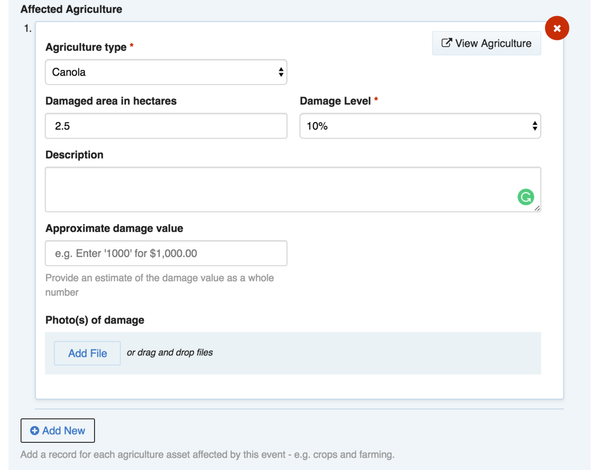
  1. Click Add New to enter each impacted agriculture crop

  2. For each crop:

    1. Select the agriculture type

    2. Specify the damage level

    3. Enter a description and a damage level

Affected Agriculture section

Affected Livestock

Livestockchevron-right

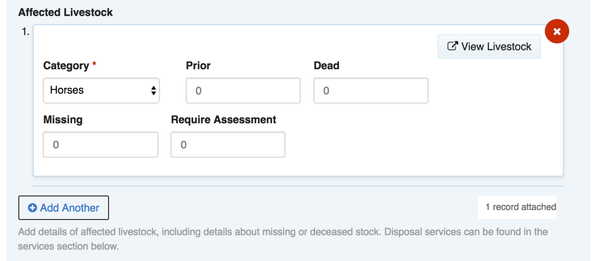
For each type of livestock, click Add New to record the details. Make sure to save the Case.

Affected Livestock section

Performing Environmental Health Assessments

Environmental Healthchevron-right

It is common to perform Environmental Health Assessments (EHA) of affected properties.

  1. If performing an EHA on an existing case, find the case in the Recovery Case datagrid, and click the case to load the view form, then click Edit. If the case cannot be found, click New Case to add a new case, and fill in the basic particulars as above.

  2. In the Environmental Health Assessment section, click Add New

  3. Complete the form

  4. Click Save to save the form

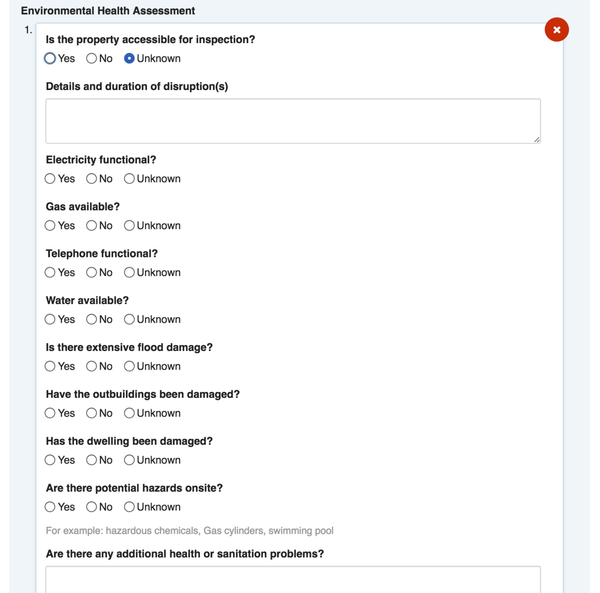
The Environmental Health Assessment is a long questionnaire suited to specialists. The top part of the form looks as follows:

Environmental Health Assessment section

Needs and Tasks

Needs & Taskschevron-right

Needs and Tasks are used for any services, tasks and immediate needs that require actioning by a provider. This can be a recovery team member or team or an external agency or provider. Needs and tasks can be referred or assigned.

Needs and Tasks are Sub-items. You can add as many as needed. These will be created in the Needs & Tasks register where you can view the full details. Note that you can only create them through Cases, not to the Needs & Tasks register.

When an external agency is assigned a task and has the required consent, they can manage it through Needs and Tasks.

Needs & Tasks section
A case with multiple Needs and Tasks.

Other Information

The Other Information section contains optional fields for any additional or miscellaneous case handling instructions and information required to perform case tasks not listed elsewhere in the case. These are typically only visible to case managers and the responsible case officer.

Special Case Notes can be used to record information in the form.

Case Documents can hold one or more file attachments.

Case documents section

Communication

Communicationchevron-right

The Communication section may contain a Message History in the form of a delivery report of anyone sent this case details.

Workflow

The Workflow section of a Case is used to record information about the record, including the status, priority, assignments any related referral or relief information.

Sample Workflow section of a Case

Status

Users set the status of the request by editing the request and changing the value in the Status field.

General workflow for Cases

Statuses are indicated visually and colour coded on the datagrid which allows them to be filtered. Cases have the following Statuses, in order of which they can be set:

Status
Datagrid Icon
Notes

New

All new Cases begin with this status

Open

Case is current and being worked on

Review

Case is under review

Inspection Required

An inspection has been requested

No Action Required

Case doesn't require any further action, but will remain in reports

Resolved

Resolved cases are awaiting final review and closure by a Recovery Manager

Closed

Closed cases are no longer active and will disappear from active filters

Reopen

Closed cases can be set to this status if they require further work after being closed.

circle-info

Users cannot override the next available step without special permissions

Priority

This field indicates the Case as Urgent, High, Low or Normal Priority.

Case Officer

This field sets the person ultimately responsible for the Case. The Case Officer receives notifications when someone else updates the Case. A Coordinator selects a person from the list to assign the Case, or a Case Officer can assign new cases to themselves.

Field Officer

This field sets the person who usually conducts on site inspections of properties or interviews contacts in person. A Coordinator selects a person from the list to assign the Case. It can be the same person as the Case Officer, i.e. a Case Officer can assign new cases to themselves.

Referral Source

This field indicates if the Case has been referred from an external agency which is selected from a list. Referrals can come from various sources, however only one can be selected.

Referral Date

This field sets the date that the Case was referred.

External Case ID

This field sets a reference number for an external source it the Case is also stored in another system. This helps them to be reconciled for review.

Relief Registration

This field is set if the Case began as a Relief Registration. This will provide the ID of the record as well as a link back to it.

This section identifies any Assessments related to the Case and provides an ID and link.

Assessments that show up include Active items associated with the same property/Asset in the same Event.

Related Items showing Related Assessments

Hazard Status

This section provides a warning if any hazards exist on the site.

Hazard Status section of a Case with potential hazards onsite

Classification

Refer to: Editing Register Items: Classification.

Financial

This section allows coordinators to record dollar amounts for the Total Cost Estimate and Total Cost to Date which is based on any costs logged against the Case.

The system automatically calculates the total cost based on assigned Tasks.

The Total Cost Estimate can be entered manually, however if the total cost of assigned resources exceeds the estimate entered the total of those assigned tasks will be automatically displayed.

Financial section

Administrative

Save this Item as a template

When set this creates a type of blank Case that already has sections pre-filled. This can save time with future Case management.

Once a template is created, you can use Create Copy to copy a template and reuse it.

Address Title Override

This setting changes the Case title to a different address than the Property Address.

Correspondence

Refer to: Editing Register Items: Correspondence

Activity

Refer to: Viewing and Opening Register Items: Activity

Updating Cases

Editing Itemschevron-right

When updating Cases:

  • Make sure to add notes using the yellow Record Notes field, these can be useful as the case is managed.

  • Workflow should be progressively updated to reflect the current status of the case.

  • Ensure that the contact details are progressively filled in as information becomes available.

  • Update the priority as more is known about the needs of the case.

Adding Cases

Adding Itemschevron-right

To add a new Case:

  1. From the Cases register, in the New item menu select the New Case button (or drop down the list from any other register and select it)

  2. Complete each section of the Case Settings as required. Note that some options may open up new sections to complete.

  3. Save the Case

New Cases will appear with a Status of New.

Bulk Actions

Bulk Actionschevron-right

The following additional bulk actions can be performed on Cases via the Actions menu:

Action
Description

Copy IDs

Refer to: Copy IDs

Bulk Edit

Refer to: Bulk Edit

Update for multiple Cases: Notes; Event; Region; Status; Priority; Case Officer, Field Officer; Referral Source; Classifications; Tags

Bulk Create Tasks

Add Needs and Tasks for multiple Cases

Create a Copy

Refer to: Create a Copy

Copy to Relief Registration

Creates a Relief Registration for the Contacts in Case

Merge

Refer to: Merge, Merging Cases Merges data (persons, private assets, tasks, all fields) from multiple Cases into a new Case.

Send Communication

Refer to: Send Communication

Adds the Primary Contacts for Cases as Recipients to a Communication

Export Detailed Cases to Report

Refer to: Export to Report

Generates the Detailed Cases to Report for selected Cases

Export Cases with basic applicant data to Report

Refer to: Export to Report

Generates the Cases with basic applicant data Report for selected Cases

Merging Cases

It is possible to merge cases that are duplicates of one another. To do this:

  1. Navigate to the Recovery Case datagrid

  2. Ensure all datagrid records are deselected, by clicking the checkbox icon at the top left of the datagrid until the checkboxes for individual records are clear.

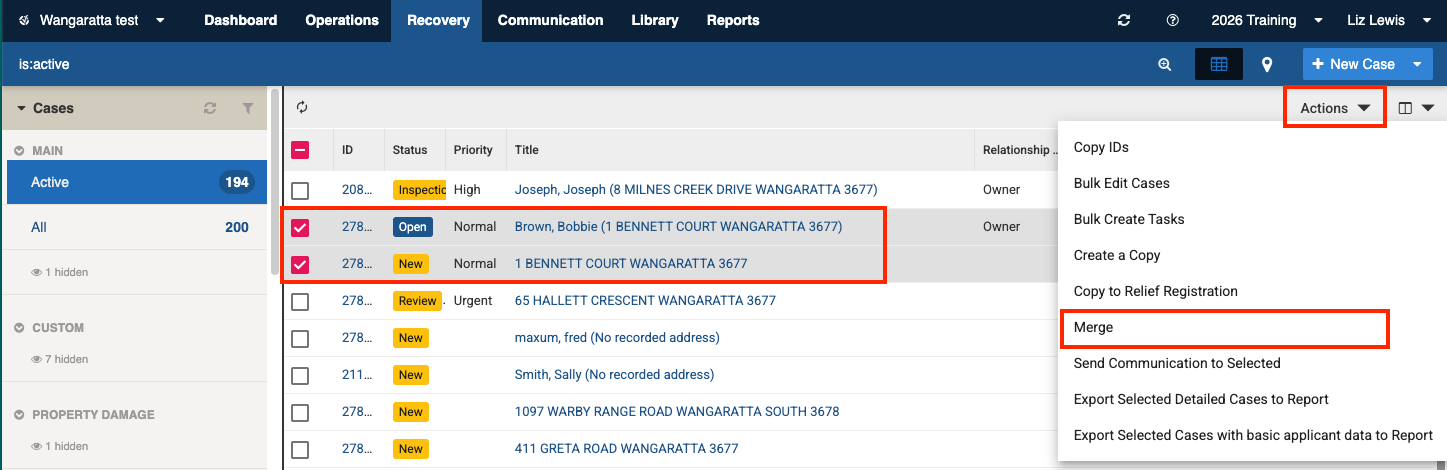
  3. Select two or more cases that are duplicates, by checking their select boxes.

  4. Go to the Actions menu, and select Merge

Tick Recovery Cases to be merged, select Merge from the Actions
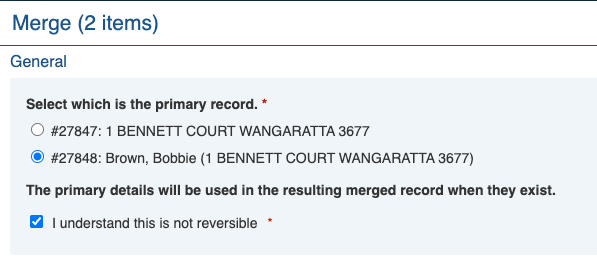
  1. The next screen will display the records selected to be merged

  2. Select the Primary Case and tick to acknowledge the warning that this action is not reversible.

    The following fields will set to the Primary Case's value:

    sharingLevel relationshipToProperty propertyDamage assetId assignee fieldOfficer status

  3. Click Proceed to start the merge.

  4. Review the newly created Case and remove any duplicated sections or set them to 'Closed (Duplicate). See note on Sub Records below.

Records to be merged, warning this action is not reversible.
Merge outcome screen

General outcomes when merging

The following are the general rules that apply when merging cases:

  • When Recovery Cases are merged, the selected source cases are merged into a NEW case record.

  • The source cases are set to status Closed (Duplicate) and the most recently set status from the source cases will be applied to the new case.

  • The tag ‘merged-item’ is added to the new Case.

  • The activity log from the source cases are not accessible from the new case, however, details of the closed cases can be found in the Activity Log of the new case.

  • Record Notes from the source Cases are merged into a NEW Case record and are visible in the activity log.

General Rules for merging fields and sub-records

Single fields: A field that has a single value will generally gain the newest value from the source cases. Examples: a number field, a date, radio choice, or a picklist.

RTE: A rich text area or text area data in the source cases will be combined in the new case.

circle-exclamation

Rules per field

Label
Field ID
Form Type
Merge outcome

Affected Person(s)

Add persons and organisations to this case

isApplicantKnown

radio

Is selected if there is at least one linked primary contact(applicant).

Consent to share personal information

sharingLevel

radio

Set to Primary Case's value.

Specify the primary contact(s)

applicant

multiSubForm

(Recovery Contact)

All primary contacts are linked to the new merged case.

Add related persons and organisations in addition to the primary contact

relatedContacts

multiSubForm

(Recovery Contact)

All related people are linked to the new merged case.

Impacted Property

Add a property to this case

fixedHomeAddress

radio

Most recently added value or is selected. However if an address (asset) is set for the case, then this option will be set.

Address

asset

Set to Primary Case's value.

Property Use: Residential

propertyUseResidential

checkbox

Most recently updated value.

Property Use: Residential - Primary

propertyUseResidentialPrimary

checkbox

Most recently updated value.

Property Use: Residential - Secondary

propertyUseResidentialSecondary

checkbox

Most recently updated value.

Property Use: Residential - Unclassified

propertyUseResidentialUnclassified

checkbox

Most recently updated value. However if ‘Residential – Primary’ or ‘Residential – Secondary’ are selected, it will be unchecked.

Property Use: Commercial, Industrial or Business

propertyUseCommercial

checkbox

Most recently updated value.

Property Use: Accommodation / B&B

propertyUseAccommodation

checkbox

Most recently updated value.

Property Use: Farming

propertyUseFarm

checkbox

Most recently updated value.

Property Use: Community Facility

propertyUseCommunity

checkbox

Most recently updated value.

Property Use: Government Building

propertyUseGovernment

checkbox

Most recently updated value.

Property Use: Vacant Land

propertyUseVacant

checkbox

Most recently updated value.

Property Use: Infrastructure

propertyUseInfrastructure

checkbox

Most recently updated value.

Property Use: Other

propertyUseOther

checkbox

Most recently updated value.

Property Use: Specify 'other' property use

otherType

text

Most recently updated value.

Primary Contact’s relationship to property

relationshipToProperty

select

Set to Primary Case's value.

Property Details (if required)

additionalInfo

textarea

Values from both fields are added together.

Are any property, buildings or private assets damaged?

propertyDamage

radio

Set to Primary Case’s value.

Property Damage

Is the property insured?

propertyInsured

radio

Most recently updated value.

Insurance Details

insurance

textarea

Values from both fields are added.

Affected Private Assets

privateAssets

multiSubForm

(Private Assets)

All private assets linked to the new merged case.

Affected Agriculture

agriculture

multiSubForm

(Agriculture)

All agriculture sub records are linked to the new merged case.

Environmental Health Assessment

recoveryEnvironmentalHealth

multiSubForm

(Environmental Health)

All EHAs are linked to the new merged case.

Affected Livestock

livestock

multiSubForm

(Livestock)

All affected livestock sub records are linked to the merged case.

Damaged Infrastructure

infrastructure

multiSubForm

(Infrastructure)

All infrastructure sub records linked to the merged case.

Sketch

sketch

canvas

Most recent sketch added.

Photo(s) of property

photos

media

All photos linked to the merged case.

Inspection Information

damageInfo

rte

Values from both fields are added.

Hazards exist at site

hazardExists

checkbox

Most recently updated value.

Hazard Information

hazardInfo

rte

Values from both fields are added.

Needs and Tasks

Add services, tasks and immediate needs

tasks

multiSubForm

(Needs & Tasks)

All needs & task sub records are linked to the new merged case.

Other Information

Special Case Notes

details

rte

Values from both fields are added together .

Case Documents

caseDocuments

media

All documents linked to the merged case.

Workflow

Status

hasStatus

status

Set to Primary Case's value.

Priority

priority

select

Most recently updated value.

Case Officer

assignee

assignment

Set to Primary Case’s value.

Field Officer

fieldOfficer

assignment

Set to Primary Case's value.

Primary Referral Source

referralSource

select

Most recently updated value.

External Case Id

externalId

text

Most recently updated value.

Classification

Event

hasEvent

event

Can only merge items in the same event.

Tags

hasTags

tags

All tags added to the merged case.

Classification

systemClassification

multiselect

All records added to the merged case.

Financial

Total Cost Estimate($)

text

costEstimate

Will be calculated from the new case data.

Total Cost To Date ($)

readonly

costActual

Can not merge items that have financial reconciliation value assigned.

Administrative

Save this item as a template

isTemplate

checkbox

Template items can not be merged.

Address Title Override

alternativeTitle

text

Most recently updated value.

Record Notes

Enter an optional note to appear in the activity history

__changeComments

textarea

All record notes are added to the Activity Log in the merged case.

Importing Cases

file-importImportschevron-right

A System Administrator can add and/or update Cases in bulk via the Import system using the Recovery Case Import option.

Reports

Running Reportschevron-right

Several reports are based on Case data. See Recovery Reports.

These are also available from the Actions menu.

You can also run reports to detect possible duplicate entries and view files and images attached to cases.

Last updated

Was this helpful?