# Assessments

## Overview <a href="#requests-overview" id="requests-overview"></a>

The *Assessments* register holds assessments of **property damage** which can be received from an external **Source** following some kind of impact (typically first responders and emergency services and local rescue agencies such as the State Emergency Service). This includes an **Agency Report** and can be an **Initial Impact Assessment (IIA)** or other general types of assessment. During an initial impact, large volumes of information are collected for processing as a result, Assessments are most commonly imported into the system in bulk from a file provided by the reporting agency.&#x20;

Assessments function similarly to Cases, but only record property and damage information. Assessments allow property damage reports to be reviewed and verified without having to first create Cases. In addition to property damage, Assessments can identify hazards and whether a property is habitable.

Assessments can be assigned and referred for a **Secondary Assessment** or **Infrastructure Assessment**.

Assess and convert them into Cases to manage Affected Persons and other related records.

### Access <a href="#requests-usingrequests" id="requests-usingrequests"></a>

To access *Assessments*:&#x20;

* *Assessments* must be [enabled for the event](https://docs.cw.crisisworks.com/system-administration/managing-events).
* [Go on duty](https://docs.cw.crisisworks.com/concepts-and-fundamentals/on-a-computer/working-with-events#setting-your-duties-for-events) with an appropriate role such as Recovery Officer or Recovery Manager. If you can't access it, ask your administrator to check your permissions.

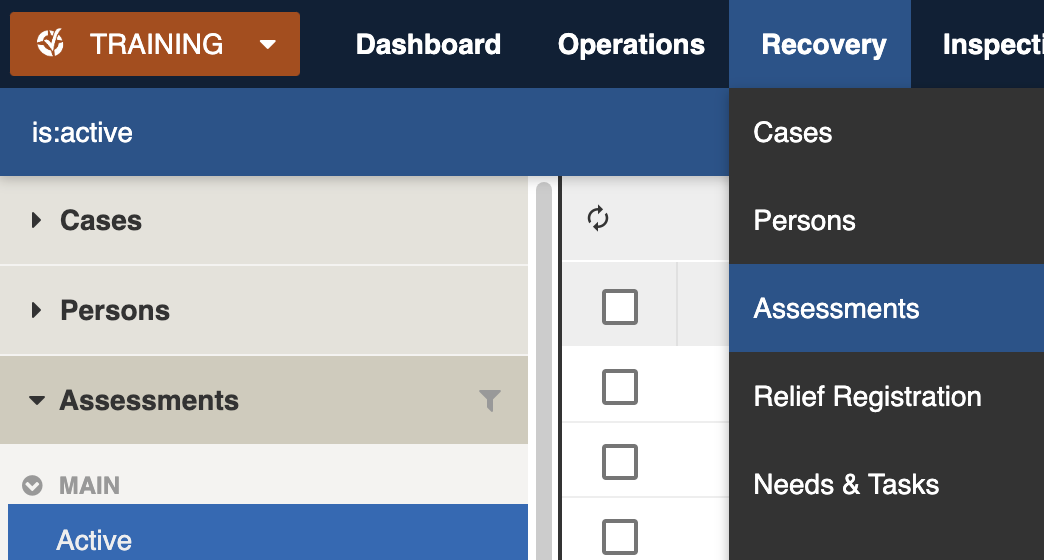
Locate the *Assessments* register under **Recovery** > **Assessments** in the menu.&#x20;

<figure><img src="https://3923904090-files.gitbook.io/~/files/v0/b/gitbook-x-prod.appspot.com/o/spaces%2FNy7IznbrPLUq6GJDDQDk%2Fuploads%2FDb9n0qU8V0HILVDiPdT8%2Fimage.png?alt=media&#x26;token=e03f52b4-499f-4074-b67a-6cb15a01b5b6" alt="" width="375"><figcaption><p>Location of the Assessments register in the Recovery module</p></figcaption></figure>

## Finding Assessments <a href="#information-editinganexistinginformationitem" id="information-editinganexistinginformationitem"></a>

{% content-ref url="../../concepts-and-fundamentals/on-a-computer/searching-filtering-and-querying-registers" %}
[searching-filtering-and-querying-registers](https://docs.cw.crisisworks.com/concepts-and-fundamentals/on-a-computer/searching-filtering-and-querying-registers)
{% endcontent-ref %}

The register includes a number of features to assist in finding *Assessments*:

* [Datagrid](https://docs.cw.crisisworks.com/concepts-and-fundamentals/on-a-computer/using-the-datagrid#data-grid-view) view
* [Map](https://docs.cw.crisisworks.com/concepts-and-fundamentals/on-a-computer/using-the-datagrid#map-view) view&#x20;
* Filters including workflow, types, source, region and tags
* Combination filters and search by most fields

### Filters <a href="#information-editinganexistinginformationitem" id="information-editinganexistinginformationitem"></a>

Filters help make management of *Assessments* easier by focusing on specific groups of items on the datagrid.

<figure><img src="https://3923904090-files.gitbook.io/~/files/v0/b/gitbook-x-prod.appspot.com/o/spaces%2FNy7IznbrPLUq6GJDDQDk%2Fuploads%2FbohwoKMAxGOJWyqsQLYJ%2Fimage.png?alt=media&#x26;token=ab8dbca7-4d0d-4a12-91de-066aaec1db37" alt="" width="138"><figcaption><p>Assessment register filter menu</p></figcaption></figure>

<details>

<summary>Filter menu explanations</summary>

The following lists some of the filters and how to use them.

For CQL queries and field definitions consult the [CQL Reference](https://docs.cw.crisisworks.com/security-and-support/technical-reference/cql-reference).

<table><thead><tr><th width="156.73828125">Filter Group</th><th width="128">Filter/s</th><th width="289.77734375">CQL</th><th>Use</th></tr></thead><tbody><tr><td>Main</td><td><br></td><td></td><td></td></tr><tr><td></td><td>Active</td><td><code>is:active</code></td><td>Finds all Assessments with a positive Status code</td></tr><tr><td></td><td>Recently Updated</td><td><code>is:active dateUpdated:>today-5d</code></td><td>Finds all Assessments updated in the last 5 days</td></tr><tr><td></td><td>Overdue<br></td><td><code>is:active due:&#x3C;now</code></td><td>Finds all Assessments with a due date prior to today</td></tr><tr><td></td><td>All</td><td><code>is:any</code></td><td>Finds all Assessments</td></tr><tr><td>Types</td><td></td><td></td><td></td></tr><tr><td></td><td>General Assessment</td><td><code>itemSchemaName:default</code></td><td>Finds all Assessments with a General Assessment schema</td></tr><tr><td></td><td>Initial Impact Assessment</td><td><code>itemSchemaName:iia</code></td><td>Finds all Assessments with a Initial Impact Assessment schema</td></tr><tr><td>Classification</td><td>[List is based on your system configuration]*</td><td><code>is:active systemClassification:</code></td><td></td></tr><tr><td>Source</td><td>[List is based on your system configuration]*</td><td><code>is:active source:</code></td><td></td></tr><tr><td>Region</td><td></td><td></td><td></td></tr><tr><td></td><td>No Region</td><td><code>is:active region:none</code></td><td>Finds all Assessments with no Region set</td></tr><tr><td></td><td>[List is based on your system configuration]*</td><td><code>is:active region:</code></td><td></td></tr><tr><td>Workflow</td><td></td><td></td><td></td></tr><tr><td></td><td>Unverified Assessment</td><td><code>status:unverified</code></td><td></td></tr><tr><td></td><td>Closed - Assessment Not Required</td><td><code>status:closed_not_required</code></td><td></td></tr><tr><td></td><td>Closed - Infrastructure Assessment Created</td><td><code>status:closed_infrastructure_assessment_created</code></td><td></td></tr><tr><td></td><td>Closed - Invalid Data</td><td><code>status:closed_invalid_data</code></td><td></td></tr><tr><td></td><td>Closed - Secondary Assessment Created</td><td><code>status:closed_secondary_assessment_created</code></td><td></td></tr><tr><td></td><td>Infrastructure Assessment Required</td><td><code>status:infrastructure_required</code></td><td></td></tr><tr><td></td><td>Pending Information</td><td><code>status:pending</code></td><td></td></tr><tr><td></td><td>Secondary Assessment Required</td><td><code>status:sa_required</code></td><td></td></tr><tr><td>Active tags</td><td></td><td><code>is:active #</code></td><td><p>Any tags in use.</p><p>Refer to: tags</p></td></tr><tr><td>Assignments</td><td></td><td></td><td>Finds all Assessments assigned to a specific Position</td></tr><tr><td></td><td>Unassigned</td><td><code>is:active assigned:none</code></td><td>Finds all Assessments not assigned to any Position</td></tr><tr><td></td><td>[List is based on your system configuration]*</td><td></td><td></td></tr></tbody></table>

\* May vary based on your system configuration

</details>

## Viewing Assessments <a href="#information-editinganexistinginformationitem" id="information-editinganexistinginformationitem"></a>

{% content-ref url="../../concepts-and-fundamentals/on-a-computer/using-the-datagrid/viewing-items" %}
[viewing-items](https://docs.cw.crisisworks.com/concepts-and-fundamentals/on-a-computer/using-the-datagrid/viewing-items)
{% endcontent-ref %}

When viewing *Assessments*, sections can be expanded to show information.

As each section is completed, new sections may show additional information.&#x20;

<figure><img src="https://3923904090-files.gitbook.io/~/files/v0/b/gitbook-x-prod.appspot.com/o/spaces%2FNy7IznbrPLUq6GJDDQDk%2Fuploads%2FdOfFSRt0Aa4nSAZPGqox%2Fimage.png?alt=media&#x26;token=4220338e-00a4-4a9c-b54f-df389abe48af" alt=""><figcaption><p>Sample Assessment item (Initial Impact Assessment from Fire Rescue Victoria)</p></figcaption></figure>

## Assessment Settings

| Left Column                                 | Right Column                        |
| ------------------------------------------- | ----------------------------------- |
| [Record Notes](#record-notes)               | [Workflow](#workflow)               |
| [General Information](#general-information) | [Related Records](#related-records) |
| [Agency Report](#agency-report)             | [Classification](#classification)   |
| [Impacted Property](#impacted-property)     | [Administrative](#administrative)   |
| [Council Assessment](#council-assessment)   | [Activity](#activity)               |

### Record Notes

When editing, you can record notes as you make changes which will appear in the Activity log.

Refer to: [Recording Notes](https://docs.cw.crisisworks.com/concepts-and-fundamentals/on-a-computer/using-the-datagrid/editing-items#recording-notes)

### General Information

The General Information section holds Assessment details. **Assessment Type** records whether it is an Initial Impact Assessment or General Assessment. Most Assessments from external sources will be Initial Impact Assessments. Other Assessments use General Assessment. It is important to select the type carefully as it can't be changed later. **Assessment Received Date/Time** defaults to when the record was created, however it can be set as required.

### Agency Report

The Agency Report is usually captured from information sent by the agency.

Damage is confirmed in the **Are any property, buildings or private assets damaged?** field.

**Source** records where the information came from. This will typically be a responders emergency service or local rescue agencies such as the State Emergency Service. Your Administrator configures the list of Sources for your site using the [Recovery: Assessment Source](https://docs.cw.crisisworks.com/system-administration/configuring-the-system/lookups) lookup.

**Report Full Details** is used to capture detailed information. It is possible to record in this field tabular data which can be viewed from within the Assessment record.

**General Photo(s) of property** is used to show non-structural photos for assessment purposes.

When hazards are present on site, the **Are there any hazards present at the property?** will be checked and **Hazard Information** holds the details.

<figure><img src="https://3923904090-files.gitbook.io/~/files/v0/b/gitbook-x-prod.appspot.com/o/spaces%2FNy7IznbrPLUq6GJDDQDk%2Fuploads%2FUt2c7VXlnE2LICOF3Iym%2Fimage.png?alt=media&#x26;token=0dfacf23-3fbd-46ba-913b-d99fb88a6a56" alt="" width="375"><figcaption><p>Sample Agency Report section</p></figcaption></figure>

### Impacted Property

**Asset Address** and **Location of Property** records the impacted property location. This will look up your local asset database, and confirm the location of the property on a map. **Imported Address** shows any text address supplied from imported data, this may not be matched against your asset data.

Specify the **Property Use** by ticking on the appropriate checkboxe&#x73;**.** You can select multiple property uses for the property if needed.

<figure><img src="https://3923904090-files.gitbook.io/~/files/v0/b/gitbook-x-prod.appspot.com/o/spaces%2FNy7IznbrPLUq6GJDDQDk%2Fuploads%2FrOkWQ7jO1bGC7ktvBY5W%2Fimage.png?alt=media&#x26;token=69b6d99e-ac5b-47df-9d63-162876a1400a" alt="" width="375"><figcaption><p>Sample Impacted Property section</p></figcaption></figure>

### (Council) Assessment

The Assessment section is used to prepare the record for conversion to a Case.&#x20;

Typically as part of this process, an officer will review and check that there is not already a case being managed for the property.

**Given Names** and **Family Name** records the owner's name which is set as the primary contact.

**(Council) Assessment Notes** records any considerations made by the assessment officer.&#x20;

<figure><img src="https://3923904090-files.gitbook.io/~/files/v0/b/gitbook-x-prod.appspot.com/o/spaces%2FNy7IznbrPLUq6GJDDQDk%2Fuploads%2Fdszy4qv44hjkw5xo0wQF%2Fimage.png?alt=media&#x26;token=3d104523-7631-4b66-8a57-40271a94e0eb" alt="" width="375"><figcaption><p>Sample Assessment section</p></figcaption></figure>

### Workflow

The Workflow section records information on the status, priority, assignment and next actions.

<figure><img src="https://3923904090-files.gitbook.io/~/files/v0/b/gitbook-x-prod.appspot.com/o/spaces%2FNy7IznbrPLUq6GJDDQDk%2Fuploads%2FTts254C1FEXlzbJ33hA9%2Fimage.png?alt=media&#x26;token=97949812-ebdb-4b70-af92-86adca55fcfa" alt="" width="375"><figcaption><p>Workflow section</p></figcaption></figure>

In general, the Assessment will go through the following stages:

1. Newly [imported data](#importing-assessments) begin as an **Unverified Assessment**
2. Assessment is assessed for impacted property or infrastructure, the status should be changed to **Requires Secondary Impact Assessment** or **Requires Infrastructure Assessment** respectively
3. Based on these statuses, the [Create Cases](#bulk-actions) bulk action is run
4. The Status is set to **Closed- Secondary Assessment Created** or **Closed Infrastructure Assessment Created** respectively

<figure><img src="https://3923904090-files.gitbook.io/~/files/v0/b/gitbook-x-prod.appspot.com/o/spaces%2FNy7IznbrPLUq6GJDDQDk%2Fuploads%2F2NBKEBD6MDJ07THj9rYk%2Fimage.png?alt=media&#x26;token=e82fecb7-cebd-4b08-9228-5b9d2fe31478" alt=""><figcaption></figcaption></figure>

Assessments have the following Statuses, in order of which they can be set:

<table><thead><tr><th width="154">Status</th><th width="143">Datagrid Icon</th><th>Notes</th></tr></thead><tbody><tr><td>Unverified Assessment</td><td><img src="https://3923904090-files.gitbook.io/~/files/v0/b/gitbook-x-prod.appspot.com/o/spaces%2FNy7IznbrPLUq6GJDDQDk%2Fuploads%2FNQRLeqhG4ntrBPGAMPWq%2Fimage.png?alt=media&#x26;token=64d05614-d5a8-4e5f-96a4-4625e2d59319" alt="" data-size="original"></td><td>This is a new record which is yet to be verified.</td></tr><tr><td>Secondary Assessment Required</td><td><img src="https://3923904090-files.gitbook.io/~/files/v0/b/gitbook-x-prod.appspot.com/o/spaces%2FNy7IznbrPLUq6GJDDQDk%2Fuploads%2FIZi685yjjHjGBacxfHc9%2Fimage.png?alt=media&#x26;token=dba5f91f-0cfd-490b-b037-0f5e120dec50" alt="" data-size="original"></td><td></td></tr><tr><td>Infrastructure Assessment Required</td><td><img src="https://3923904090-files.gitbook.io/~/files/v0/b/gitbook-x-prod.appspot.com/o/spaces%2FNy7IznbrPLUq6GJDDQDk%2Fuploads%2FRfyy3esSHJSVDo1Ciqab%2Fimage.png?alt=media&#x26;token=4f5dd8b3-0c5b-4d7e-982f-9a01b4f0cf99" alt="" data-size="original"></td><td></td></tr><tr><td>Pending Information</td><td><img src="https://3923904090-files.gitbook.io/~/files/v0/b/gitbook-x-prod.appspot.com/o/spaces%2FNy7IznbrPLUq6GJDDQDk%2Fuploads%2FdlpAJZVEGawob1fILfPo%2Fimage.png?alt=media&#x26;token=eebb07c8-4cad-4042-a51e-1f5dffb1068f" alt="" data-size="original"></td><td></td></tr><tr><td>Closed - Assessment Not Required</td><td><img src="https://3923904090-files.gitbook.io/~/files/v0/b/gitbook-x-prod.appspot.com/o/spaces%2FNy7IznbrPLUq6GJDDQDk%2Fuploads%2FSF2nze7i1AinJJekAhdE%2Fimage.png?alt=media&#x26;token=4196ef1d-b286-4b34-b4bc-b3d5ffc0b191" alt="" data-size="original"></td><td></td></tr><tr><td>Closed - Invalid Data</td><td><img src="https://3923904090-files.gitbook.io/~/files/v0/b/gitbook-x-prod.appspot.com/o/spaces%2FNy7IznbrPLUq6GJDDQDk%2Fuploads%2FAJLERNfMadXktJNWVdev%2Fimage.png?alt=media&#x26;token=5c2f5592-b1d0-4100-9389-3e4a9e7e13f3" alt="" data-size="original"></td><td></td></tr><tr><td>Closed - Secondary Assessment Created</td><td><img src="https://3923904090-files.gitbook.io/~/files/v0/b/gitbook-x-prod.appspot.com/o/spaces%2FNy7IznbrPLUq6GJDDQDk%2Fuploads%2Ftfig53B0O9xk9yDYMoys%2Fimage.png?alt=media&#x26;token=7051504d-4766-4710-ac1c-8bf1606928ac" alt="" data-size="original"></td><td></td></tr><tr><td>Closed - Infrastructure Assessment Created</td><td><img src="https://3923904090-files.gitbook.io/~/files/v0/b/gitbook-x-prod.appspot.com/o/spaces%2FNy7IznbrPLUq6GJDDQDk%2Fuploads%2FzumPegPTJi79H44bzuzU%2Fimage.png?alt=media&#x26;token=793f061f-1a79-44d0-b3e6-381e5ff795a3" alt="" data-size="original"></td><td></td></tr></tbody></table>

### Related Records

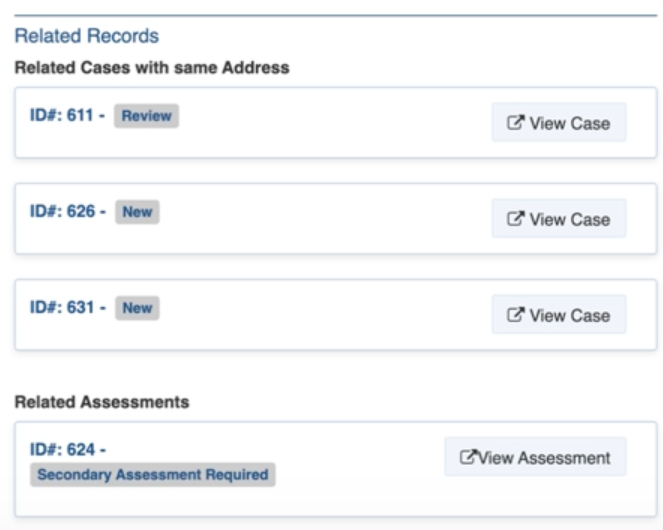
Related Records highlights Cases and Assessments with the same address. This helps avoid duplication.&#x20;

<figure><img src="https://3923904090-files.gitbook.io/~/files/v0/b/gitbook-x-prod.appspot.com/o/spaces%2FNy7IznbrPLUq6GJDDQDk%2Fuploads%2FIdcrpWqfIb3ymuKElOJN%2Fimage.png?alt=media&#x26;token=a72a437b-347c-42a3-8e84-dbb38ac2299c" alt="" width="332"><figcaption><p>Example of Related Records section with <br>related Cases and Assessments</p></figcaption></figure>

### Classification

Refer to: [Editing Items: Classification](https://docs.cw.crisisworks.com/concepts-and-fundamentals/on-a-computer/using-the-datagrid/editing-items#classification)

Your Administrators configures the list of Classification for your site using [Recovery: Assessment Classification](https://docs.cw.crisisworks.com/system-administration/configuring-the-system/lookups).

### Administrative

Refer to: [Editing Register Items: Administrative](https://docs.cw.crisisworks.com/concepts-and-fundamentals/on-a-computer/using-the-datagrid/editing-items) for more information on creating an Assessment template

### Activity

Refer to: [Viewing and Opening Register Items: Activity](https://docs.cw.crisisworks.com/concepts-and-fundamentals/on-a-computer/using-the-datagrid/viewing-items#activity)

## Updating Assessments

{% content-ref url="../../concepts-and-fundamentals/on-a-computer/using-the-datagrid/editing-items" %}
[editing-items](https://docs.cw.crisisworks.com/concepts-and-fundamentals/on-a-computer/using-the-datagrid/editing-items)
{% endcontent-ref %}

When updating Assessments make any require changes to the [Assessment Settings](#assessment-settings), in particular:

* Update the **Status** to reflect the current stage of the Assessment
* Make sure the **Next Action Due** reflects the current timeframe for actions
* Ensure that the right person is handling the Assessment using the **Assignment** field
* Update the **Assessment notes** and owner information

## Adding Assessments

### Importing Assessments

{% content-ref url="../../system-administration/configuring-the-system/imports" %}
[imports](https://docs.cw.crisisworks.com/system-administration/configuring-the-system/imports)
{% endcontent-ref %}

A System Administrator can and and/or update Assessments in bulk via the Import system using an Assessment Import parsing rule. There are different import parsers for different agencies so it is important that the data is imported correctly choosing the right format and configuring the import file before importing.

### Adding Assessments Individually

{% content-ref url="../../concepts-and-fundamentals/on-a-computer/using-the-datagrid/adding-items" %}
[adding-items](https://docs.cw.crisisworks.com/concepts-and-fundamentals/on-a-computer/using-the-datagrid/adding-items)
{% endcontent-ref %}

{% hint style="info" %}
Note that most Assessments will be [imported](#importing-assessments), not added manually, however you can still add records including General Assessments.
{% endhint %}

To add a new Assessment:

1. Select the **New Assessment**  <img src="https://3923904090-files.gitbook.io/~/files/v0/b/gitbook-x-prod.appspot.com/o/spaces%2FNy7IznbrPLUq6GJDDQDk%2Fuploads%2FVwx3Kt41FGewUebEV3Ds%2Fimage.png?alt=media&#x26;token=fe987809-6d10-4623-a6b8-51909f29fd82" alt="" data-size="line"> button from the New item menu.
2. Complete each section of the [Person Settings](#persons-settings) as required. Note that some options may open up new sections to complete.
   1. Select the **Assessment Type** and accept or adjust the **Received Date/Time**
   2. Complete the **Agency Report** and **Impacted Property** details
   3. Optionally set a **Priority** and **Next Action Due**
3. Save <img src="https://lh7-rt.googleusercontent.com/slidesz/AGV_vUdxguuj9xwJEldR-AEtdppMcii-75f-1n_lDc_e5eU4rfn10E2tOI9uPHN9sbLoYoyD-lvaEfd_O_h1lvGfVg7ufCiZ0fJYJv6t0QpA-sBQkANDtx6o_4iUfMXkQ41frNoXJQ4ZMA=s2048?key=h-L5f5l-fE0G5R1N5-x9jS7u" alt="" data-size="line">

## Bulk Actions

{% content-ref url="../../concepts-and-fundamentals/on-a-computer/using-the-datagrid/bulk-actions" %}
[bulk-actions](https://docs.cw.crisisworks.com/concepts-and-fundamentals/on-a-computer/using-the-datagrid/bulk-actions)
{% endcontent-ref %}

The following additional bulk actions can be performed on Cases via the Actions menu:

| Action                    | Description                                                                                                                                                                                                                                                                 |
| ------------------------- | --------------------------------------------------------------------------------------------------------------------------------------------------------------------------------------------------------------------------------------------------------------------------- |
| Copy IDs                  | Refer to: [Copy IDs](https://docs.cw.crisisworks.com/concepts-and-fundamentals/on-a-computer/using-the-datagrid/bulk-actions#copy-ids)                                                                                                                                      |
| Export Selected to Report | <p>Refer to:  <a href="../../../concepts-and-fundamentals/on-a-computer/using-the-datagrid/bulk-actions#export-to-report">Export to Report</a><br>Exports to the <a href="broken-reference">Recovery Assessments Report</a></p>                                             |
| Bulk Edit Assessments     | <p>Refer to:  <a href="../../../concepts-and-fundamentals/on-a-computer/using-the-datagrid/bulk-actions#bulk-edit">Bulk Edit</a><br>Change fields for multiple Assessments including Record notes, Status, Source, Assignment, Classification, Tags and Next Action Due</p> |
| Create Cases              | Creates Cases from the Assessments using owner details recorded in the Assessment section.                                                                                                                                                                                  |

## Reports

{% content-ref url="../../system-administration/reporting/running-reports" %}
[running-reports](https://docs.cw.crisisworks.com/system-administration/reporting/running-reports)
{% endcontent-ref %}

The main Reports for Persons include the [Recovery Assessments Report](https://docs.cw.crisisworks.com/modules/recovery/broken-reference) this is also as a bulk option from the [Actions menu](#bulk-actions).